

This overview is for administrators. If you're an agent, learn about agent tasks in NiCE CXone Agent Workspace (Agent).
 App requirements
Before you can use Agent Workspace (Agent), your NiCE CXone system must meet these requirements:
-
A User Hub system. The Agent Workspace (Agent) Suite does not work with Central.
- Dynamic delivery enabled for your tenants High-level organizational grouping used to manage technical support, billing, and global settings for your NiCE CXone system. and business unit.
- Digital Experience (DX) set up for your organization if you use digital channels such as chat, email, and SMS.
- Unified Routing enabled for your business unit.
- ACD Users View, Skills View, and API Access enabled for your agents.
- The Digital Engagement employee profile attribute enabled for your agents if you use digital channels such as chat, email, and SMS. If your agents do not have this attribute enabled, digital interactions and contacts cannot be routed or assigned to them.
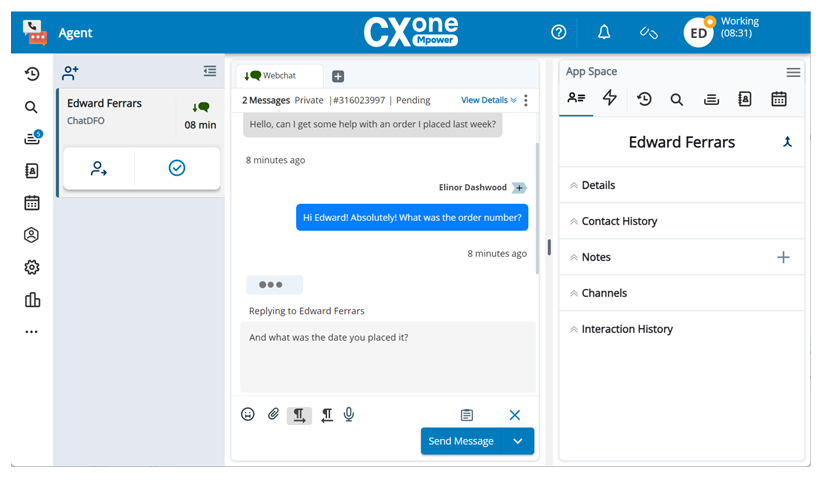
NiCE CXone Agent Workspace (Agent) is a native agent application for use with NiCE CXone. It enables agents to interact with contacts through:
- Phone calls.
- Digital chat.
- Digital email.
- Digital SMS.
- Private social messages through Apple Messages for Business, Facebook, Instagram, LINE, and Microsoft Teams.
- Public social platform interactions on Apple Apps Reviews, Facebook, Google Play, Google Places, Instagram, LinkedIn, and YouTube.
- Voicemails.
- WhatsApp messages.
Agent Workspace (Agent) allows agents to handle multiple digital interactions at the same time. For voice interactions, it supports both physical phones and Integrated Softphone. You can
Agents can access Agent Workspace (Agent) through these direct URLs:
-
If you are not on FedRAMP: https://cxagent.nicecxone.com/

-
If you are on FedRAMP: https://cxagent.nicecxone-gov.com/
They can open Agent Workspace (Agent) through the app selector  in NiCE CXone if you enable this for them. Agents can also use the Agent Workspace (Agent) progressive web app on iPhones running iOS 16 or iOS 17. They can also use it on Android mobile devices. It has been tested for these mobile devices:
-
iPhone 14
-
iPhone 15 Pro Max
-
Samsung Galaxy A36 running Android 15
-
Samsung Galaxy A51
-
Samsung Galaxy A54
-
Samsung Galaxy S23
-
Samsung Galaxy S24 Ultra running Android 15
-
Samsung Galaxy S25 Ultra running Android 16
-
OnePlus Nord 2 running Android 14
If you use a mobile device that's not on that list, you may experience issues. You should not use the Agent WebRTC Extension on iPhones.
Key Features
Agent Workspace (Agent) includes the features listed in the table below.
|
Feature |
Description |
|---|---|
| Internal Chat (Conversations) |
Allow agents to chat one-on-one or in groups with other agents or supervisors inside Agent Workspace (Agent). Enable Internal Chat (Conversations) in the agent's desktop profile. Internal Chat (Conversations) requires a Digital Experience (DX) license. Agents must have the Digital Engagement employee profile attribute to use Internal Chat (Conversations). |
| Automated Summary (AutoSummary) |
Automatically generate call summaries to appear in the Notes section of the Outcomes window. You can set up Automated Summary (AutoSummary) for voice skills Important: Automated Summary (AutoSummary) is licensed separately. For more information, talk to your account representative. |
| Copilot for Agents |
Provide agents with an AI-powered agent assist application. Copilot for Agents generates interaction summaries, responses agents can send to contacts, and more. The AI Agents (Cognigy) for Process Automation (Task Assist) feature can even perform agent-selected tasks in the background. You can set up Copilot for Agents for digital Important: Copilot for Agents is licensed separately. AI Agents (Cognigy) for Process Automation (Task Assist) requires NiCE CXone Bot Builder, also licensed separately. For more information, talk to your account representative. |
| Agent Assist Applications |
Agent assist applications offer helpful information to agents during interactions. They are configured in Agent Assist Hub. The agent assist applications currently supported in Agent Workspace (Agent) are: Cognigy Agent Assist, ConnectLingua, and custom agent assist endpoints open in new tabs outside Agent Workspace (Agent). Important: These agent assist applications are licensed separately. For more information, talk to your account representative. |
| Single Sign-On (SSO) | Allow agents already logged in to NiCE CXone or your external identity provider to access Agent Workspace (Agent). They do not need to input their username and password again. You can manage login authenticators for SSO in NiCE CXone. |
| CRM Third-party systems that manage such things as contacts, sales information, support details, and case histories. Integration |
Pop customer data from your CRM into Agent Workspace (Agent). The supported CRMs are:
|
| Progressive Web App | Agent Workspace (Agent) is available as a progressive web app (PWA). This app is browser-based, but can display notifications to the agent directly on their computer. It can also run in the background. Instruct agents to follow these steps to download the Agent Workspace (Agent) PWA. |
| Automated Language Translation |
Allow agents to send and receive translated messages in real time. This will enable them to interact with contacts who speak a different language. You can enable this in Digital Experience (DX). Important: This is an add-on available for purchase. It involves purchasing and setting up RWS Language Weaver |
| Elevate Interactions |
Agents can elevate an interaction from one channel
In reports, the entire interaction is connected to one interaction ID. There are individual contact IDs for the interaction on each channel. |
| ChromeOS Integration | Agents using ChromeOS can configure ChromeOS desks for Agent Workspace (Agent) so that new desks Workspaces in ChromeOS that allow you to keep each of your tasks separate. open for each new interaction. They can also see their ChromeOS telemetry data in Settings  > Information. > Information. |
| Schedule | Display agents' schedules, defined in WFM. This includes any Workforce Management (IEX Integrated) schedule items. Agent Workspace (Agent) does not support Enterprise IEX. Workforce Management (IEX Integrated) integrates with NiCE CXone ACD, while Enterprise IEX integrates with third-party ACDs. |
| Commitments | Allows agents to create commitments Reminders created by agents to make a follow-up call to a contact. that appear on their schedule. The commitment appears to the agent at the scheduled time, prompting them to initiate an interaction. |
| Work Items Customizable method of delivering contacts to an agent via Studio scripts.
|
Route the work items you create in ACD to agents. |
| Messaging/Notifications | Send messages and notifications to agents through the MESSAGES Studio action or the agent messaging feature in NiCE CXone. |
| Approval Workflows | Manage approval workflows that determine if and how agents are involved in messages that need to be approved by other users. For example, you can require agents to submit messages for approval before they are sent to the contact. |
| Personal Connection | Use Proactive Voice, a Personal Connection channel, to automatically place calls for agents. The dialing mode you choose determines the agent experience with Personal Connection calls. |
| Digital Interaction Search | Enables agents to search for digital interactions. You can enable them to assign interactions to themselves or others. |
| Notes and Tags | Enables agents to add notes and tags to individual messages in interactions. You can configure tags in Digital Experience (DX). |
| Indicators Custom menu items configured by an administrator.
|
Display custom menu items to agents when they click Launch  in the in the |
| Screen Pops A pop-up window with information about the contact that appears on an agent's screen after an event such as connecting to a contact.
|
Display websites, applications, or custom forms to agents when they receive interactions. These screen pops can appear to agents in Screen Pops
In addition to the Studio script, you must also configure screen pops at the skill level. |
| Queue Counts | Show agents how many contacts are in queue and the skill they're associated with. |
| Response Timers |
Display these kinds of timers to agents:
|
| Agent Reports | Show agents statistics that help them evaluate their performance. Agent Workspace (Agent) currently includes the Productivity report and the Performance report. Additional agent reports will be added in future releases. |
| Standard Address Books |
Display standard address books configured in NiCE CXone to agents. You can determine which agents have access to which address books. The phone numbers you add to address books should be in this format: + [country code] [phone number including area code]. They can be a maximum of 15 digits. If they contain an extension, they can be 17 digits. Dynamic address books are not supported in Agent Workspace (Agent). You can disable agent access to standard address books in the Directory |
| External Directory |
Use Advanced Directory Sync to pull directories from external platforms like Microsoft Teams, RingCentral, and Zoom. Any custom fields you configure for those directories appear in Agent Workspace (Agent). The phone numbers you add to external directories should be in this format: + [country code] [phone number including area code]. They can be a maximum of 15 digits. If they contain an extension, they can be 17 digits. |
| Outcomes Result assigned by the agent or system at the end of a voice (disposition) or digital (status) interaction.
|
Enables agents to indicate the result of an interaction. They can assign dispositions to voice interactions. They can assign statuses and dispositions to digital interactions. Statuses are predefined by Digital Experience (DX). You can manage dispositions in NiCE CXone. |
 , a third-party translation tool. RWS Language Weaver is currently the only real-time translation tool you can integrate with
 Accessibility Features
Agent Workspace (Agent) follows WCAG 2.2 AA standards. It works with JAWS and NVDA screen readers and Dragon voice commands. It includes the following features for accessibility:
-
Alt text for non-text content: All images, icons, and other non-text content have alt text that can be read by screen readers.
-
Proper formatting: All tables have headers and HTML table elements. Headings and labels are standardized and clearly structured.
-
Valid field labels: All fields have labels that are readable by screen readers.
-
Color contrast ratios: Text and background colors have an accessibility standard contrast ratio. This makes text easier to read.
-
Component announcements: Page component announcements are easy to understand, particularly on the Information tab in Settings
. ARIA labels announce elements to screen readers. -
User-initiated focus: The user's place on a page is not changed unless they press Tab or Shift + Tab on their keyboard. Focus outlines show where the user is on the page.
-
Responsive content across resolutions and screen sizes: Content adapts to different devices, resolutions, and zoom levels without loss of functionality or readability.
-
Additional accessibility tools: Agent Workspace (Agent) supports additional accessibility tools such as ZoomText for magnification and enhanced visual support.
-
Keyboard shortcuts and navigation: Users can navigate Agent Workspace (Agent) using only a keyboard. When they do so, focus indicators appear. When navigating with a keyboard, a bypass block called Skip to main content is available. Additionally, keyboard shortcuts are supported.
View supported keyboard shortcuts
| Action | Keyboard Shortcut |
|---|---|
| Top Navigation Shortcuts | |
| Focus Top Navigation | CTRL + ALT + T |
| Open this help page | CTRL + F2 |
Open Notifications  |
CTRL + ALT + N |
Connect Agent Voice Link (Agent Leg)  |
CTRL + ALT + C |
| Focus Agent States | CTRL + ALT + O |
| Quick Bar Shortcuts | |
| Focus Quick Bar | CTRL + ALT + B |
Go to Home (Contact History)  |
CTRL + Shift + H |
Open Interaction Search  |
CTRL + Shift + 1 |
Open Queue Counter  |
CTRL + Shift + Q |
Open Directory  |
CTRL + Shift + Z |
Open Schedule  |
CTRL + Shift + X |
Open WEM  |
CTRL + Shift + 2 |
| Open Settings |
CTRL + Shift + 4 |
Open Custom Workspace  |
CTRL + Shift + K |
Open Reporting  |
CTRL + Shift + 5 |
| Open Launch |
CTRL + Shift + 6 |
Open Customer Card  |
CTRL + Shift + U |
Open Multiparty  |
CTRL + Shift + V |
Open Copilot for Agents  |
CTRL + Shift + Y |
Open Quick Responses  |
CTRL + Shift + 3 |
Open Screen Pops  |
CTRL + Shift + F |
Open More Menu  |
CTRL + M |
| App Space Shortcuts | |
| Focus App Space | CTRL + ALT + P |
| Open Customer Card |
CTRL + ALT + U |
| Open Contact History |
CTRL + ALT + H |
| Open Interaction Search |
CTRL + ALT + 1 |
| Open Queue Counter |
CTRL + ALT + Q |
| Open Directory |
CTRL + ALT + Z |
| Open Schedule |
CTRL + ALT + X |
| Open WEM |
CTRL + ALT + 2 |
| Open Custom Workspace |
CTRL + ALT + K |
| Open Multiparty |
CTRL + ALT + V |
| Open Copilot for Agents |
CTRL + ALT + Y |
| Open Quick Responses |
CTRL + ALT + 3 |
| Open Screen Pops |
CTRL + ALT + F |
| Open More Menu |
CTRL + ALT + M |
| Phone Control Shortcuts | |
| Accept Incoming Call | SHIFT + ALT + A |
| Reject Incoming Call | SHIFT + ALT + R |
Call Hold  /Resume /Resume  |
ALT + H |
Call Mute  /Unmute /Unmute  |
ALT + M |
Call Mask  /Unmask /Unmask |
ALT + N |
Call Record  |
ALT + R |
Open Keypad  |
ALT + K |
| Go Back to Phone Controls from Keypad |
ALT + L |
Hang Up  |
ALT + \ |
| General Shortcuts | |
Open Outcome Panel  |
CTRL + ALT + D |
| Go to Next Tab |
|
| Go to Previous Tab |
|
| Switch Digital Interactions | CTRL + ALT + I |
|
Reordering Search Column Shortcuts (These keyboard shortcuts reorder the columns on the Interactions, Messages, and Threads tabs in Search |
|
Move Up  |
CTRL + U |
Move Down  |
CTRL + D |
|
Reordering Apps in Menu (These keyboard shortcuts are available for reordering the options under More |
|
| Move Up |
CTRL + U |
| Move Down |
CTRL + D |
CRM Integration
You can Third-party systems that manage such things as contacts, sales information, support details, and case histories.:
- HubSpot
- Kustomer
- Microsoft Dynamics
- Oracle
- Salesforce
- ServiceNow
- Zendesk
Agent Workspace (Agent) pulls customer information from the integrated CRM and displays it to the agent in the Customer Card .
Additional CRMs will be added in future releases.
User Management
To configure agent usernames, time zones, roles, and more, navigate to Admin > Employees in NiCE CXone.
Before your employees can use Agent Workspace (Agent), they need:
- A NiCE CXone employee profile.
- At least one skill.
Agents who use Agent Workspace (Agent) should not be assigned skills for legacy ACD chat or NiCE CXone email.
Information about the connection status between Agent Workspace (Agent) and the NiCE CXone servers is found under Information in the Agent Workspace (Agent) Settings . It also displays user information, such as Agent ID and Team Name.
If an agent forgets to log out, you can use the Active Agents report to force them to disconnect.
Product Requirements
Before you can use Agent Workspace (Agent), your NiCE CXone system must meet these requirements:
-
A User Hub system. The Agent Workspace (Agent) Suite does not work with Central.
- Dynamic delivery enabled for your tenants High-level organizational grouping used to manage technical support, billing, and global settings for your NiCE CXone system. and business unit.
- Digital Experience (DX) set up for your organization if you use digital channels such as chat, email, and SMS.
- Unified Routing enabled for your business unit.
- ACD Users View, Skills View, and API Access enabled for your agents.
- The Digital Engagement employee profile attribute enabled for your agents if you use digital channels such as chat, email, and SMS. If your agents do not have this attribute enabled, digital interactions and contacts cannot be routed or assigned to them.
Supported Languages
Agent Workspace (Agent) supports the languages listed in the table below.
| Supported Languages | |
|---|---|
|
|