

要访问按团队和坐席划分的质量分数并深入查看评估,请在 My Zone 中访问质量表现页面。
访问评估和质量分数的权限
“质量表现”页面允许您查看某个指定时间段内坐席的平均评估分数。 您可用其评估没有任何交互的坐席。 您可自己评估坐席或者指定其他评估员来评估员工。 “质量表现”页面每小时自动刷新一次,无论之前是手动刷新还是通过自动过程刷新。
定义一组坐席和时间段(以一个月为时间间隔),查看该时间段内其所有已完成评估的分数。
例如,如果您选择一个月,将看到该月中每个坐席的所有已完成评估的平均分数。
您可以通过坐席的平均分数向下钻取查看该时间段内所有已完成的评估。 您还可以在播放器中打开交互并查看评估表单。
您也可以生成评估报告,并删除已完成的评估。
有两种类型的评估可以从 Quality Planner 来分发:
- 标准评估:评估员使用分配的表单对交互执行评估。 您可以审查表单上的答案并回放交互。
-
协作评估:评估员和交互中的坐席同时接收交互和表单。 评估员评估交互,坐席执行自我评估。 您还并排查看两张表单,并进行比较,同时还可以回放交互。
查看质量分数和评估
步骤:查看质量分数和评估
-
转到 My Zone > 质量表现。
-
选择团队,然后选择群组。
网格中的坐席将为您所选团队和群组之间重叠的坐席。 从下拉列表中,选择 Teams,然后选择 组。 系统加载第一组可用条目(最多 250 个 Teams 或 200 个组)。 当您到达列表末尾时,其他条目会自动加载(如果支持此功能),或者您可以使用搜索字段来查找下一组条目。
选择全选将仅应用于当前显示在下拉菜单中的250个团队。如果需要,您可以按名称搜索其他团队,并在已选列表的基础上手动添加这些团队。
团队和组数据提取 API 需要特定权限。如果您无法访问依赖这些数据提取 API 的页面(例如质量表现),请确保已为您分配的角色启用团队和组权限。如果没有这些权限,对相关页面的访问将受限制。
-
指定您要查看的评估表单。您也可以选择使用搜索框快速查找表单,或者按版本进行过滤,如适用。
-
以月为时间间隔,选择开始和结束日期。
-
For each agent, you can view their:
-
Average Score: The average evaluation score for the time frame you defined. The average score can be defined in 2 ways - average of values and average of percentages. You can configure this from the app selector
 and then select Quality Management > QM Score Metric.
Average of values = total points earned ÷ total points possible of all evaluations on the page across all agents
Average of percentages = sum of all quality scores ÷ number of evaluations across all agents
For collaborative evaluations, only evaluator scores will be taken into account when calculating average scores.
-
No. of Evaluations: The total number of evaluations completed for that specific agent.
-
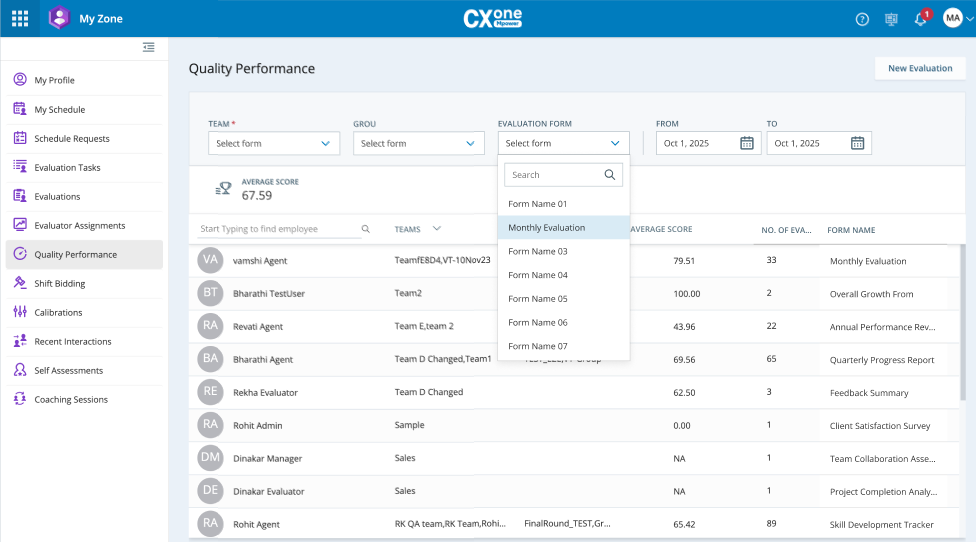
Click on an Agent Name or Average Score to drill down to a list of all of their completed evaluations in the defined time frame. The drill-down page will display only evaluations for the selected form (and version, if applicable).
You can click on any of the evaluations to launch the interaction in the Player and open the answered evaluation form in new windows.
If one of the windows doesn’t open, make sure you have enabled pop-ups on your browser.
Keep in mind that any evaluations that have the status Challenged will not be available. These are evaluations that the agent requested for a review. They will only be available once they have been reevaluated.
 RBAC use case: Quality performance
The evaluation view ensures that a manager can only view their assigned teams’ performances. They can only select the teams that they have permission to view from the Team dropdown.
In this example:
-
Manager One will be able to monitor the performance of Team One
-
Manager Two will be able to monitor the performance of Team Two
View the Quality Performance video clip.
Follow the next step in the RBAC Use Case to On-the-fly evaluations
View the full RBAC Evaluation Views video
To review the RBAC Use Case, navigate to any of the following:
You can perform the evaluations either through the Evaluation Tasks page or Quality Performance page in My Zone.
在没有交互的情况下,从评估任务页面或质量表现页面评估坐席
从“评估任务”页面或“质量表现”页面在没有交互的情况下评估坐席的步骤:
-
转到 My Zone > 任务或 质量表现页面,然后单击 新评估。
-
选择要评估的员工,然后选择评估者。
默认情况下,显示的评估员是您的姓名。 您可以选择另一位评估员。所列的评估员取决于分配给其浏览量中的团队。
查看示例
Hayley 是两个坐席团队的经理,纽约团队和伦敦团队,以及一个巴黎评估员团队。 Nick 是分配给纽约团队的评估员,Lisa 是分配给伦敦团队的评估员。 Nick和Lisa是Hayley的浏览量所包含的Steam的一部分。
-
选择表单名称,然后单击评估。
评估表单显示在新窗口中。 您可以:
-
完成评估并将其发送给坐席。
-
将评估表单保存为草稿。
-
关闭评估表单。 此表单会列于评估任务页面中。
如果您选择其他人作为评估员,单击分配,发起员工评估。 评估者可以在 My Zone 中的评估任务页面中打开分配的评估。
-