
Esta página de ayuda es para Studio. Esta información también está disponible para Desktop Studio.
|
|
Executes CRM
|

Dependencias
- Your agents must use one of the following actions: Agent Workspace (Agent), Agent Workspace (Browser Extension) (Agent Integrated), or Agent Workspace for Microsoft Teams (Agent for Microsoft Teams).
- You must have at least one CRM integration set up on the Agent Integrations page in NiCE CXone. It must have at least one workflow configured. Information about adding workflow configurations is available for Agent Workspace (Agent), Agent Workspace (Embedded) (Agent Embedded), and Agent Workspace (Browser Extension) (Agent Integrated).
- To use the configuration wizard in this action, you must be logged in to NiCE CXone or log in to Studio using the Login button with your NiCE CXone user name and password. If you log in with the Login with Session ID button when you are not logged in to NiCE CXone, the wizard will not appear. This is because access to the wizard depends on Global Authentication, which is only used when you log in with your NiCE CXone user name and password.
- Agent Workflow Configuration must be used with the Agent Workflow Execute action. These actions can only be used in CRM integration scripts.
- Each Agent Workflow Configuration action can support one CRM integration.
Tipos de Script admitidos
|
|
|
| Phone |
|


Propiedades de Entrada
Estas propiedades definen los datos que utiliza la acción al ejecutarse.
|
Las propiedad |
Descripción |
|---|---|
| Título |
Ingrese una frase corta que identifique de forma única esta acción en el script. La leyenda aparece en el lienzo del script debajo del ícono de acción. |
| AgentUser ID |
La variable predeterminada para la ID del agente. Para que los resultados del flujo de trabajo aparezcan en una tarjeta de cliente en Agent Workspace (Agent), asegúrese de incluir dos guiones bajos con este parámetro, {__AgentID}. Para cualquier script digital, la configuración del flujo de trabajo del agente no puede tener dos guiones bajos, {AgentID}. Si se incluyen los guiones bajos, los resultados del flujo de trabajo no aparecerán en la tarjeta del cliente en Agent Workspace (Agent). |
| SearchWorkflow |
La carga útil creada por el sistema para el flujo de trabajo que seleccionó para la acción Buscar usando el asistente de Agent Workflow Configuration. Para modificar este campo, haga doble clic en la acción y seleccione una nueva. |
| TimelineWorkflow |
La carga útil creada por el sistema para el flujo de trabajo que seleccionó para la acción de flujo de trabajo de Timeline CRM mediante el asistente Agent Workflow Configuration. Para modificar este campo, haga doble clic en la acción y seleccione una nueva. |
| dataMemorializationWorkflow |
La carga útil creada por el sistema para el flujo de trabajo que seleccionó para la acción Memorialización de datos usando el asistente de Agent Workflow Configuration. Para modificar este campo, haga doble clic en la acción y seleccione una nueva. |
| SearchCacheKey |
The name of the variable defined in the Cache Key output property in the WORKFLOW EXECUTE action. SearchCacheKey passes information from the search results to the Agent Workspace (Agent) application. If you want to use the Custom Event action to display information rather than what's stored in the cache, leave this field blank. Otherwise, the cache key overrides any custom event information. |
| SearchInput |
La opción de búsqueda dinámica seleccionada en el asistente Agent Workflow Configuration. La opción de búsqueda usa los resultados de búsqueda de la pantalla de SearchWorkflow especificada cuando el agente hace clic en Actualizar. |
Condiciones de la rama de Resultado
Las condiciones de las ramas de resultados le permiten crear ramas en su script para manejar diferentes resultados cuando se ejecute una acción.
|
Condición |
Descripción |
|---|---|
| Predeterminado | Recorrido a menos que el script cumple una condición que requiere uno de los otros poderes. También se considera si no están definidas las demás ramas de la acción. |
| Éxito |
Ruta que se toma si la acción finaliza sin errores y cualquier llamada API o devolución de datos se realiza correctamente (códigos de respuesta 2xx). |
| InvalidAgentId |
La ruta que se toma cuando no es válido el ID del agente. |
| AgentNotConnected |
La ruta que se toma cuando no está conectado el agente. |
| InvalidWorkflowConfigData |
La ruta que se toma cuando no son válidos los datos de configuración del flujo de trabajo. |
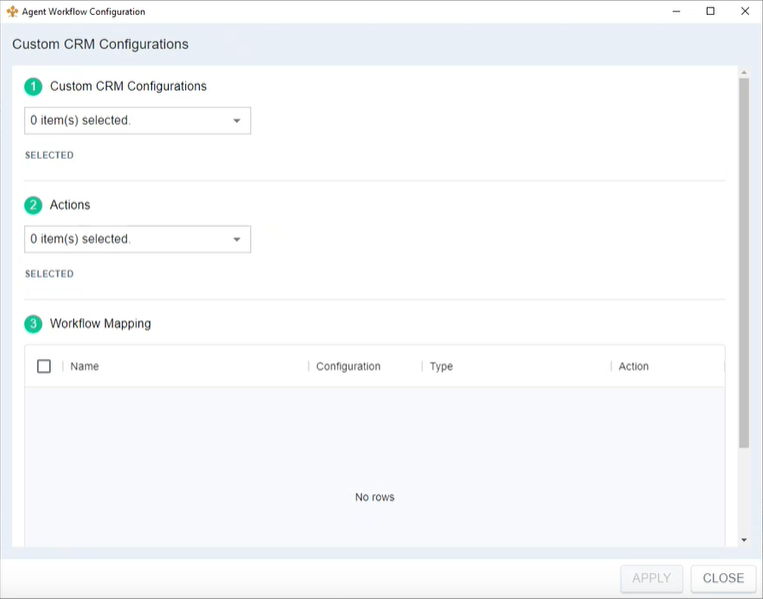
Seleccionar Acciones y Flujos de trabajo
-
- Select the Custom CRM Configuration you want this
-
Select one or more Actions that you want agents to be able to perform when this script runs.
 Learn more about action types
Field Value Details Select all three actions, described below. Agents can add timeline information to the Activities section of the customer card. Data Memorialization
Agents can add data from the selected record in the Activities section of the customer card to the record of the current contact. You determine the data that can be added by mapping it for this CRM in the Agent Integrations page in NiCE CXone. See the CRM integration steps for your organization's CRM and the agent application you use.
Agents can perform a second-level search. After performing an initial search, they can search again to reveal more information about the initial search results. The Search must be selected to have any search records displayed in the Customer Card. -
In the
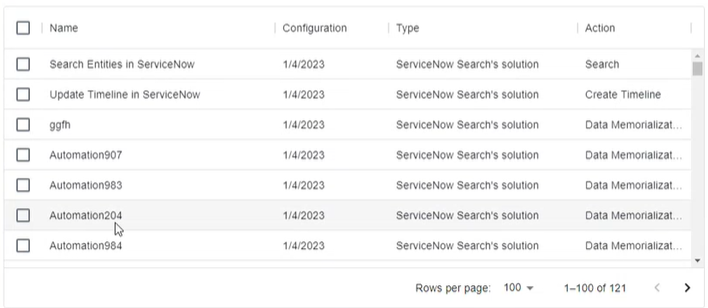
The following example image shows the workflows available for ServiceNow. If you use a different CRM, the options will be different.
- If you want to change a workflow mapping, clear the first selection before choosing a new workflow. If you want to remove all selected mappings, select the checkbox in the column header.
- Click Next.
- Verify your selections on the
- Click Save on the
Ejemplo de Script
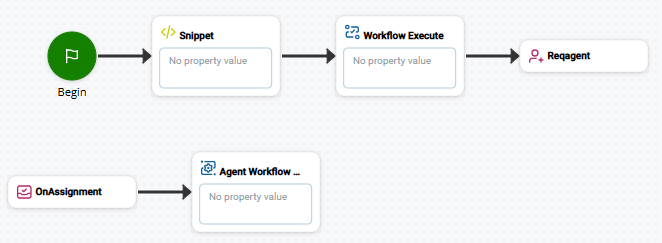
Este es un ejemplo para demostrar cómo se puede utilizar esta acción en los scripts. No pretende ser un script completo. Es posible que se requiera programación adicional.
El siguiente ejemplo muestra el uso de la acción