

| Channel | Type | Set Up & Details | What Agents can Do |
|---|---|---|---|
| Messaging |
|
|
This type of channel Various voice and digital communication mediums that facilitate customer interactions in a contact center. allows your agents to communicate with contacts The person interacting with an agent, IVR, or bot in your contact center. who use WhatsApp from Meta. It supports inbound and outbound messaging:
- Customers can contact your organization with questions or concerns.
- Your agents can also initiate contact with customers outside of the 24-hour WhatsApp communication window.
For outbound messaging, there are three options if you want agents to contact customers using your WhatsApp channel:
- Your agents can create outbound messages using message templates Allow agents to send messages without having to write the entire message each time. Instead, agents fill in blanks with relevant details. in the agent application.
- You can use a CRM system or third-party solution that integrates with NiCE CXone via API Application Programming Interface. Allows you to automate certain functionality by connecting your NiCE CXone system with other software..
- You can create rich media Elements in digital messaging such as buttons, images, menus, and option pickers., such as quick replies and rich links, in Rich Message Settings.
The Jungle at Classics uses social media worldwide for presence and for direct messaging using applications like WhatsApp. Agents can engage with customers who contact The Jungle using WhatsApp. Contact center administrator Mowgli Kipling also works with his NiCE CXone Digital Experience (DX) team to develop and implement approved templates for proactive outbound messaging. For example, agents use an approved template to let customers know about their upcoming appointments.
If you created a WhatsApp channel prior to the Summer 2023 release, your system has routing queue configurations for that channel. These configurations have been replaced with digital ACD skills and routing via Studio scripts, which are described on this page. You can still make changes to routing queues for the channels that have them.
Permission to Contact
You must have permission from customers to contact them. If a customer previously contacted your organization, you can initiate contact with them later. A customer must opt in to receiving communications from your organization.
Meta has strict rules about when, why, and how often you can initiate contact with customers. If you don't comply with the rules, Meta may flag your WhatsApp account. When your account is flagged, the number of messages you're allowed to initiate could be limited.
WhatsApp Business Account Requirements
You must have an approved WhatsApp Business account before you can create a WhatsApp channel Various voice and digital communication mediums that facilitate customer interactions in a contact center. in NiCE CXone.
To create a WhatsApp Business account, you must have:
- A valid phone number:
- The number cannot be one that was previously used with the WhatsApp Business API.
- The number must use the standard international format, including a country code. For example, you could enter +1 555 555 5555.
- Landlines and cell phone numbers are both acceptable.
- You will need to validate this phone number using a six-digit verification code via SMS or a voice call.
- A valid and verified WhatsApp Business account:
- This account must have an Approved status.
- You must have a valid and verified Business account associated with your existing WhatsApp Business account.
- Your Facebook Business Manager ID.
- Your official business name and description.
- The URL for your company logo. The logo must be square, no more than 5 MB, and a PNG or JPG file. The recommended size is 640 x 640 px. The logo must be on a publicly-hosted site.
- Your main business office's time zone.
- Your company's website address, physical address, and a contact email.
- A phone number to associate with WhatsApp Business. This phone number identifies the account in the WhatsApp Business platform. It's used as the sender identity. During the process of creating your WhatsApp Business account, you will need to validate this phone number with SMS or a voice call. Use the standard international format for the phone number, for example, you could enter +1 555 555 5555 for a US-based phone number. To use a phone number already connected to a personal WhatsApp account, that account must be deleted before you can register the number to a business account.
After your business account is approved, you must obtain permission from your WhatsApp contacts to send them messages. Refer to the WhatsApp documentation for more information.
Add a WhatsApp Channel
After you have connected your account, you can add any number of channels that are linked to that account. Each channel represents a different phone number. You will need to verify the phone number each time you create a channel.
- Click the app selector
 and select ACD.
 -
Go to Digital > Points of Contact Digital.
-
Click WhatsApp (Cloud API).
-
Click Create Channel.
-
Click Login with Facebook. This redirects you to Facebook.
-
Enter your login information. If you are already logged in with the correct account, click Continue as [your name]. If you are logged in to an incorrect account, click Log into another account.
-
Click Get Started.
-
Click Continue to connect your account and accept the sharing permissions.
-
Fill in your business information or ensure that autofill entered it correctly.
-
Create or select your WhatsApp Business Account.
-
Enter your Business name.
-
Enter your Business website or profile page.
-
Enter a Country for your business. You may also add an address.
-
Click Next.
-
-
Create or select the WhatsApp Business profile and click Next. If you are selecting an existing profile, continue to step 12.
-
If you are creating a new business profile, enter the display name and click Next.
-
Select a Category for your business and enter a Business Description.
-
You can add a Website to your profile.
-
Click Next.
-
-
Verify the phone number for your WhatsApp Business account. This number cannot be registered to an existing WhatsApp account.
-
Enter the phone number for your WhatsApp Business account.
-
Select either Text Message or Phone Call for your verification method and click Next.
-
Enter the six-digit verification code you received and click Next.
-
-
Click Finish.
-
In NiCE CXone, complete the fields with your channel's information for Digital Experience (DX).
-
Select the Phone number you used in a previous step. Note that it could take up to a few hours for Meta to approve the phone number.
-
Click Create. A green bar at the top of the screen displays [Channel Name] was created.
-
-
Log into your WhatsApp Business Manager to view the new phone number and check its current status.
Change the WhatsApp Channel Name
The WhatsApp Business display name in the WhatsApp Business Manager is used as the channel name on NiCE CXone.
- Click the WhatsApp Business Manager link for the channel.
- Edit the WhatsApp Business display name.
- Save your changes. The NiCE CXone channel updates to match the display name you specified.
Message Templates in Digital Experience (DX)
You can include multimedia in message templates, such as images, videos, or documents. You can also create variables to include in the body of WhatsApp Business message templates. You can create numeric or name-type variables. These help personalize messages with details like a contact’s name or an agent’s department.
Multimedia in message templates is currently supported for Bot Builder, APIs, MAX, and app. Refer to the official WhatsApp documentation  for more details about message template guidelines.
WhatsApp channels require message templates if you initiate contact with customers outside WhatsApp's 24-hour window for communication. If you use NiCE CXone Feedback Management and want to send satisfaction surveys using WhatsApp, you need to create a message template for the survey.
You can also set up rich messages to create rich links, quick replies, and lists of items and time slots that customers can pick from. You can create one type of rich message and assign it to multiple channels in one place. When you create a message template, the template only applies to the channel you created it for. Creating rich messages is simpler than creating message templates.
You must create and manage message templates directly in the WhatsApp Business Manager. Refer to the online WhatsApp Business Help Center for details and instructions on how to create and manage message templates.
Create a Custom Component
A custom component connects a channel to the message templates you create for it. Message templates allow you to set up various types of messages that agents can send to contacts, such as payment requests or appointment time selectors. If you don't create a custom component, your message templates may not be visible to agents in MAX. All templates that you create for your WhatsApp Business Account appear in every channel you select for the custom component.
Before you create the custom component, you need to copy the template settings URL from the WhatsApp (Cloud API) > My Channels page. You need this URL to create the custom component.
Get URL
- Click the app selector and select ACD.
- Go to Digital > Points of Contact Digital.
-
Click WhatsApp (Cloud API).
-
To make message templates available in the agent console, copy the URL that appears below the Channel list.
-
Click Go back to settings at the top of the page.
Configure Custom Component
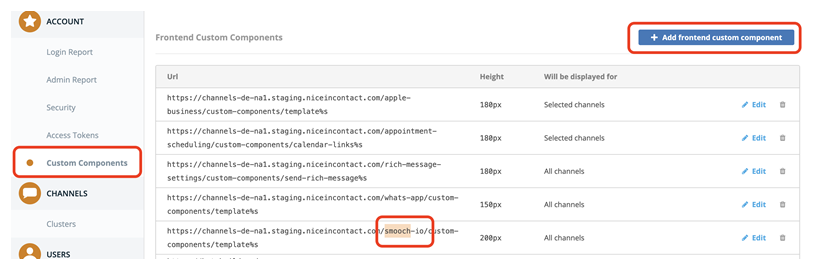
- Click the app selector and select Digital. This opens the Digital Experience (DX) portal.
- Click Settings > Custom Components.
- Find and delete any components with
smoochin the URL. If you don't see any URLs containingsmooch, continue to the next step. - Click Add frontend custom component.
- Paste the URL you copied from the My Channels page into the Url field. At the end of the URL, add %s.
- Enter the Height for the component. The recommended height is
- Under Channels, select the checkbox for the channel you're creating the custom component for. If you don't select a channel, it displays for all channels.
- Click Save.
Configure Roles and Permissions for Your Channel
You need to add this channel Various voice and digital communication mediums that facilitate customer interactions in a contact center. to each role that will use the channel. When you add a channel to a role, you need to configure permissions. These determine what users assigned to the role can do when interacting with the channel.
You can add this channel to existing roles or create a role in the NiCE CXone Admin application specifically for this channel. Digital Experience (DX) users can only have one role.
If you create a new role for this channel, be sure to include any necessary permissions from the Digital Engagement list on the Permissions tab in the NiCE CXone Admin application. When you save the new role, it appears in the ACD > Digital > Roles list, where you can add channels and permissions, as well as assign the role to digital agents An agent who handles digital interactions, such as those on email, chat, social, messaging, and SMS channels. . To handle digital interactions The full conversation with an agent through a channel. For example, an interaction can be a voice call, email, chat, or social media conversation., agents using Agent Workspace (Agent) need to have the Digital Engagement attribute enabled in their Admin employee profile and be assigned to a digital ACD skill Used to automate delivery of interactions based on agent skills, abilities, and knowledge.. Agents using MAX can handle digital interactions if they have either the Digital Engagement attribute or a digital skill assigned to them. Agents either need the Digital Engagement attribute enabled or a digital skill assigned to them to handle digital Any channel, contact, or skill associated with Digital Experience (DX). interactions. However, if you want agents to be able to use other features like searching posts, cases, or messages, you must enable the corresponding permissions.
Be sure to add the Reply permission for all roles that need to interact with contacts The person interacting with an agent, IVR, or bot in your contact center.. Without this permission, users with the role can't reply to interactions. In addition to this permission, you must also enable the Skills View permission in the Admin application to allow agents reply to messages.
- Click the app selector and select ACD.
-
Go to Digital > Roles.
- Click the Edit icon for the role you want to use.
- In the Channels section, locate the channel you want to configure permissions for and click Edit permissions.
-
Select the checkboxes in the channel's row for each permission you want to add to the selected role.
Learn more about channel permissions
Depending on how Digital Experience (DX) is configured, some permissions may not be available.
Permission
Details
Reply
When selected, users can write replies that are published Posting directly to a social media wall, feed, or account. on behalf of the channel. Users without this permission can write drafts of messages. The drafts must be approved before they can be sent or published. Deleting from original platform When selected, users can delete a message or post
A social media thread stems from one original post. A post can result in multiple threads from various contacts. from its original platform (for example, from Facebook or Instagram. For Bring Your Own Channel (BYOC), this only applies to the latest sent message.Hide from original platform When selected, users can hide a message or post on its original platform (for example, Facebook or Instagram). Can approve When selected, users can approve drafts of replies written by other users. Ability to assign/re-assign When selected, users can assign or re-assign any conversation to themselves or other users. Ability to unassign When selected, users can unassign a conversation from themselves or other users. - Click Save. Continue adding permissions for other channels, as needed.
Create a Digital Skill
Required permissions: ACD > Skills Create, Edit
NiCE CXone uses ACD skills to route interactions The full conversation with an agent through a channel. For example, an interaction can be a voice call, email, chat, or social media conversation. to agents. After creating a new skill, you need to assign it to the agents who will handle this type of interaction.
To handle digital interactions The full conversation with an agent through a channel. For example, an interaction can be a voice call, email, chat, or social media conversation., agents using Agent Workspace (Agent) need to have the Digital Engagement attribute enabled in their Admin employee profile and be assigned to a digital ACD skill Used to automate delivery of interactions based on agent skills, abilities, and knowledge.. Agents using MAX can handle digital interactions if they have either the Digital Engagement attribute or a digital skill assigned to them.
If your agents use SFA Classic, do not select the Accept/Reject option in this setup. This feature is not currently supported for digital channels and attempting to enable it will result in the contact being automatically refused.
The name of a skill should be meaningful and unique. It's helpful to be consistent when naming skills. Decide on a standard format for skill names that works for your organization.
A skill name must have a minimum of 2 characters and a maximum of 30. Skill names may only contain letters, numbers, and these special characters:
- Hyphens (-)
- Underscores (_)
- Periods (.)
- Colons (:)
-
Click the app selector
and select ACD. -
Go to Contact Settings > ACD Skills.
-
Click Create New > Single Skill.
- Set the Media Type to Digital and Inbound/Outbound to Inbound. Digital Any channel, contact, or skill associated with Digital Experience (DX). skills will always be Inbound unless you are using Personal Connection or BYOC.
- Enter a Skill Name.
- Select the Campaign you want the skill to be part of.
- To use rich content in your outbound message, select a Message Template.
- To add a sub-skill to this skill, select the checkbox. This only applies if you use digital routing queues for contact skill assignment. This is not the recommended routing method. Using Studio scripts is the recommended method to manage contacts and assign skills.
-
Configure the remaining optional fields in the Skill Information section as needed.
Learn more about fields in this step
Field Details Agentless Personal Connection automatically dials phone numbers of contacts from a calling list and plays either a pre-recorded message or an IVR
Interactive Voice Response. Automated phone menu contacts use via voice or key inputs to obtain information, route an inbound voice call, or both. menu.This is selected by default for Proactive SMS, Proactive Email, and digital Bring Your Own Channel. It cannot be cleared.
Don't select for agent dialing.
When this is selected, Workforce Intelligence Minimum Agents and Workforce Intelligence Minimum Available Agents are not available.
Sub-Skill Allows you to add a sub-skill to a skill. This lets you apply additional filters to match a skill if you use digital routing queues for contact skill assignment. However, using Studio scripts is the recommended method to manage contacts and assign skills. Sub-skill is not compatible with Studio, so using it is not recommended.
Do not allow transfers to skill when closed Determines whether interactions can be transferred to this skill when its hours of operation profile is set to Closed. Select to prevent transfer or leave unselected to allow transfer during closed hours.
-
If your system is configured for divisions, use the Division field to specify which division
Separate data securely between lines of business. Data can only be accessed from within the division it's part of. to assign the skill to. After you have assigned the skill to a division, you cannot change it. To configure this option, you must have the Division Assignment permission. - If you want to use screen pops A pop-up window with information about the contact that appears on an agent's screen after an event such as connecting to a contact. for this skill, use the action in Studio. This capability is only supported for the Agent Workspace (Agent) suite.
-
If you want to change the default prioritization settings for this skill, modify the settings in the Priority Management While in Queue section. You can also do this later.
Learn more about fields in this step
Field
Details
Initial Priority Enter a numeric value you want to set as the base level priority
Skill-based designation of the importance of contacts that determines delivery order. for all contacts in an inbound skill or for fresh records and retries in an outbound skill (callbacks Holds a customer's place in queue and automatically calls the customer when they move to the front of the queue. always take priority and are not affected by this setting). The default value is 0. The maximum initial priority is 9999 for all skill media types A medium, such as voice, email, and chat, through which a contact connects with an intended recipient. except digital. Digital skills have a maximum initial priority of 1000.Enter a numeric value to determine how quickly the priority of the skill increases. For every minute a contact stays in queue, the priority increases by the value you configure for Acceleration.
The default value is 1. The minimum value is 0 and the maximum priority is the value configured in the Maximum Priority field.
For example, if the Initial Priority is 4, and you set Acceleration to 1, then with each passing minute that the contact is not handled, the priority increases by one. In this example, if the contact has been in queue for three minutes, then the priority will be raised to 7.
Priority increments in seconds. For example, when Acceleration is 1, a contact's priority increases by 0.5 after 30 seconds in queue.
For Personal Connection skills, set this value to 0 because there is no queue of contacts.
You can set Initial Priority for one skill lower than another skill, but if you set Acceleration for that skill higher, it can jump spots in the queue. For example, you set Initial Priority for Skill A to 1 and Acceleration to 5. You set Initial Priority for Skill B to 3 and Acceleration to 1. Initially, a contact for Skill B will be first in queue because it has a priority of 4, but after one minute, Skill A will take its place at the top because its priority will be 6.
NiCE CXone combines the acceleration value with the time the contact has been in queue and the initial priority using the formula Overall Priority = (Time * Acceleration) + Initial Priority.
Maximum Priority Enter a numeric value to determine the maximum priority a contact can have. If you choose not to use Acceleration, this value should match the Initial Priority. The default value is 1000. The maximum priority is 9999 for all skill media types
A medium, such as voice, email, and chat, through which a contact connects with an intended recipient. except digital. Digital skills have a maximum priority of 1000. -
If your organization uses AI Routing or dynamic delivery, use the Routing Configuration section to customize the routing experience for this skill. To do so, select an Evaluation Criteria and configure any related settings.
Learn more about fields in this step
Field
Details
Skill Proficiency This is the default setting. Routing decisions prioritize the agent with the highest configured proficiency level for the skill.
Preferred Agent
Routing decisions prioritize the agent who last handled the same case or contact. If you select this option, you must configure these settings:
-
Focus Metric: Specifies which agent is the preferred agent. Choose between:
- Per Case: The agent who most recently handled an interaction linked to the customer case.
- Per Customer: The agent who most recently worked on the interaction with the contact The person interacting with an agent, IVR, or bot in your contact center..
-
Focus Lock: Specifies what happens when the preferred agent is unavailable. Choose between:
-
When Offline: The interaction waits in queue until the preferred agent becomes available or the Fallback Time is exceeded. When the Fallback Time is exceeded, the interaction routes to another agent based on skill proficiency. The receiving agent becomes the new preferred agent for the case or contact.
-
When Available Only: The interaction only routes to the preferred agent when they are in an available state. Sometimes agents appear as available but are actually busy handling something else like ACW
State that allows an agent to complete work requirements after finishing an interaction.. To determine how long to wait for the preferred agent to become available, configure Fallback Time. If the Fallback Time is exceeded or the preferred agent is offline, the interaction routes to another agent based on skill proficiency. The receiving agent becomes the new preferred agent for the case or contact.
-
-
Fallback Time: The number of seconds to wait for the preferred agent to become available. For example, if you enter 900 seconds, the system will wait 15 minutes before routing the contact to another agent. If you choose to use Preferred Agent to route contacts, you must enter a value between 1 and 5,256,000. If you leave this field blank, you receive an error message.
Any interaction that enters the queue without an applicable contact or interaction history routes to an available agent based on skill proficiency.
Least Occupied Contacts route to the agents with the lowest number of active contacts and who have not already met their total contact limit. This option helps to evenly distribute contacts among your agents.
Most Occupied Contacts route to the agents with the highest number of active contacts and who have not already met their total contact limit. This option helps to maximize agent effectiveness.
-
-
If you want to change the default service level settings for this skill, modify the fields in the Service Level section.
Learn more about fields in this step
Field
Details
Service Level Threshold The number of seconds agents have to respond to meet an SLA
Commitment between service provider and customer with defined service level thresholds including quality, availability, and responsibilities.. For example, if your SLA for this skill is to respond to 80% of contacts within 20 seconds, enter a value of 20.Service Level Goal
The percentage of contacts agents must respond to by the Service Level Threshold to meet the SLA. For example, if the SLA for this skill is to respond to 80% of contacts within 20 seconds, enter a value of 80.
- To require agents to manually accept or reject interactions for this skill, select the Accept / Reject checkbox. If an agent rejects an interaction, it returns to the queue.
-
To enable a countdown timer for agent responses, go to Agent Response section. This capability is only supported in Agent. You can also do this later.
Learn more about fields in this step
Field Details Enabled Select this option to make the timer appear in the agent console. Clear the box to hide it.
Agent First Response Enter how long you want to set the timer for. The countdown timer starts when a contact is assigned to the agent. The countdown ends when the agent sends the first message.
Follow on Response
Enter how long you want to set the timer for. The countdown timer starts again when a customer responds to the agent. It ends when the agent sends a reply.
-
To unassign contacts after a timer expires, go to the Customer Response section. This capability is only supported in Agent. You can also do this later.
Learn more about fields in this step
Field Details Enabled Select this option to unassign contacts when the timer expires. Clear the box to have no idle time limit.
Customer Idle Time The countdown timer starts when the agent sends the first message to the customer. The contact will automatically unassign the contact from the agent when the timer expires.
Time Extension
Select this option to let an agent give the customer more time to respond. This enables a button the agent can click to reset the customer idle timer.
- Click Create. Complete additional configurations to customize or manage your skills.
Assign a Default Skill and Script to a POC
All new digital points of contact must be assigned a default skill and default Studio script for interactions to be processed and routed correctly, whether they have routing queues assigned to them or not.
You must have at least one Studio script and one skill created in order to assign them to a point of contact. Outbound contacts should route via Digital Experience (DX) using routing queue filters, whether the point of contact has a Studio script assigned to it or not.
You can check whether a skill serves as a default or not. Go to ACD Skills and select the skill you want to view. In the Details tab, under Skill Information, the field Is Default Skill, displays either Yes or No.
-
Click the app selector
and select ACD. -
Go to Digital > Points of Contact Digital.
-
Select the channel you would like to configure and click Edit.
-
Select a Studio script from the drop-down.
-
Select a default skill from the drop-down.
-
Click Save.