
This help page is for Desktop Studio. This information is also available for Studio.
|
|
Le permite agregar código personalizado a su script.
|

Making REST API calls from a SNIPPET action is strongly discouraged. Instead, use the
Las Dependencias
- Code used in this action must be written in Snippet, an in-house scripting language developed for NiCE CXone. The Studio technical reference guide provides detailed information about scripting in snippets.
- Attributes of dynamic data objects cannot be named __type (with two underscores). This word is reserved for use when parsing JSON from dynamic objects.
- You can make API calls using the Snippet action. However, this is not the recommended method of making API calls in your scripts. If you do make them in this way, be sure to understand the risks and best practices.
- El tamaño máximo de las matrices en Studio es de 63 millones de elementos.
-
-
Filter the data in the API response: For example, if you're using the NiCE reporting API to get contacts, you can filter the results by the startDate and endDate of the contact. This API call also allows you to return and limit a top count of items. Refer to the API documentation that came with your script integration to determine what filtering you can use.
-
Update the API request to return only the data you need: For example, if you're using the NiCE reporting API to get contacts, you can use the contactId or agentId fields to return only relevant data. Refer to the API documentation that came with your script integration to determine what data limits you can use.
-
Build middleware: If you cannot do either of the previous options, build middleware that does filtering based on custom criteria you define. If you do this, ensure that your middleware does not add latency to the call.
-
-
Every FOR, FOREACH, or REPEAT loop within a SNIPPET is protected by a 500 ms time limit. If a loop exceeds this limit, the SNIPPET action takes the error branch with the error Too much time has elapsed. This prevents the use of excessive system resources for runaway loops. The 500 ms time limit applies only to script-side work, including assignments, arithmetic, conditions, array access, and so on. It does not apply to the end-to-end running of the snippet code. For example, time spent waiting for an external system such as a REST API or database call does not count against this limit.
Tipos de secuencias de comandos compatibles
|
|
|
|
|
|
|
|
|
|
Generic |
Chat | Phone | Voicemail | Work Item | SMS |
|


Propiedades de Entrada
Estas propiedades definen los datos que utiliza la acción al ejecutarse.
|
Las propiedad |
Descripción |
|---|---|
| Caption |
Ingrese una frase corta que identifique de forma única esta acción en el script. La leyenda aparece en el lienzo del script debajo del ícono de acción. |
| Data |
Contiene el código personalizado que se agregó en la ventana |
| MaxStringSize |
Define el tamaño máximo de cadena para todos los comandos en la propiedad Data. Las opciones son: Limit2K, Limit4K, Limit8K, Limit16K, Limit32K. Se aplica este límite a las respuestas de integración con las Rest API y SOAP. |
Condiciones de la rama de Resultado
Las condiciones de las ramas de resultados le permiten crear ramas en su script para manejar diferentes resultados cuando se ejecute una acción.
|
Condición |
Descripción |
|---|---|
|
Default |
Recorrido a menos que el script cumple una condición que requiere uno de los otros poderes. También se considera si no están definidas las demás ramas de la acción. |
|
OnError |
Ruta tomada cuando la acción no se ejecuta correctamente. Por ejemplo, cuando haya un problema inesperado como una mala conectividad, errores de sintaxis, etc. La variable _ERR, con un único carácter de subrayado, debe llenarse con una explicación condensada del problema. |
Tenga cuidado al realizar llamadas de API desde SNIPPET
Building API calls within a snippet is not recommended. It may lead to serious performance issues that impact contact handling and negatively impact your tenant.
There are two cases where making calls from SNIPPET is the method you must use: if you're connecting to a SOAP web service or if your API calls include XML. If you must use SNIPPET for API calls:
- Limit timeouts in your API calls. A general recommendation is that timeouts be no more than two seconds. The default timeouts may be longer, so always verify the timeouts to ensure that they do not exceed this maximum. If you find that longer timeouts are required, adjust your web service if possible to improve its response times.
- Be extremely careful with loop logic. The combination of loops and long timeouts compound the potential impact on your system.
-
-
Filter the data in the API response: For example, if you're using the NiCE reporting API to get contacts, you can filter the results by the startDate and endDate of the contact. This API call also allows you to return and limit a top count of items. Refer to the API documentation that came with your script integration to determine what filtering you can use.
-
Update the API request to return only the data you need: For example, if you're using the NiCE reporting API to get contacts, you can use the contactId or agentId fields to return only relevant data. Refer to the API documentation that came with your script integration to determine what data limits you can use.
-
Build middleware: If you cannot do either of the previous options, build middleware that does filtering based on custom criteria you define. If you do this, ensure that your middleware does not add latency to the call.
-
Consejos y trucos
- Utilice la función asjson() en una Snippet
- If you're tuning an ASR
 Reconocimiento automático de Voz. Permite a los contactos responder a los avisos hablando, presionando teclas del teléfono o ambas opciones.-enabled IVR Respuesta de voz interactiva. menú telefónico automatizado que los contactos utilizan mediante voz o entradas de teclado para obtener información, enrutar una llamada de voz entrante, o ambas cosas. system, there is a set of parameters you can use in snippets.
 - The Snippet language provides keyword commands that allow you to declare variables and objects, create loops and iterative statements, and more.
- Studio has built-in functions that you can use in your scripts.
- You can create your own custom functions to use in snippets.
- To add a comment to your code, type two forward slashes (//). You can click the speech bubble
 to automatically insert the forward slashes at the beginning of the row. Select multiple rows to convert them all to comments. Click the speech bubble again to remove the forward slashes. You can also use keyboard shortcuts to toggle comments on and off (CTRL + /).
 - Click the bug
 on the side of the
 -
La persona que interactúa con un agente, IVR o bot en su centro de contacto..
Snippet Editor Ventana
La ventana
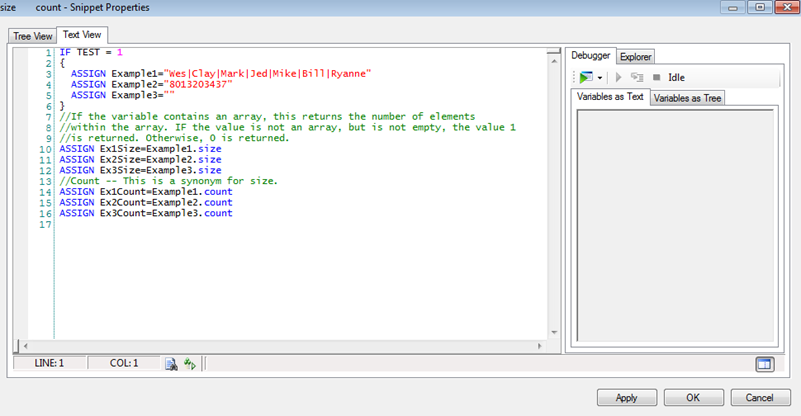
La ventana
- La pestaña Vista de Texto. Este es un campo de texto de formato libre donde puede escribir manualmente su código.
- La pestaña Vista de Árbol. Esta es una interfaz gráfica que puede utilizar para crear su código. Esta pestaña tiene una lista desde la que puede seleccionar palabras clave para agregar declaraciones al snippet.
Ejemplo de Script
Este es un ejemplo para demostrar cómo se puede utilizar esta acción en los scripts. No pretende ser un script completo. Es posible que se requiera programación adicional.
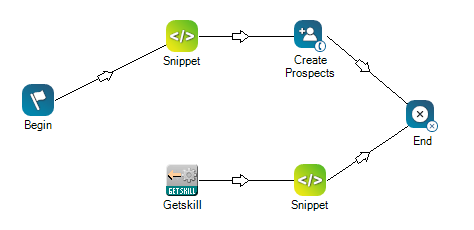
En este simple ejemplo, el código en el Retazo se utiliza para probar si un cliente potencial puede crearse utilizando información de un sistema de terceros.