
This help page is for Desktop Studio. This information is also available for Studio.
|
|
Requests an agent that has a specific digital skill
You can also modify a digital contact's priority using the UPDATE CONTACT (DIGITAL) action. |

Dependencies
- Before working with digital scripts, learn more about the differences in how NiCE CXone handles digital and traditional ACD interactions.
- You must assign the script to the digital
 Any channel, contact, or skill associated with Digital Experience (DX). point of contact.
 - In digital scripts, the Reqagent (Digital) action routes contacts to Digital Experience (DX). Digital Experience (DX) handles the contacts from that point, unless a workflow automation job spawns a script.
- Target agent, routing attributes, and priority require that your system uses dynamic delivery.
Supported Script Types
|
|
|
|

The Reqagent action used with all other script media types has a separate help page.
Input Properties
All properties of this action accept variable substitution. To do that, enter the variable in the property field. Enclose the variable in curly brackets ( { } ).
| Property | Details |
|---|---|
| Caption |
Enter a short phrase that uniquely identifies this action in the script. The caption appears on the script canvas under the action icon. |
| Skill |
Select the digital skill Used to automate delivery of interactions based on agent skills, abilities, and knowledge. (routing queue Determine which agents to route digital cases to, using criteria such as the agent having expertise in that type of case.) you want contacts routed to. If you select Default, the script uses the default skill assigned to the associated point of contact The entry point that an inbound contact uses to initiate an interaction, such as a phone number or email address..
Variable substitution is commonly used for this property. |
| Priority |
Enter the priority of contacts for this skill (0-1000). |
| HighProficiency |
The highest skill proficiency an agent must have in order to receive a contact. Proficiency values are whole numbers from 1 to 20, with 1 being best and 20 being worst. |
|
LowProficiency |
The lowest skill proficiency an agent must have in order to receive a contact. Proficiency values are whole numbers from 1 to 20, with 1 being best and 20 being worst. |
| TargetAgent |
Allows you to specify an agent to handle contacts routed by Skill you specified. For example, if you have an agent who is an expert in one niche field, you could set their name to take the contact when an agent is requested. Select an agent from the drop-down or begin typing a name to find the agent. You can use a variable in this field. For example, {agentId}. If the target agent is unavailable or refuses the call, NiCE CXone queues the contact until the target agent becomes available. |
| RoutingAttribute |
Select the specific attributes to use in the routing criteria. When requesting agents, only agents with the specified Skill and RoutingAttribute combination are matched. When used for routing decisions, you can use the UpdateContact action to change or remove the routing attributes later in the script. The default option is Not Applicable. You can use a variable for this property. You can enter more than one attribute by separating them with commas. If you narrow your agent pool too far, your interactions could become stuck in queue with no matching agents to route to. To help avoid this, use no more than five attributes per routing action. |
| Priority Management |
Allows you to specify how you want priority management handled for this action. The default is DefaultFromSkill. This means the script uses the priority management defined in the Skill you selected. Select Custom if you want to override the priority settings for the skill and specify different handling. Set the levels you want this action to use in the InitialPriority, Acceleration, and MaxPriority fields. |
| Acceleration |
Determines how quickly the priority increases with every minute the contact stays in queue. The default value is 1. The minimum value is 0 and the maximum priority is the value configured in the Max Priority property. For example, if the Initial Priority is 4 and you set Acceleration to 1, then with each passing minute that the contact is not handled, the priority increases by one. If the contact is still in queue after three minutes, the priority will be raised to 7. You can set InitialPriority for one skill lower than for another skill, but if you set Acceleration for that skill higher, it can jump spots in the queue. For example, you set Skill A's InitialPriority to 1 and Acceleration to 5. You set Skill B's InitialPriority to 3 and Acceleration to 1. Initially, a contact for Skill B will be first in queue because it has a priority of 3, but after one minute, a contact for Skill A will take its place at the top because its priority will be 6. NiCE CXone combines the acceleration value with the time the interaction has been in queue and the initial priority using the formula Overall Priority = (Time * Acceleration) + Initial Priority. |
| Max Priority |
Specify the maximum priority that a contact using this skill can have. If a contact reaches max priority, priority is the only factor NiCE CXone uses to route the contact. This can cause issues if multiple contacts all reach max priority at the same time. For digital contacts, the maximum priority is 1000. This may be different from the max priority of other contact types. |
Result Branch Conditions
Result branch conditions allow you to create branches in your script to handle different outcomes when an action executes.
|
Condition |
Description |
|---|---|
|
Default |
Path taken unless the script meets a condition that requires it to take one of the other branches. It is also taken if the action's other branches are not defined. |
|
OnError |
Path taken when the action fails to execute properly. For example, when there is an unexpected problem such as poor connectivity, syntax errors, and so on. The _ERR variable, with a single underscore character, should be populated with a condensed explanation of the problem. |
Script Example
This is an example to show how this action can be used in scripts. It is not intended to be a complete script. Additional scripting may be required.
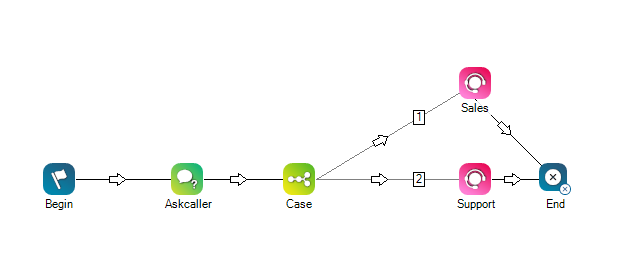
In this example, Begin triggers an Askcaller action, which gives the contact the option to contact sales or support. The Case action creates two custom branches, each of which connect to a digital Reqagent action. Branch 1 is configured with the skill Used to automate delivery of interactions based on agent skills, abilities, and knowledge. for the Sales team and branch 2 is configured with the skill for the Support team.
The last action in this example is End. In digital scripts, the End action terminates the script, but not the contact. After the Reqagent action, the contact is passed into Digital Experience (DX), where it stays until the end of the interaction, unless a workflow automation job calls another script.