

如果您的管理員已為您啟用此功能,客戶卡會提供有助您處理聯絡的資訊。 透過通道與客服專員進行的完整對話。例如,互動可以是語音通話、電子郵件、聊天或社交媒體對話。,然後按一下頂部選單中的 Customer Card
 。
一個聯絡人可能有多於一張客戶卡。您可以按一下合併  ,以合併客戶卡。
代理可以直接在以 DX 為基礎的 Customer Card 內編輯客戶名稱。這可改善聯絡識別,並在管理多個進行中的互動時減少混淆。
對於數碼互動,客戶卡片中提供的資訊會隨著您收到的每個新訊息或電郵而更新。

展開每個部分以存取有關聯絡人的資訊:
- 詳情:檢視、編輯和新增聯絡人資訊,如電郵地址、電話號碼和位置。
-
聯絡歷史記錄:查看與聯絡人過往互動的清單。 對於每個互動,會顯示通道、處理它的客服專員、發生日期,以及處置方式
由客服專員或系統在語音(處置方式)或數碼(狀態)互動結束時指定的結果。或狀態 由客服專員或系統在語音(處置方式)或數碼(狀態)互動結束時指定的結果。。 點擊互動可在 預覽中將其打開。 -
備註:檢視其他客服專員所寫的備註。 若管理員為您啟用此功能,您還可以編輯、新增和刪除備註。
-
通道:檢視聯絡人的可用通道
於聯絡中心內促進客戶互動的各種語音及數碼通訊媒介。。 -
互動活動:查看已處理聯絡的客服專員的歷史以及這些互動的狀態。
-
目前互動:檢視包含聯絡人資訊的CRM
用於管理聯絡人、銷售資訊、支援詳細資料及個案記錄等項目的第三方系統。記錄。 僅在您的管理員已將 CRM(例如 Salesforce 或 Microsoft Dynamics)連接至 即可取消連結該記錄。 點擊此圖示旁邊的按鈕以在 CRM 中打開記錄。
預設情況下,此部分中的資訊會被快取兩天。您的管理員可以停用此功能。
-
相關 Interactions:查看與聯絡人過往互動的 CRM
用於管理聯絡人、銷售資訊、支援詳細資料及個案記錄等項目的第三方系統。 記錄。 本部分也可顯示相關聯絡人的記錄。 這可能包括同一家庭或帳戶中的聯絡人。 只有在您的管理員已將 CRM(例如 Salesforce 或 Microsoft Dynamics)連接至 Agent Workspace (Embedded) (Agent Embedded) 時,才能使用這些記錄。 按一下記錄旁的Link  ,以將其連結至 CRM。 按一下Linked ,以取消連結該記錄。 點擊此圖示旁邊的按鈕以在 CRM 中打開記錄。 點擊重新整理以查看更多CRM記錄。
預設情況下,此部分中的資訊會快取兩天。您的管理員可以停用此功能。


將 CRM 記錄連結至 Interactions
在客戶卡片中,您可以將CRM 用於管理聯絡人、銷售資訊、支援詳細資料及個案記錄等項目的第三方系統。記錄連結至互動。 連結後,有關互動的資訊(例如聯絡人姓名)將傳遞到 CRM 記錄。 對於呼叫,這發生在呼叫結束和您完成任何聯絡後工作 讓客服專員在完成互動後完成工作要求的狀態。後。 對於數位訊息,這發生在您轉移互動或取消指派給您自己之後。
這些記錄僅在您的管理員已將CRM(例如Salesforce或Microsoft Dynamics)連接至Agent Workspace (Embedded) (Agent Embedded)時才可使用。
-
在 Agent Workspace (Embedded) (Agent Embedded) 中,開啟互動,然後按一下頂部選單中的 Customer Card
。 -
開啟客戶卡的目前互動或相關 Interactions部分。 找到您要連結的記錄。
-
按一下記錄旁邊的 Link
。
取消連結 CRM 記錄與 Interactions
在客戶卡中,您可以將CRM 用於管理聯絡人、銷售資訊、支援詳細資料及個案記錄等項目的第三方系統。記錄從互動中取消連結。 有關互動的資訊(例如聯絡人姓名)不再傳遞到 CRM 記錄。
這些記錄僅在您的管理員已將CRM(例如Salesforce或Microsoft Dynamics)連接至Agent Workspace (Embedded) (Agent Embedded)時才可使用。
-
在Agent Workspace (Embedded) (Agent Embedded)中,開啟互動,然後按一下頂部選單中的Customer Card
。 -
開啟客戶卡片中的目前互動或相關Interactions部分。 找到您要取消連結的記錄。
-
按一下 已連結
以取消連結該記錄。
關聯 Microsoft Dynamics 記錄
您可以在Agent Workspace (Embedded) (Agent Embedded)內關聯Microsoft Dynamics個記錄。 當您按一下客戶卡中記錄旁的Relates To  時,您可以選取第二筆記錄。 此第二個記錄的連結出現在第一個記錄中。 您可以關聯關於相同聯絡人 在您的聯絡中心內與客服專員、IVR 或機械人互動的人員。的記錄以便日後容易找到該聯絡人的所有資訊。
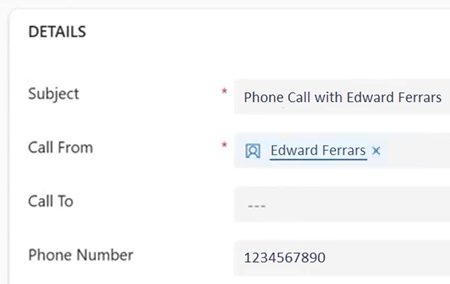
在此範例中,目前的互動記錄是一個Microsoft Dynamics電話Relates To ,此功能會開啟一個下拉式清單,列出可與該電話相關聯的記錄。客服專員按一下其旁邊的Relates To ,選取 Edward Ferrars 的聯絡人記錄。
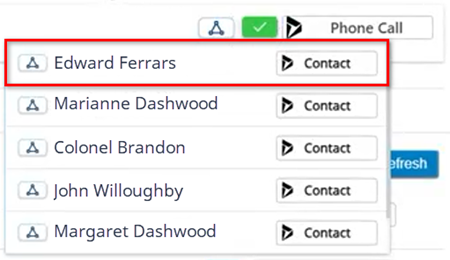
Call From 欄位會顯示在Microsoft Dynamics電話的聯絡人記錄名稱中。
您的管理員必須為您啟用此功能。
-
在 Agent Workspace (Embedded) (Agent Embedded) 中,開啟互動,然後按一下頂部選單中的 Customer Card
。 -
在客戶卡的「目前互動」部分中,按一下涉及
。如果「目前互動」部分中有多個記錄,請按一下其中一個記錄旁的涉及 。 -
在出現的下拉式清單中,按一下您要與目前互動記錄建立關聯的記錄旁的涉及
。檢視您可以關聯的Microsoft Dynamics記錄類型
已建立記錄 可關聯至 電話 帳戶、聯絡人、領導、使用者 任務 所有記錄類型 -
相關至
圖示會變成綠色  。 在Microsoft Dynamics中 ,關聯記錄出現在目前互動記錄的對應欄位。 在此處,您可以按一下相同類型的另一個記錄旁的Relates To 來變更相關記錄。 相關 圖示會在新記錄旁變成綠色 。
關聯 Salesforce 記錄
您可以使用 Agent Workspace (Embedded) (Agent Embedded) 來關聯 Salesforce 記錄。 Salesforce內的第一個記錄中新增一個連結至第二個記錄。 您可以關聯關於相同聯絡人 在您的聯絡中心內與客服專員、IVR 或機械人互動的人員。的記錄以便日後容易找到該聯絡人的所有資訊。
預設情況下,您在Salesforce中開啟的最近記錄會與目前的互動記錄相關。您可以透過開啟另一個記錄來變更相關記錄。當您在記錄之間切換時,系統會自動快速更新。您也可以在Agent Workspace (Embedded) (Agent Embedded)的客戶卡中手動建立記錄之間的關聯。當您按一下客戶卡中記錄旁的涉及 時,您可以選取第二個記錄。
涉及 僅顯示在互動期間曾處於活躍狀態的記錄。如果您按一下 涉及 ,但在下拉式清單中找不到您要尋找的記錄,請在 Salesforce 中開啟該記錄。
```
 ```
您的管理員必須為您啟用此功能。
Elinor Dashwood 正在和 Edward Ferrars 聊天。 她在Salesforce中找到 Edward 的個案記錄。 她希望將此個案記錄與目前的互動記錄相關聯,這樣 Edward 的記錄就會連接起來。 她開啟個案,然後按一下客戶卡中目前互動記錄旁的Relates To ,並確保該個案顯示在Relates To欄位中。
-
在 Agent Workspace (Embedded) (Agent Embedded) 中,開啟互動,然後按一下頂部選單中的 Customer Card
。 -
在客戶卡的「目前互動」部分中,按一下記錄旁的 涉及
。 -
-
針對聯絡人、潛在客戶及人員帳戶,使用名稱欄位。
-
將涉及欄位用於帳戶、活動、個案、商機及自訂記錄。如果您在Name中選取了潛在客戶,則無法使用此欄位。
涉及
僅顯示在互動期間處於活躍狀態的記錄。如果您按一下涉及 後,在下拉式清單中找不到您要尋找的記錄,請在Salesforce中開啟該記錄。在Salesforce中 ,關聯記錄出現在目前互動記錄的對應欄位。 例如,聯絡人記錄會顯示在Name欄位中,而帳戶記錄則會顯示在Related To欄位中。
-
相關 ServiceNow 記錄
您可以在 Agent Workspace (Embedded) (Agent Embedded) 內關聯 ServiceNow 筆記錄。 當您按一下客戶卡中記錄旁的Relates To 時,您可以選取第二筆記錄。 此第二個記錄的連結出現在第一個記錄中。 您可以關聯關於相同聯絡人 在您的聯絡中心內與客服專員、IVR 或機械人互動的人員。的記錄以便日後容易找到該聯絡人的所有資訊。
在這個範例中,當前互動記錄是 ServiceNow 個案。 客服專員按一下案例旁的Relates To ,這會開啟一個下拉式清單,其中列出可與該案例相關聯的記錄。 客服專員按一下其旁邊的Relates To ,以選取Edward Ferrars的消費者記錄。

消費者記錄的名稱出現在 個案中的消費者ServiceNow欄位。

-
在 Agent Workspace (Embedded) (Agent Embedded) 中,開啟互動,然後按一下頂部選單中的 Customer Card
。 -
在客戶卡的「目前互動」部分中,按一下涉及
。如果「目前互動」部分中有多個記錄,請按一下其中一個記錄旁的涉及 。 -
在隨即顯示的下拉式清單中,按一下您要與目前互動記錄相關聯的記錄旁的 涉及
。檢視您可以關聯的ServiceNow記錄類型
已建立記錄 可關聯至 案例 消費者、帳號、聯絡人
事件 使用者 互動 使用者 -
關聯
圖示會變成綠色 。 在ServiceNow中 ,關聯記錄出現在目前互動記錄的對應欄位。 例如,消費者記錄出現在消費者欄位。 如果關聯記錄沒有名稱,則欄位中不會顯示任何文字。 不過,您可以按一下欄位旁邊的Preview this record  以查看相關記錄。
從此處,您可以:
-
按一下同一類型的另一記錄旁的涉及
,以變更相關記錄。新記錄旁的涉及 圖示會變為綠色 。 -
按一下Relates To
(位於另一筆不同類型的記錄旁),以新增另一個相關記錄。 相關至 圖示會變成綠色 ,顯示於新記錄旁邊。 它會變回白色 ,位於您所關聯的第一筆記錄旁邊。 但是,請注意第一個記錄在ServiceNow中仍有關聯。 -
按一下Related
以復原關聯。
-
建立 CRM 記錄
如果管理員已啟用此功能,您可以在處理互動 透過通道與客服專員進行的完整對話。例如,互動可以是語音通話、電子郵件、聊天或社交媒體對話。時建立新的CRM記錄。
-
在客戶卡的相關Interactions部分中,按一下建立新項目
 。
-
在下拉式清單中,選取您要建立的記錄類型,例如案例、聯絡人或領導。
-
在出現的彈出視窗中,按一下儲存。所建立的記錄會顯示在客戶卡中。如果您已登入,它會在您的CRM中開放。
查看更多 CRM 記錄
客戶卡中的相關Interactions部分所顯示的第一批記錄為人員層級記錄,例如帳戶、聯絡人及潛在客戶。 這些記錄包含與「目前互動」部分中的記錄相關的資訊。 例如,該聯絡人家庭中其他人員的記錄可能會顯示在「相關Interactions」中。 您可以重新整理客戶資料卡,以查看更多記錄。 可以顯示互動過程中所建立的記錄。
-
在Agent Workspace (Embedded) (Agent Embedded)中,開啟互動,然後按一下頂部選單中的Customer Card
。 -
按一下頂部的重新整理。
-
在相關Interactions部分中,按一下記錄旁邊顯示的箭頭
 ,以查看與其相關的記錄。
合併 Customer Card
每次您與新聯絡人互動時,Agent Workspace (Embedded) (Agent Embedded)都會為該聯絡人建立包含其資訊的客戶卡。 此外,每當您透過新的通道 於聯絡中心內促進客戶互動的各種語音及數碼通訊媒介。與聯絡人互動時,它亦會建立一張新的客戶卡。 這表示每個聯絡人可能有多於一張客戶卡。 您可以把它們合併起來,將聯絡人的資訊放在一處。
Classics, Inc. 的客服專員 Elinor Dashwood,正在與 Edward Ferrars 通話。Agent Workspace (Embedded) (Agent Embedded) 會根據電話中的資訊,為 Edward 建立客戶卡。在電話中,Edward 提到他昨日曾電郵 Classics, Inc.。Elinor 搜尋先前因電郵互動而為 Edward 建立的客戶卡,並將其與新的客戶卡合併。他的資訊現已儲存在同一張客戶卡中。
-
在Agent Workspace (Embedded) (Agent Embedded)中開啟一個互動。 如果該聯絡人的客戶卡未自動開啟,請按一下 Customer Card
-
按一下客戶資訊卡右上角的 Merge
。 -
可能出現重複的客戶卡片。您亦可以搜尋客戶卡片。
-
選取您要與已開啟的客戶卡合併的客戶卡。按一下合併
。如果合併成功,在會出現一個綠色方框。 聯絡人的資訊會合併至一張客戶卡。

