

The sync dashboard lets you keep track of data that you've synced from your primary system to your Multi-Region BCP system. This lets you clearly see whether certain entities exist in both tenants and whether the Multi-Region BCP version is up to date. Entities are data or components about your tenant that can sync, like skills or employees.
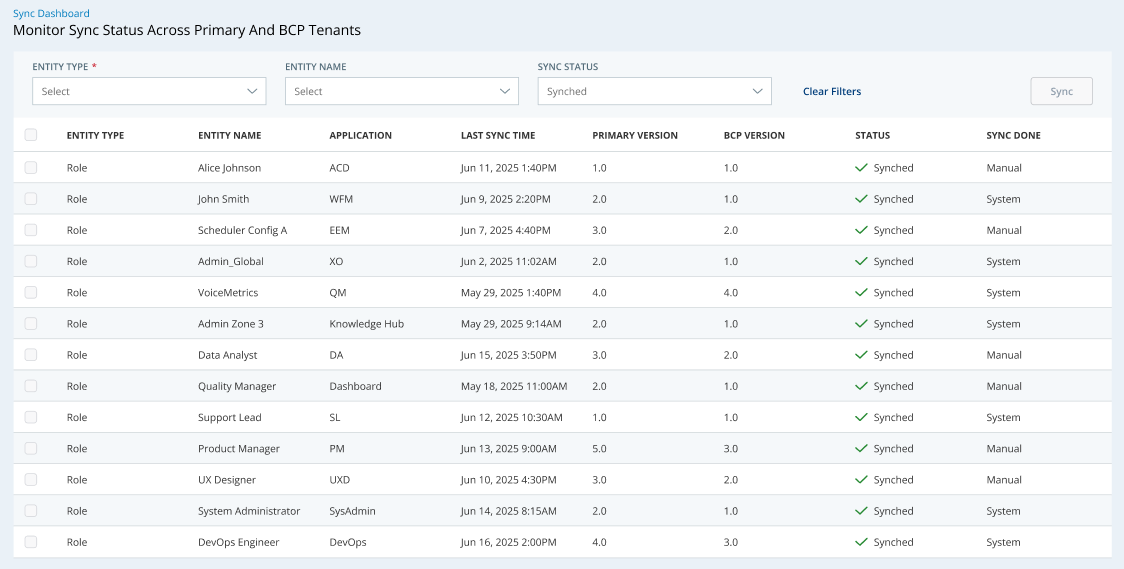
Review Synced Data
Required Permission: Multi-Region BCP > Multi-Region BCP Configurations > Dashboard > View
The following steps help you find specific entities, like skills, and see whether they're in-sync between your two systems.
- Click the app selector
 and select Admin.
 - Go to Multi-Region BCP Settings > Sync Dashboard.
- You can use Sync Status to only see entities according to the following statuses:
- ALL: Displays all entities including successfully synced and completely failed.
- Success: The entities successfully synced from your primary to Multi-Region BCP tenant.
- Failed: The entities are not in sync, or completely failed to sync for the first time. This typically occurs because of a technical issue. You can try to manually sync the entity to resolve the issue.
- You can use Entity Name to filter the list. This may be useful to find specific entities or to limit the ones that display.
- Select the Entity Type that you want to review, like a skill
 Used to automate delivery of interactions based on agent skills, abilities, and knowledge. or team.
Learn more about fields in this step
The following table shows the entities you can select and the application they come from.
ACD Admin Studio Agent Settings (ACD Users) Roles Files Business Unit Settings Teams Scripts (latest version only) Campaigns Users (Employees) Dispositions Hours of Operation Points of Contact (voice) Skills (Inbound Skills) Unavailable Codes Standard Address Book Voice Manual Outbound Personal Connection (Proactive Voice - Review the information on the dashboard. Pay close attention to the statuses and the versions.
Learn more about dashboard columns
Entity Details Sync Status - Success: The entities successfully synced from your primary to Multi-Region BCP tenant.
- Pending: The entities are not yet in sync, but are queued to be synced with an ongoing process.
- Failed: The entities are not in sync, or completely failed to sync for the first time. This typically occurs because of a technical issue. You can try to manually sync the entity to resolve the issue. Alternatively, you can work with your NiCE CXone account representative to investigate the issue.
Sync Done Whether the latest sync was performed automatically by the system, or manually here in the dashboard. Entity Type The component of your system, like a skill or role. Entity Name
The name of the component.
Application The NiCE CXone application that the entity is associated with. Last Sync Time The timestamp at which the entity was last synced. If the entity's primary and Multi-Region BCP versions are different, it's likely that the updates in your primary system will sync to the Multi-Region BCP system with the next sync. Primary Version The current version of the entity in your primary tenant. Multi-Region BCP Version The current version of the entity in your Multi-Region BCP tenant. - If there is a discrepancy between these two versions, you can try to manually sync the entity to resolve the issue.
Sync Button Logic
The Sync button remains disabled by default. It only enables when one or more rows with a Failed status are selected. If any non-failed row is included in the selection, the button is disabled, and a tooltip appears: Manual sync is allowed only for entities with Failed status.
Manually Sync an Entity
Required Permission: Multi-Region BCP > Multi-Region BCP Configurations > Dashboard > Edit
From the sync dashboard, you can manually sync entities that failed to sync. Instead of waiting for the next scheduled sync, this performs a real-time sync attempt from your primary to Multi-Region BCP tenant.
You can sync multiple instances of the single entity. For example, if you have five skills that failed to sync, you can manually sync all five skills at one time. In this example, the skill is the single entity. So, in the sync dashboard you can only display one type of entity at a time. However, you can select multiple of the entities to sync.
- Navigate to the sync dashboard and review the data, explained in the Review Synced Data section on this page.
- From the Status filter, select any failed entities that you want to manually sync.
- (Optional) Refine the list using the Entity Type or Entity Name filters.
-
Select the checkboxes for the failed entities you wish to resync.
- Click Sync.
If certain entities fail to sync, there may be a technical issue to resolve. You can work with your NiCE CXone account representative to investigate the issue.