

This page is for Desktop Studio. You can learn about accessing Studio on the Start Using Studio help page.
Required permissions: at least one of: ACD > Studio > Scripts >
Studio offers several methods of logging in. Not all of these methods are available to all users. If you don't know which login type to use, contact your organization's IT department or your account representative.
Studio remembers you and keeps you logged in even after closing the application. If you want to log out, select the File > Logout & Exit option. If you're a FedRAMP user, Studio automatically logs you out after 15 minutes of inactive time.
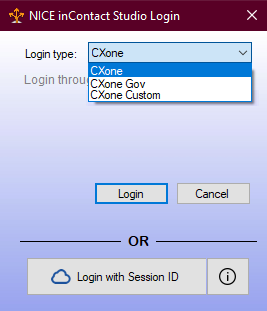
Login Type: NiCE CXone
- Double-click your Studio shortcut to open the Studio Login window.
- Select CXone as the Login Type and click Login. Your default browser opens to the NiCE CXone login page.
- Enter your NiCE CXone Username and click Next.
- Enter your Password and your MFA Token, if one is required.
- Click Sign In. Studio opens.
Login Type: NiCE CXone Gov
This login option is only for FedRAMP users. Studio automatically logs FedRAMP users out after 15 minutes of inactive time.
- Double-click your Studio shortcut to open the Studio Login window.
- Select CXone Gov as the Login Type and click Login. Your default browser opens to the NiCE CXone login page.
- Enter your NiCE CXone Username and click Next.
- Enter your Password and your MFA Token, if one is required.
- Click Sign In. Studio opens.
Login Type: NiCE CXone Custom
- Double-click your Studio shortcut to open the Studio Login window.
- Select CXone Custom as the Login Type.
-
Enter a valid Hostname.
 Learn more about hostnames
Hostname Details cxone.niceincontact.com Use this hostname if you're a NiCE customer using NiCE CXone or if you need to access an external customer environment. cxone-gov.niceincontact.com Use this hostname if you're a NiCE FedRAMP customer using NiCE CXone. Other Use a different hostname if instructed to by your NiCE CXone administrator. - Click Login.
- Enter your NiCE CXone Username and click Next.
- Enter your Password and your MFA Token, if one is required.
- Click Sign In. Studio opens.
Log in with Session ID
- In NiCE CXone, click the app selector
 and select Studio Authentication.
 - Click OK on the message notifying you that a session ID will be copied to your clipboard.
- Double-click on the Studio shortcut to open the Studio Login window.
- Click Login with Session ID. Studio opens.