
Scripting with Files and Folders
You can work with files in Studio scripts. Files must exist on your NiCE CXone system. You can view the files in NiCE CXone on the Browse ACD Files page. You can upload and download files from this page. You can also upload and download files using Desktop Studio.
There are actions that allow you to explore files in your NiCE CXonesystem:
- Readfile: Reads data from a file.
- Filesize: Determines the size of a file in bytes.
- Fileinfo: Retrieves information about a file, such as its location and whether it has been modified.
- Fileexist: Determines if a specific file exists.
- Delete: Removes files from NiCE CXone.
There are actions that allow you to send files via email or FTP/SFTP:
- EMAIL: Sends an email with a file attachment.
- EMAIL (Digital Scripts): Sends an email with a file attachment.
- Attach: Attaches files to generated emails.
- Sendfile: Sends files via FTP or SFTP.
There are actions that allow you to use pre-recorded audio files or prompts in your interactions:
-
-
 Allows users to enter recorded prompts as text and use a computer-generated voice to speak the content.) prompts. If using a file, the entire file is played. Only the contact can hear the audio.
 -
-
-
One final action is the CONCATWAV action, which allows you to concatenate two WAV files.
An excessive load is placed on your system when these conditions are met:
- Your business unit has more than ~15 concurrent calls.
- The scripts that are running contain file-related actions, such as Writefile, Readfile, and Fileexist.
This results in throttling. Your business unit will experience latency with script execution and other functions, including contact handling and state changes, until the backlog of processes completes.
File Paths
When you need to refer to file paths in your scripts, check the help page for the action you're using. Some actions use absolute paths. Others require a relative path. If the help page doesn't specify and one type of path doesn't work in your script, try the other type. The difference between absolute and relative paths is:
- Absolute Path: Always starts at the root folder. It doesn't matter where the script file is located relative to the file or script you're referring to. Use a tilde and a backslash (~\) to indicate the root folder. For example, ~\Folder\file.wav.
-
Relative Path: Describes the location of the file you're referring to relative to the script file, starting at the location of the script file. If the file is located in a subfolder in the same folder as the script, treat the script's location as the root and include the subfolder names in your path. For example, if the script is in \Folder, and file.wav is in \Folder\Subfolder1, you'd write the path like this: \Subfolder1\file.wav. If the file is outside the script's folder, or if a relative path doesn't work, use an absolute path instead.
It's a best practice in Studio to use absolute paths where possible, even where relative paths are also supported. This is especially important when referring to a file that's located in another folder. This best practice applies anytime you're referring to files in scripts, not just when working with development workflow stages.
File Path Management in Scripts
Scripts in Studio rarely exist in isolation. They're typically organized across multiple folders to support reuse and customization. Other files used with scripts, such as audio prompts or ASR Automatic Speech Recognition. Allows contacts to respond to prompts by speaking, pressing phone keys, or both. grammar files, are located in separate folders. If your company uses the Studio development workflow stages, you also have stage-related folders that allow controlled promotion. Scripts frequently reference other scripts located in different folders, path management is necessary for successful scripting.
You can use variable substitution in file paths to create a consistent, reliable way of managing paths in your scripts. This helps ensure that references to other scripts, audio prompts, ASR grammars, and other files are more accurate throughout your script ecosystem.
Path management allows scripts to find an execute other scripts or use other files across folder boundaries. By using variable substitution for file paths, you have paths defined in a small number of places. If folders or files change, you only need to update the path in one place, instead of having to find every reference to the file.
Variable Substitution for File Paths
Using variable substitution for file paths allows you to define:
-
The absolute path to folders that hold scripts or files that you reference in scripts. When you refer to scripts or files located in other folders, you must use an absolute path.
-
Paths that update automatically when a script is promoted. This option applies only if your company uses Studio development workflow stages.
-
Paths to folders and files in a single location, or in a small number of locations. This makes it easier when you need to update the path, because you know where the variables were created.
You can create variables to hold the path to each type of file you reference, such as prompts, grammars, voicemails, other scripts, and so on. If a script saves files to or reads files from a folder, you can use variables for those paths as well.
When you need to reference a file, use the variable in place of the path. For example, create a variable for the path to your prompt files and use it in action Performs a process within a Studio script, such as collecting customer data or playing music. properties when you specify a prompt. It might look like the following example: {promptPath}Greeting.wav.
To automate the path variables updating, you can use a SNIPPET action and write code to determine which development stage folder the script is in, then update the path accordingly. The rest of this help page describes an example of a snippet you can use as a model in your scripting.
If your organization has multiple script developers, work together to develop a strategy for using variable substitution for file paths. This will save time and ensure that everyone knows which variables to use.
File Path Variable Substitution Example
The example of variable substitution for file paths is set up as an entry script. An entry script is the default script configured in a point of contact The entry point that an inbound contact uses to initiate an interaction, such as a phone number or email address. (POC). In the example, the entry script runs to another script that performs the routing for the channel. You could also use one entry script as the default script for more than one POC and have it run to the appropriate routing script based on criteria such as ACD skill Used to automate delivery of interactions based on agent skills, abilities, and knowledge. or DNIS The number dialed on inbound or outbound voice calls.. The benefit of using one entry script for multiple POCs is reducing the chances for errors by having your file path variable substitutions defined in only one place.
The example entry script contains a BEGIN action connected to a SNIPPET and a RUNSCRIPT action, as shown in the following image.
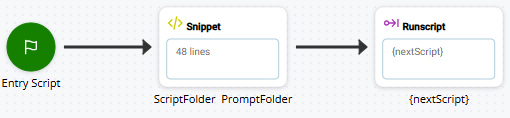
The SNIPPET action contains code that determines the name of and path to the script being run. This information is used to build an absolute path to the folders that contain the scripts, prompts, and so on. You can write your own code or use this example:
SELECT
 {
  CASE runScript.length > 0 //Voice, Legacy Chat, Work Item
  {
   ASSIGN normalizedScriptName = "{runScript}"
  }
  CASE __runScript.length > 0 //Legacy Email
  {
   ASSIGN normalizedScriptName = "{__runScript}"
  }
  CASE __targetScript.length > 0 //Simulate Inbound
  {
   ASSIGN normalizedScriptName = "{__targetScript}"
  }
  CASE __scriptName.length > 0 //Digital
  {
   ASSIGN normalizedScriptName = "{__scriptName}"
  }
  CASE customScript.length > 0 //Custom Outbound script
  {
   ASSIGN normalizedScriptName = "{customScript}"
  }
  CASE __reskillscript.length > 0 //Custom Script assigned to skill on reskill
  {
   ASSIGN normalizedScriptName = "{__reskillscript}"
  }
  CASE global:callSuppScript.length > 0 //Suppression script
  {
   ASSIGN normalizedScriptName = "{global:callSuppScript}"
  }
}
IF normalizedScriptName.length > 0
{
 ASSIGN folderArray = "{normalizedScriptName.split('\')}"
 ASSIGN env = "{folderArray[1]}"
 FOR i = 1 TO folderArray.size - 1
 {
  ASSIGN folderPath = "{folderPath}\{folderArray[i]}"
  }
}
IF env.length = 0
 {
  ASSIGN env = "DEV"
 }
ASSIGN scriptPath = "~{folderPath}\"
ASSIGN promptPath = "~{folderPath}\Prompts\"
ASSIGN grammarPath = "~{folderPath}\Grammars\"
This example code uses a SELECT statement with several CASEs. Each CASE represents one of the system variables that can hold the current script name and path. The variable used in a particular script depends on the type of script. The snippet:
-
Finds the system variable that contains the path to and name of the current script. To do this, it:
- Evaluates each CASE to see if the specified variable's value has a length greater than 0.
- If it does, the snippet selects that CASE and assigns the value of the variable to the normalizedScriptName variable.
-
Determines the name of the development workflow stage folder where the script is located. To do this, it:
-
Uses the split() function to convert the value of normalizedScriptName into an array using the backslash character (
-
Creates a variable called env to hold the name of the current development workflow stage folder. The snippet populates env with the contents of the first array element. Following the example in the preceding step, env would have a value of Prod.
-
-
Builds the path to the current script's folder and stores it in a variable. The path value does not include the name of the script. To do this, the snippet:
-
Uses a FOR loop to add the value of each element in folderArray to a new variable, folderPath, separated by a backslash (
-
-
Contains an IF statement that verifies that the env variable is populated with a value (IF env.length = 0). If it's not, it applies dev to it as a default. This IF statement acts as a backup in case something happens during the preceding IF statement and env is not populated.
It's important that this variable have an appropriate value because it is commonly used in Studio scripts to determine the environment that's being used in variety of situations where the script interacts with a system that might have a sandbox or development version and a production version. For example, this is common with integrations with CRMs
Third-party systems that manage such things as contacts, sales information, support details, and case histories.. You can modify the value to match the name of your organization's development stage folder. -
Defines and populates variables to hold the absolute path to the location of the following folders based on the folderPath:
-
The folders that contain the scripts that the RUNSCRIPT action launches, value:
ASSIGN scriptPath = "~{folderPath}\"
-
The folder that contains the prompts that the subsequent script or scripts use:
ASSIGN promptPath = "~{folderPath}\Prompts\"
-
The folder that contains the grammar files that the subsequent script or scripts use:
ASSIGN grammarPath = "~{folderPath}\Grammars\"
You can create additional variables to hold paths to the locations of other files your organization uses, such as voicemail.
-
The preceding snippet builds an absolute path. You can use this variable in any subsequent script that requires a folder path in a snippet or an action property configuration. If the action you're using supports relative paths, you could choose not to use the folderPath variable. However, best practice in Studio is to use absolute paths where possible, even where relative paths are also supported.
Customize Entry Script Snippet
To allow the example entry script snippet to work with your scripts, you need to customize some of the variables:
-
scriptPath: Modify the value to include any subfolder names not already included in the scriptPath variable, if applicable.
-
promptPath: In the assigned value, change \Prompts\ to the name of the folder where your prerecorded prompt audio files are saved. Include any subfolder names, if applicable.
-
grammarPath: If you use ASR
Automatic Speech Recognition. Allows contacts to respond to prompts by speaking, pressing phone keys, or both., change \Grammars\ in the assigned value to the name of the folder where your grammar files are saved, include any subfolder names, if applicable. If you don't use ASR, you can delete this variable.
You can modify these variable names if you want. However, if you change the names of variables that have already been used in other scripts, you must change every instance of the old name in your scripts. Do not change the name of env.
Additional customizations you can make include:
-
If you have other folders you refer to in your scripts, add variables and configure their values appropriately, following the example of the existing variables.
-
In the following IF statement, modify the default value assigned to env to match the top-level folder for your development stage:
IF env.length = 0
 {
  ASSIGN env = "DEV"
 }
Set Up an Entry Script to Launch Several Scripts
You can set up an entry script to choose which script the RUNSCRIPT action launches. This is helpful if you want to use the same entry script for several main scripts.
To set this up, add scripting logic to the SNIPPET in the entry script that defines how the appropriate script is selected. The following example uses a SWITCH statement with DNIS The number dialed on inbound or outbound voice calls. as the decision-making criterion. You can any supported scripting logic and criteria to meet the needs of your organization. To customize this code, ensure that the value of each nextScript variable defines the appropriate script for its criteria. Include comments with double forward slashes (
SWITCH DNIS // choose the next script based on a DNIS
{
CASE 8885551234  {
	ASSIGN nextScript = "{scriptPath}MainGreeting1"
  }
CASE 8005552345
  {
    ASSIGN nextScript = "{scriptPath}MainGreeting2"
  }
CASE 6145554567  {
    ASSIGN nextScript = "{scriptPath}MainGreeting3"
  }
DEFAULT
  {
    ASSIGN nextScript = "{scriptPath}MainGreeting4"
  }
Use Path Variables in Scripts
After you set up your entry script, you need to use the variables defined in it in your other scripts.
Do not modify production scripts. Always work with the development version of a script where possible. Test all changes before promoting the script back to production. Making changes directly to production scripts can result in contacts not being routed for the affected point of contact The entry point that an inbound contact uses to initiate an interaction, such as a phone number or email address..
-
In Studio, go through your scripts and look for instances where file paths are used. Paths may show up in property configurations, captions, variable values, and snippet code. In particular, look at actions such as RUBSUB, RUNSCRIPT, SPAWN, MUSIC, PLAY, WHISPER, and any of the ASR or file-related actions. You can search for scripts that contain certain actions or that have folder names in their captions.
-
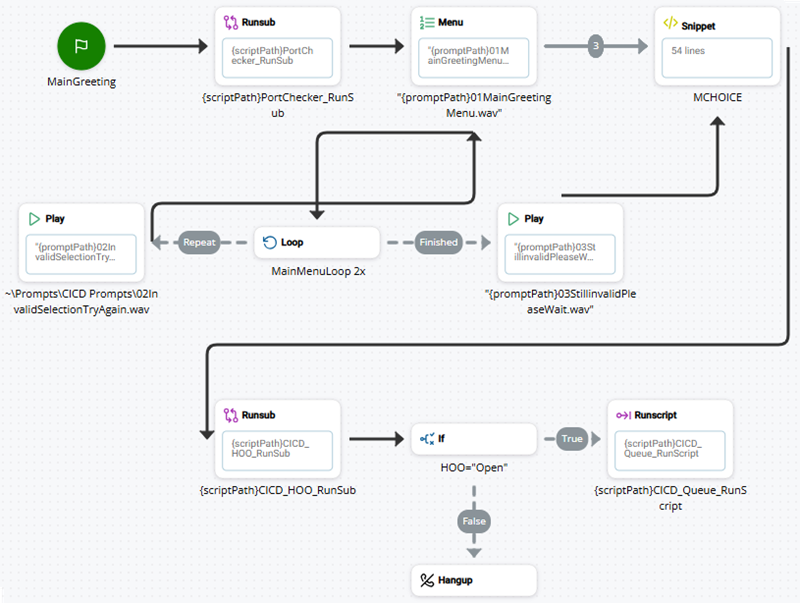
Replace the appropriate part of the file path with the corresponding variable as defined in your entry script. For example, if a MENU action has a Sequence property configured to play 01MainGreetingMenu.wav, you would change it to "{promptPath}01MainGreetingMenu.wav". The following image shows several examples of this in a script.