

Real Time AI Policy lets you define and manage the rules that trigger Agent Workspace (Agent) Copilot during voice interactions processed through Real-Time Third Party Telephony Recording (Multi-ACD). This feature supports Engagement Hub (Multi-ACD/Open) users who use Agent Assist with third‑party telephony systems such as Avaya or Cisco.
With Real Time AI Policy, you can:
-
Create, update, and deactivate policies.
-
Control when Agent Workspace (Agent) Copilot is activated for an interaction
 The full conversation with an agent through a channel. For example, an interaction can be a voice call, email, chat, or social media conversation..
 -
Apply rules
Used to define a bot response to messages that don't change with context. based on agent Contact center employee who interacts directly with customers through inbound or outbound communication channels (voice, digital, or omnichannel)., team, call attributes, and business data. -
Manage rule priority so the system applies the correct policy when multiple rules match.
Real Time AI Policy is available only for tenants High-level organizational grouping used to manage technical support, billing, and global settings for your NiCE CXone system. that have:
-
Real Time AI Policy permission enabled
The Admin role
State that allows an agent to complete work requirements after finishing an interaction. includes this permission, but it is disabled by default. -
AI Studio license enabled and at least one of the following applications:
-
Copilot for Agents Engagement Hub (Multi-ACD/Open)
-
Automated Summary (AutoSummary)for Engagement Hub (Multi-ACD/Open)
-
Creating and Managing Policies
Each policy represents a set of conditions that determine when Agent Workspace (Agent) Copilot should engage on a call.
When creating or editing a policy, you must specify:
Profiles
-
Agent Copilot Profile: Defines which Agent Copilot behavior and features will be available during the interaction.
-
Transcription Profile: Determines how audio is transcribed in real time (engine, language, participant settings).
Interaction Filters
Policies can be applied based on one or more interaction attributes:
-
Teams
-
Users
-
Call Direction
-
Business Data Filters
-
Number fields
-
Text fields
-
Boolean fields
-
-
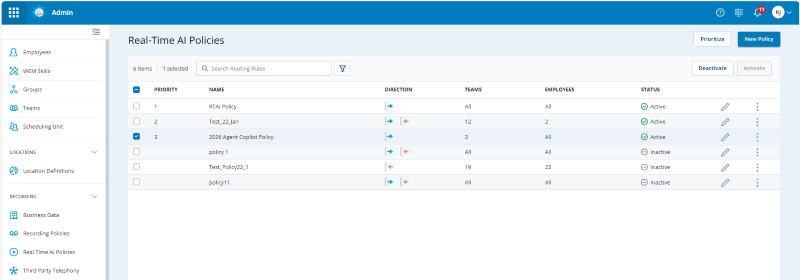
Go to Admin > Recording Management (CXone) > Real Time AI Policies.
-
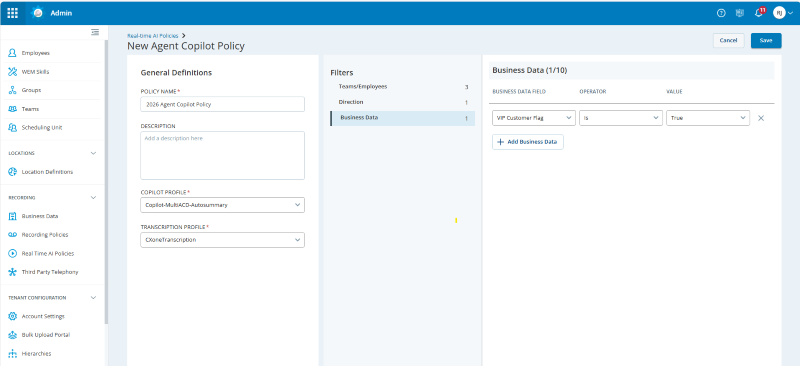
Click New Policy. The app displays the policy creation form, where you define the settings and scope for a new real‑time AI policy.
-
Select the required profiles:
-
Agent Copilot Profile: Defines which Agent Workspace (Agent)Copilot behavior and features will be available during the interaction.
-
Transcription Profile: Determines how audio is transcribed in real time (engine, language, participant settings).
-
-
Define the policy filters by specifying one or more of the following:
-
Teams or Employees
-
Call Direction
The metric direction upwards or downwards. (Inbound From NiCE CXone to you. or Outbound From you to NiCE CXone.)
-
-
Click Save.
-
To edit policy details, click edit
 .
. -
To deactivate or activate a policy, select the checkbox next to the policy and click Deactivate or Activate.
Managing Policy Priority
When more than one policy matches an interaction, priority determines which rule is applied.
-
Administrators can reorder policies to set priority.
-
The first matching rule in the list is the one the policy engine uses.
-
Priorities can be updated at any time to align with changing business needs.
-
Go to Admin > Recording > Real Time AI Policies.
-
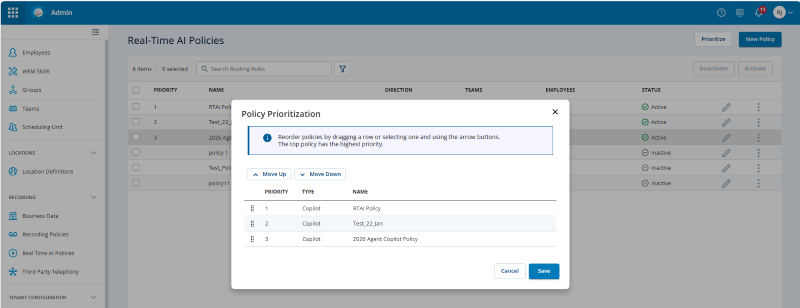
Click Prioritize.
-
Select a policy and click Move Up or Move Down. You can also click and drag to reorder the policies.
-
Click Save.
Audit Messages
See the Activity Audit Report and Change Audit Report to view activities that take place in the Real Time AI Policies application.
Policy Usage Limits
The following limits apply per tenant when creating or editing policies:
-
There is a maximum of 250 Real Time AI policies.
-
There is a maximum of 100 active Real Time AI policies.
Per-policy field limits
|
Field |
Limit |
|---|---|
| Agents | 1000 |
|
Teams |
1000 |
|
Business Data filters |
10 |
-
Existing policies that exceed these limits can still be viewed but cannot be edited until they are updated to comply with the limits.
-
Attempting to create or update a policy that exceeds any of the above limits will result in an error.
-
Activating policies in bulk may be partially rejected if the resulting active policy count would exceed 50.