

In the Evaluator Assignments page, there are two tabs - Plans Monitoring and Manage Evaluations.
Plans Monitoring
In the Plans Monitoring tab, you can see if active plans are finding interactions and distributing them to evaluators. You can monitor the overall progress of the evaluators in completing their tasks within the allocated time period and drill down to view the details by clicking on a plan. The Plan Monitoring page automatically refreshes every hour, whether it was previously refreshed manually or through an automated process.
The quality plans that you can track for your teams should have at least one team accessible. These plans are limited to the views assigned to you in the Evaluation view. A view allows you to control access to interaction State that allows an agent to complete work requirements after finishing an interaction. and employee data.
In the Plan Monitoring page, the total number of evaluations expected for each evaluator defines the estimated or predicted total number of evaluations. This is estimated before the actual distribution of evaluation task assignments.
If the evaluation view is not changed throughout the plan, the total expected evaluation count per evaluator may change.
The label New next to an evaluator’s name indicates that the individual was recently added to the Quality Plan. The label Removed signifies that the evaluator was recently removed from the Quality Plan.
There can be a slight variation of 1 evaluation in the expected distribution if the total assignment is an odd number, or the total number of evaluators is an odd number. (You cannot divide an odd number evenly).
The drill-down view contains:
-
Plan type—Whether the plan is recurring or one-time.
-
Plan summary such as number of evaluators, number of active agents, planned interactions per agent, and the evaluators assigned to the plan.
-
Evaluation progress.
Whenever the value for Distribution (%) and Completed/Expected is higher than expected, you can see an indicator.
The Plan Monitoring page displays the following data for each plan:
|
Column |
Details |
|---|---|
| Plan Occurrence | Weekly/monthly recurring or one time plan. |
|
Distribution (%) |
Distributed interactions versus the expected distributed interactions (for the entire plan period). Indicates how successful the plan is in finding distributions defined in the plan. Distributed interactions include interactions from active and inactive agents while they were active during the plan period. Whenever the distribution value for any plan is more than 100%, an indicator is displayed in the column header. |
|
Completion (%) |
Completed evaluations vs. distributed interactions. Indicates the progress of the completion of evaluations. Evaluations that are being handled from a gap in a previous time period will not be taken into account when calculating the completion of interaction evaluations. Only evaluations from the current time period are counted. |
| Average Evaluations per Day | Completed evaluations / number of the days that already passed in the current plan. |
| Remaining Days | Number of days remaining in the plan period. |
| Status | On track or Off track. Indicates whether the evaluators are on track to complete their interactions in the defined time period or not. |
Example of Quality Plan Monitoring data
A monthly quality plan is created for 10 agents with a sample of 8 interactions per agent, to be distributed between 2 evaluators.
It is the 24th day of the month, and until today, 72 interactions have been distributed. Of those, 48 evaluations have been completed.
Distribution (%) = 72 actual distributed interactions / 80 planned distributions = 90%
Consumption (%) = 48 completed evaluations / 72 distributed interactions = 67%
Average evaluations per day = 48 completed evaluations / 24 days = 2 evaluations per day
Status = At the current average rate of 2 evaluations per day, 12 additional evaluations will be completed in the remaining 6 days of the plan period, for a total of 60 evaluations. Since this is less than 80% of the 80 planned distributions, the status of the evaluations is considered Off Track.
The evaluations are considered Off Track if less than 80% of the planned distribution evaluations are completed.
RBAC use case: plan monitoring
The manager can create a plan and allocate it to the respective team. The plans that have been assigned to the team will show under Plans monitoring.
In this example:
-
Manager One will be able to monitor the plan for Team One
-
Manager Two will be able to monitor the plan for Team Two
Review:
• Assign Agents to the Team
• Assign Employees to the Team
• User-Based View
• Interaction-Segment Based View
• Evaluation Based View
• Quality Plan
Manage Evaluations
In the Manage Evaluations tab, Quality Managers can see the list of all the evaluations initiated through Quality Planner or manual assignment.
You can filter evaluations by assignee, status, type, plan name, date range (Evaluation Start Date), and form name. if evaluations are not a part of a plan, then you can filter it by assignee and evaluation type to narrow down the search.
Currently, sorting for the “Evaluation Status” column is not supported as “Completed” and “Auto-Acknowledge” are two different values of the same workflow status.
Quality Managers can re-assign them to the other evaluators or themselves which are in the New state. Click Options  from the last column and select Change Assignee to change the assignee of an evaluation.
If an evaluation was sent as part of a QP, it can only be reassigned to another evaluator within that QP. To assign it to a different evaluator, add them to the QP’s list.
Click on the evaluation to view NiCE CXone Player along with Form Executor. NiCE CXone Player shows are run the interaction which you can listen. Form Executor shows multiple tabs - Evaluation Form, Evaluation History, and Evaluation Summary.
Manage Evaluation StatusThe Evaluation Status column displays the following statuses:
| status | what it means | when you will see it | what you can do |
|---|---|---|---|
| New |
The evaluation has been created and assigned, but the evaluator hasn’t started it yet. |
Immediately after an evaluation is initiated through a Quality Plan or manual assignment, before it is opened or edited. |
Quality Managers can reassign evaluations in the New state. The evaluator can open it and start working on it. |
| Completed | The evaluator has finished and submitted the evaluation. | After the evaluator submits the evaluation form in NiCE CXone. | Evaluation is generally read‑only. Quality Managers and authorized users can view results and the Evaluation Summary tab (available only for completed evaluations). |
| Appealed | The completed evaluation has been formally challenged and is under review. | After an agent (or other authorized role) appeals an evaluation that was previously in Completed status. | Designated Quality Managers can review the appeal, update scores if appropriate, or uphold the original evaluation. Status changes when the appeal is resolved. |
| Expired | The evaluator did not complete the evaluation within the allotted time period of 60 days. For collaborative evaluations: neither the agent nor the evaluator completed required actions within the time window. | After the due period lapses without submission or required collaboration steps. | Quality Managers can reopen/duplicate the evaluation (as allowed by your process), reassign if needed, and notify participants about the missed deadline. |
| In Progress | The evaluator has opened the evaluation and is actively working on it, but it has not been submitted. | After the evaluation is opened/edited for the first time and before submission. | Continue scoring, add notes and artifacts, save drafts, or reassign if needed. |
| In Review | The evaluation has been completed by the evaluator and is now going through an internal review step (for example, a supervisor is verifying scoring or comments) prior to finalization or release. | After submission by the evaluator and before it is released to the agent or finalized. | Review the form, adjust scores if policy allows, add reviewer comments, or approve/reject for rework. |
| Partially Completed | Some required sections or questions have been filled in, but mandatory items remain incomplete, so the form cannot be submitted. | While the evaluator is working and saves a draft with unanswered mandatory fields. | Complete all required sections or remove/adjust requirements (if permitted) and then submit. |
| Sent to Agent | The evaluation has been released to the agent for visibility and/or acknowledgment, coaching review, or appeal window. | After reviewer approval (if applicable) when the form is shared with the agent. | Monitor acknowledgment, respond to questions, start coaching actions, or manage appeals if the agent contests the results. |
| Sent to Supervisor Workspace (Supervisor) | The evaluation has been routed to the supervisor (or designated leader) for review, approval, or coaching assignment before releasing to the agent or closing. | After the evaluator submits the form when your workflow requires supervisory review. | Supervisors can validate scoring, add coaching plans or comments, approve, or return for rework. |
| Waiting for Agent | Action is pending on the agent—typically acknowledgment, comments, collaboration inputs, or appeal decision. | After the evaluation is shared with the agent and before the agent completes the required step. | Send reminders, clarify expectations, or escalate per policy if the agent does not respond within the timeframe. |
| Waiting for Evaluator | Action is pending on the evaluator—such as completing remaining sections, addressing reviewer feedback, or resubmitting after changes. | When a supervisor has requested edits, or the evaluator saved a draft without completing submission. | Finish scoring, resolve comments, and submit for review or release. |
Reassign multiple Evaluations
In the Evaluator Queue tab, you can bulk reassign interactions by selecting multiple evaluations with row checkboxes or the Select All checkbox in the header and reassign them in a single action. You can select and reassign up to 50 interactions at a time, as long as they share the same evaluation type and status and are in New state. When you click Re-Assign with a valid selection, the system uses the existing single‑interaction reassignment flow for all selected evaluations. It then refreshes the Evaluator Queue so you can immediately see the updated evaluator assignments, along with clear success or error messages showing how many evaluations were successfully reassigned and if any failed.
To reassign multiple evaluations:
- Click the app selector
 and select My Zone.
 -
Click Evaluator Assignments on the left and click Evaluator Queue tab.
-
In the grid, select evaluations:
You can select up to 50 evaluations at a time. If you attempt to select more than 50, the following error message is displayed: Select Max 50 evaluations for changing assignee.
-
Select one or more checkboxes or use Select All to select/deselect all visible rows.
-
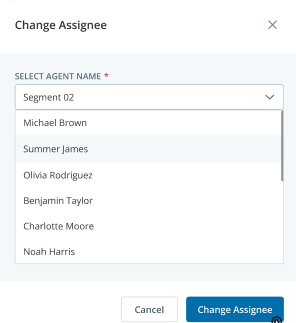
Click Re-Assign. The Change Assignee dialog box is displayed.
-
Select the new evaluator and click Change Assignee. The Evaluator Queue tab refreshes to reflect the updated evaluator assignments.
Evaluation Form
This shows the form configured for the evaluation.
Evaluation History
Evaluation history displays the detailed history of the evaluation. It shows details for each status of the evaluation.
Evaluation Summary
-
Content in this section is for a product or feature is in a public preview program. If you are not part of the preview and would like more information, contact your account representative.
-
Evaluation Summary is available only for the completed evaluations.
-
This feature will be available only to users with the Quality Management (CXone) Advanced or Generative AI license.
Supervisors can understand their agent performance in a quality evaluation along with recommendations for improvement. Evaluation Summary summarizes the overall findings and conclusions from the evaluation process. It provides strengths and improvements for the agent. It also provides suggestions for the evaluation. Refer to NiCE CXone Evaluation Summary for more details.