

You can customize the appearance and behavior of chat that is implemented with Guide by using these chat-related APIs.
Chat Behavior API Calls
The calls in this section allow you to change how the Guide chat window behaves.
Set Authorization Code
Sets an authorization code for OAuth flow. OAuth is an authentication protocol. It allows you to let one application interact with another on your behalf without giving away your passwords. It must be called before chat initialization.
cxone('chat','setAuthorizationCode', 'authorization_code');Customize the Initial Automated Contact Message
When a chat starts in Guide, a new case The full conversation with an agent through a channel. For example, an interaction can be a voice call, email, chat, or social media conversation. is created and added to the queue when the first message of the chat session is sent. A hidden, automated message is sent on the visitor's behalf when the chat session starts. This decreases the amount of time visitors wait for an agent. Although the initial message is hidden from the contact, the agent can see it.
The default message is the text on the button that the customer clicks to start the conversation. You can customize the text of the initial, automated message in three ways:
-
Override the default button text.
cxone('chat','sendFirstMessageAutomatically', 'Hello'); -
Change the initial message dynamically.
cxone('chat','setFirstAutomatedMessageContent', 'Hello, I have a question'); -
Change the message text on the on the translations page.
Make the Initial Automated Message Visible to Contacts
If you want the visitor to be able to see the initial automated message, add this call to your script:
cxone('chat','hideFirstSentMessage', false);Delay Case Creation
Guide creates a new case and adds it to the queue when the first message of the chat session is sent. A hidden, automated message is sent on the visitor's behalf when the chat session starts. This decreases the amount of time visitors wait for an agent. Chat sessions start when a visitor clicks the chat icon to begin a conversation. Although the initial message is hidden from the visitor, the agent can see it.
You can configure Guide to wait for the visitor's actual first message before creating a case using this call:
cxone('chat','sendFirstMessageAutomatically', false);Enable Game Mode
Allows visitors to play the game Snake while waiting for an agent.
cxone('chat','allowGameMode');Automated Satisfaction Survey
A satisfaction survey can be automatically detected and displayed in a pop-up. This enables or disables them to be detected and displayed or not.
cxone('chat','automatedSatisfactionSurveyModal', false);Chat Information API Calls
These calls allow you to customize the information that's available to visitors during a chat session.
Get Customer Identity ID
Returns the unique identifier of the visitor in the chat.
cxone('chat','getCustomerIdentityId');Set Customer ID
Sets a unique identifier for the visitor in the chat.
cxone('chat','setCustomerId', 'customer_id');Hide Queue Counter
The queue counter lets a visitor know how soon an agent will be able to help them based on where they are in the agent's queue. You can hide the queue counter after the visitor has been successfully routed to an agent. This allows agents to remove customer cards from their inbox without visitors noticing.
cxone('chat','hideQueueCounterAfterAssignment');Set Activity Status
Changes the message in the activity bar. For example, you could use it to communicate your response time for a chat messaging Asynchronous chat in which contacts send a chat message anytime and wait for a reply. session. This could be helpful because chat messaging is an asynchronous form of chat, so visitors could have to wait to hear from an agent.
cxone('chat','setStatusMessage', 'We typically reply within 3 hours.');Set Agent's Image
Dynamically changes the agent image displayed in the chat window. By default, Guide uses the image in the agent's profile. When you include this call in your script, it uses the image specified by the URL in the code snippet. Replace the example URL with the URL of the image you want the chat to use.
cxone('chat','setAgentImage', 'http://classics.com/images/agents/elizabeth_bennet.png');Set Customer Name
Customer Name is a field on the precontact survey form, which visitors are required to fill in prior to chatting with an agent on a chat messaging Asynchronous chat in which contacts send a chat message anytime and wait for a reply. channel. This API call dynamically fills the field.
cxone('chat','setCustomerName', 'Elizabeth');Set Date Format
Sets the date format to absolute date format (01/01/2022) or relative date format (today, Monday).
cxone('chat','setDateFormat', 'date_format');Set Locale
Sets the locale for translations in the chat window.
cxone('chat','setLocale', 'locale');Show Case Information
Only for chat messaging Asynchronous chat in which contacts send a chat message anytime and wait for a reply. channels. Shows case information to the visitor.
cxone('chat','showCaseInfo');Show/Hide the Send Transcript Button
If you make the Send Transcript button visible, you must configure the chat channel to allow visitors to send the chat transcript to themselves. Configure this option for chat messaging or live chat.
cxone('chat','showSendTranscript');cxone('chat','hideSendTranscript');Show/Hide System Messages
Shows or hides system messages like agent assignment history.
cxone('chat','showSystemMessages');cxone('chat','hideSystemMessages');Terms of Use
Lets you make a terms of use document available to visitors from within the chat window. This function adds a button to the window. You can customize the button's label and style, and what happens when visitors click it. The on-click action can show the terms of use as an internal window or an external link.
An internal window:
cxone('chat','showTermsOfUse', 'Show terms of Use', 'modal' , 'Our terms of use are ...');An external link:
cxone('chat','showTermsOfUse', 'Show terms of Use', 'externalLink' , 'http://yourdomain.com/terms-of-use');To disable the feature:
cxone('chat','hideTermsOfUse');Custom Fields, Labels, and Phrases
Create and Populate Custom Fields
Before using the custom field API calls below, you must first create the custom field in NiCE CXone. Create the custom field for either a Customer Card or a Contact, depending on which type of custom field you want to populate via the API.
The ident value you assign to the custom field during creation is the same value you will reference in the API call. If the custom field does not exist in the platform, the API call will have no effect.
For step-by-step instructions on creating custom fields, see Manage Custom Fields.
Use the CXone Digital Chat JavaScript API to capture data from your webpage and store it as a custom field value. This allows you to automatically pass contextual information, such as, the page the visitor is on, their account ID, or any other relevant data directly into NiCE CXone when a chat interaction begins.
There are two API methods available, depending on where you want the custom field data to be stored:
-
setContactCustomField — Stores the custom field value on the Contact, which represents a single interaction or conversation. Use this when the data is specific to that particular chat session. For example, the page URL where the chat was initiated, a selected product, or a form reference number.
When using
setCaseCustomField, you may see a deprecation warning in the browser console suggesting you usesetContactCustomFieldinstead.
-
setCustomerCustomField — Stores the custom field value on the Customer Card, which represents the contact's profile across all interactions. Use this when the data is tied to the customer themselves. For example, their account ID, membership tier, or preferred language.
Implementation Overview
The following table summarizes the available API methods for setting custom field values. Refer to the detailed code examples below the table for implementation guidance.
|
example |
API Method |
description |
|---|---|---|
| Set a single Contact custom field | setContactCustomField |
For populating one Case field at a time. |
| Set multiple Contact custom fields at once | setContactCustomFields
|
Efficient bulk update of several Case fields. |
| Set a single Customer Card custom field | setCustomerCustomField
|
For Customer Card profile fields. |
| Set multiple Customer Card custom fields at once | setCustomerCustomFields
|
Bulk update of several Customer Card fields. |
| Static value example | setContactCustomField
|
Hard-coded value, for example, 'Contact Us Page'. |
| Dynamic value example | setContactCustomField
|
Dynamic value, for example, window.location.href. |
Custom field values can be set in two ways:
Statically — The value is hard-coded directly in the API call. This is useful when the value is always the same for a given page, such as labeling which page the chat widget is on.
-
To define the value of single Contact custom field
cxone('chat','setContactCustomField', 'pagesource', 'Contact Us Page'); -
To define the value of more than one Contact custom field
cxone('chat','setContactCustomFields', { customFieldIdent: 'value', secondCustomFieldIdent: 'value' } ); -
To define the value of single Customer Card field
cxone('chat','setCustomerCustomField', 'email', 'leia@starwars.com'); -
To define the value of more than one Customer Card field
cxone('chat','setCustomerCustomFields',
   {
   customFieldIdent: 'value',
   secondCustomFieldIdent: 'value'
   }
   );
-
Dynamically — The value is pulled from the webpage at runtime using JavaScript. This is useful when the value varies per visitor or session, such as capturing the current page URL or a logged-in user's ID.
cxone('chat','setContactCustomField', 'currentPage', window.location.href);
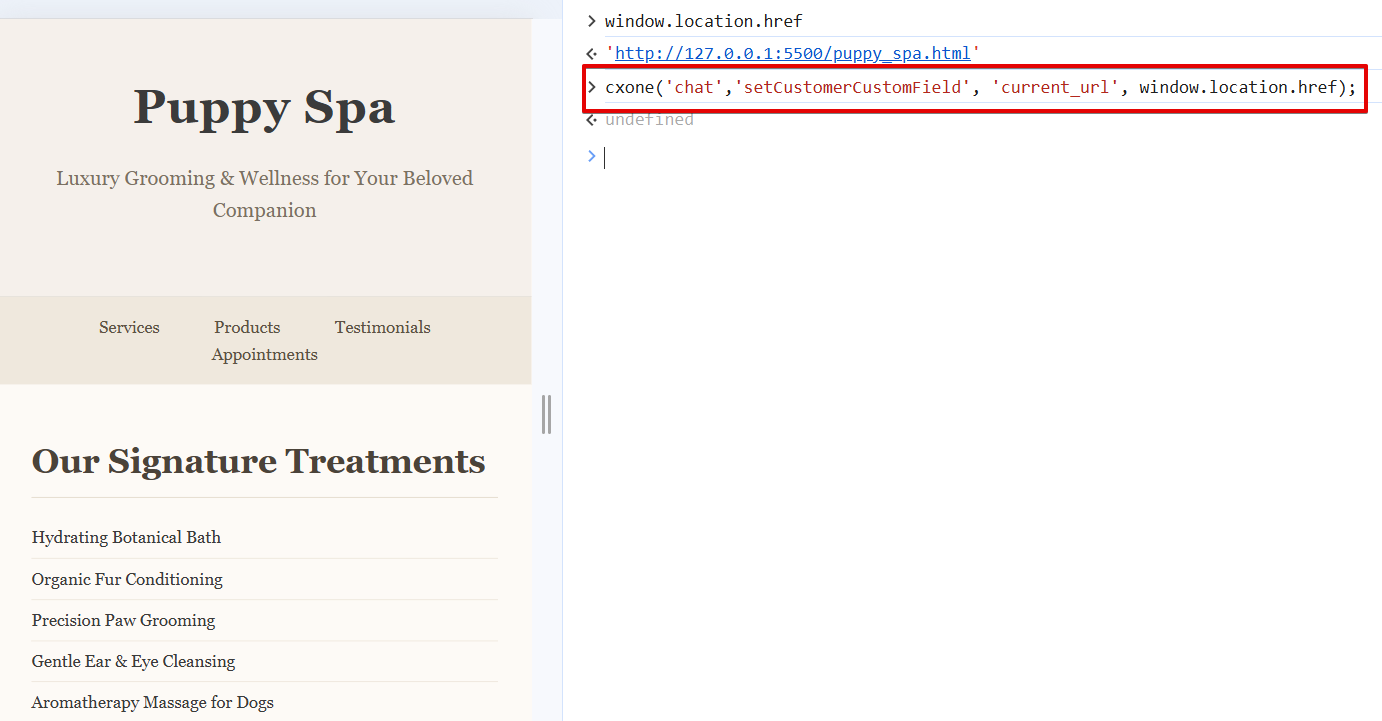
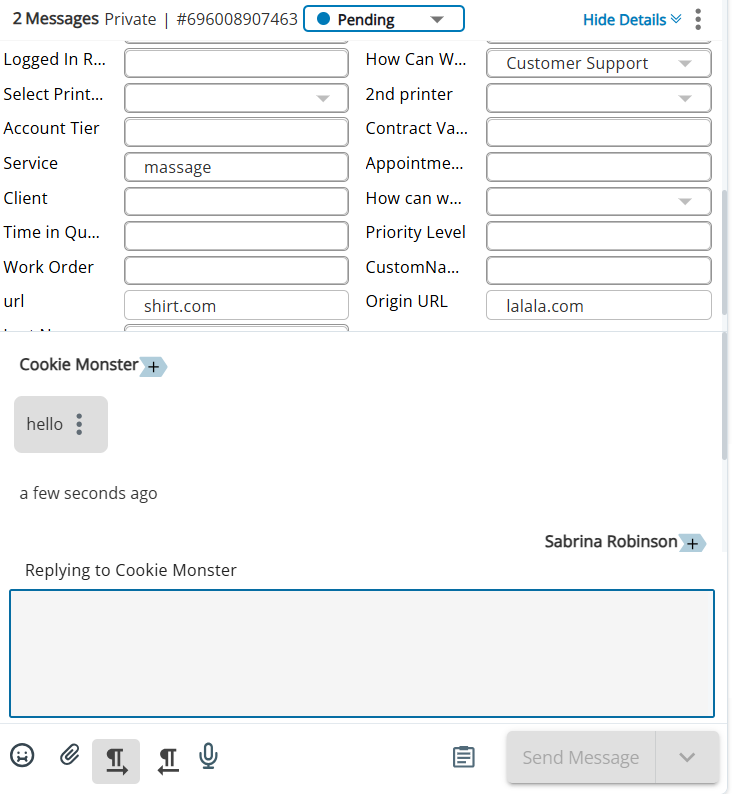
If you are using a pre-contact form to collect information from visitors before the chat begins, you do not need to use these API methods to capture the same data. The pre-contact form fields are automatically saved to the case and customer card as configured.
To define the value of a Customer Card custom field:
cxone('chat','setCustomerCustomField', 'ident_of_custom_field', 'value_of_custom_field');Custom fields are limited to 1024 characters.
Add the custom field API calls to the same script block where the Guide widget is embedded on your webpage. Place the API calls just above the closing </script> tag, after the widget initialization code. For example:
<script>
   // CXone widget initialization code
   cxone('guide', 'init');
   // Add custom field API calls here
   cxone('chat', 'setCaseCustomField', 'pageSource', 'Contact Us Page');
   cxone('chat', 'setCustomerCustomField', 'accountTier', 'Premium');
   </script>
For detailed instructions on embedding the widget and where to place customization calls, see Customize Guide Using JavaScript.
Customize Labels and Phrases
You can customize many of the labels and phrases that Guide chat uses, as well as define the customizations. If you need to dynamically change the phrases or screen labels, use these API calls.
To change a single message or label:
cxone('chat','setTranslation', 'key', 'your translation');To change multiple messages or labels:
cxone('chat','setTranslations', {key1: 'your custom label', key2: 'your custom message'});Curly braces indicate variables that the system replaces with actual data. For example, {caseNumber} is replaced with the case number of the contact's chat session.
|
|
Default label/Message |
|---|---|
| allAgentsForQueueAreBusy | All our agents dedicated to your queue are currently busy. There {queue, plural, one {is} other {are}} <strong>{queue, number}</strong> {queue, plural, one {person} other {people}} ahead of you in the queue. |
|
beginButton |
Begin chat! |
| cancel | Cancel |
| caseNumber | Case #{caseNumber} |
| change | Change |
| chattedWith | You just had a chat with |
| commonErrorText | There was an unexpected error. Please try again later. |
| done | Done |
| dragAndDropDropzone | Drag & drop files here, to send them |
| dragAndDropDropzoneRejected | Impossible to upload file :( |
| EmailLabel | |
| endChat | End chat |
| endChatTitle | Are you sure you want to end this conversation? |
| endGame | End game |
| ending | Ending chat... |
| fileSendingFailed | File sending failed |
| getTranscriptDescription | Send transcript of this conversation to the following email address: |
| getTranscriptLink | Get chat transcript |
| invalidToken | Invalid token |
| ipAddressBlocked | IP address is blocked |
| loading | Loading ... |
| loadPreviousButton | Load previous conversations |
| messageLabel | Message |
| networkErrorText | There was a network error. Please try again. |
| newCase | New case |
| noAgentOnlineForQueue | No agent is available for your queue at the moment. |
| offline | Offline |
| offlineFormDesc | We are not available at the moment |
| offlineFormSuccessMsgHead | Thank you! |
| offlineFormSuccessMsgSub | Your email was successfully sent. We'll get back to you soon. |
| online | Online |
| onlineFormText | To start a chat, please tell us your name. One of our agents will start helping you immediately. |
| pleaseSelect | Please select... |
| poweredBy | Powered by |
| preparingSession | Preparing session... |
| replyBoxPlaceholder | Write here, press<enter> to send |
| retry | Retry |
| sendFileTextSize | Please upload files smaller than {filesize} |
| sendFileTextSupportedFormat | supported formats. |
| sendFileTextSupportedFormatDesc | Images, Videos, {fileFormats} |
| sendMessageButton | Send message |
| sendNewEmail | Send new email |
| sendTranscript | Send transcript |
| snakeWaiting | You're {queue} in queue. |
| startChatInPopup | Ask us! |
| startNewChat | Start a new chat |
| statusReconnecting | Trying to connect… |
| surveySuccesfullySent | Thanks for your feedback! |
| systemChattingWith | You are now chatting with {name} |
| topic | Topic |
| transciptSentFailed | Send failed. |
| transciptSuccesfullySent | Transcript successfully sent! |
| tryAgainButton | Try again |
| unexpectedError | Unexpected error. |
| validationInvalidEmail | E-mail address is not valid |
| validationMandatory | This field is mandatory |
| validationShorterName | Please use shorter name |
| validationShortMessage | Your message is too short |
| waiting | Waiting... |
| waitingDescription | One of our agents will talk to you shortly. |
| waitingFooter | Hit <spacebar> to shorten the waiting. |
| waitingForAgent | Waiting for agent... |
| waitingInQueue | Waiting for agent. You're {queue} in queue. |
| weAreOffline | We're currently offline. |
| weAreOnline | We're online |
| yourNameLabel | Your name |
Chat Window Appearance API Calls
You can modify the appearance of the chat window used by Guide.
Hide Assigned Agent
cxone('chat','hideAssignedAgent');Show Customer Avatar
cxone('chat','showCustomerAvatar');Show Send Button
cxone('chat','showSendButton');Set Character Limit for Reply Box
cxone('chat','setReplyBoxLimit', '280');Custom CSS with Data Selectors
You can customize the appearance of chat windows with custom CSS using data selectors in your API calls. Data selectors allow you to specify the part of the chat window you want to apply the custom CSS to. Define the data selector using the data-selector attribute. Set it equal to the name of the chat window component you want to modify.
To add custom CSS with data selectors, use this API call as a reference:
cxone('chat','setCustomCss', '[data-selector="CUSTOMER_MESSAGE_BUBBLE"] {color: white !important; background: black !important};');-
ACTIVITY_BAR
-
AGENT_MESSAGE
-
AGENT_MESSAGE_BUBBLE
-
AVATAR
-
CONTENT
-
CUSTOMER_MESSAGE
-
CUSTOMER_MESSAGE_BUBBLE
-
DELIMITER
-
DROPDOWN_MENU
-
HEADER
-
INPUT
-
IS_TYPING
-
MESSENGER
-
POPUP
-
PRECONTACT_SURVEY
-
PRECONTACT_SURVEY_DESCRIPTION
-
PRIMARY_BUTTON
-
REPLY_BOX
-
SECONDARY_BUTTON
-
SEND_BUTTON
-
TEXTAREA
-
TEXT_BUTTON
-
WIDGET
-
WINDOW
Apply custom CSS components using the data-selector attribute only. Don't apply it to class selectors or other parts of the JavaScript code, such as in this example:
.Widget__Widget___1qQCf { background: red; }
Integrate with Third-Party Applications
The calls in this section allow you to receive push notifications when certain chat events occur.
Recognize Active Threads in the Chat Window
cxone('chat','getOngoingThreads');Recognize Ongoing Contact in the Chat Window
cxone('chat','getOngoingContact');Receive Push Notification for Specific Chat Events
Click to view compatible events
Use any of the following inputs to replace 'event' in the examples below.
-
CaseToRoutingQueueAssignmentChanged
-
PageViewCreated
-
MessageCreated
-
MessageDeliveredToUser
-
MessageDeliveredToEndUser
-
MessageSeenByUser
-
MessageSeenByEndUser
-
MessageReadChanged
-
MessageAddedIntoCase
-
CaseInboxAssigneeChanged
-
CaseCreated
-
CaseStatusChanged
-
SenderTypingStarted
-
SenderTypingEnded
-
MessageNoteCreated
-
ContactRecipientsChanged
To receive a notification for one chat event:
cxone('chat','onPushUpdate', 'event', callback);To receive a notification for more than one chat event:
cxone('chat','onPushUpdate', ['event', 'event', 'event'], callback);To receive a notification for all chat events:
cxone('chat','onAnyPushUpdate', callback);