
This help page is for Studio. This information is also available for Desktop Studio.
|
|
Allows you to set up multiple custom branches based on the value of the action's Variable property. This action is the equivalent of using a CASE statement in a SNIPPET action. For example, the Case action might be used in a chat script where the chat window presents a pre-chat form to the contact. From a drop-down on the form, the contact chooses from a list of products to chat about. The products are set up as variables in the Begin action for the script, and the Case action is then used to set up different branches depending on the product the contact selected. There is no limit to the number of branches that can be used in a single Case action. |

Dependencies
- For every possible variable value, you must create a custom branch condition.
- Always connect the
Supported Script Types
|
|
|
|
|
|
|
|
|
|
Generic |
Chat | Phone | Voicemail | Work Item | SMS |
|


Input Properties
These properties define data that the action uses when executing.
|
Property |
Description |
|---|---|
|
Add Caption |
Enter a short phrase that uniquely identifies this action in the script. The caption appears on the script canvas under the action icon. |
| Variable | The name of the variable you want |
Result Branch Conditions
Result branch conditions allow you to create branches in your script to handle different outcomes when an action executes.
|
Condition |
Description |
|---|---|
| Default | Path taken unless the script meets a condition that requires it to take one of the other branches. It is also taken if the action's other branches are not defined. |
| Add Custom Condition |
Paths created and taken when connecting to secondary actions using Variable Branch Conditions. Click the ellipsis to open the |
Script Example
This is an example to show how this action can be used in scripts. It is not intended to be a complete script. Additional scripting may be required.
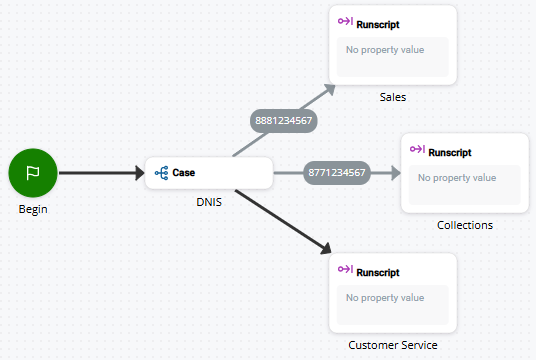
In this example, Case is connected to three different Runscript actions. If a call comes in with a DNIS The number dialed on inbound or outbound voice calls. of 8881234567, then the Sales Runscript action runs a designated subscript. If the DNIS is 8771234567, then the Collections Runscript action runs a different script. Finally, if call does not come in on either of those DNIS numbers, the Customer Service Runscript action triggers a subscript.