

Integration Hub provides a central place to handle integrations with external systems and services. It lets you create standardized REST API Application Programming Interface. Allows you to automate certain functionality by connecting your NiCE CXone system with other software. connections, which you can use in multiple Studio scripts. This avoids the need to repeatedly build the same requests anytime you want to communicate externally via API. Instead, you can build the request once in Integration Hub, then re-use it wherever you need to. This simplifies and speeds up the scripting process.
Integration Hub also makes your integrations more secure. It encrypts API credentials, so each time you use them, they're not exposed in the script. Studio scripts are stored as plain text, therefore you cannot securely store important credentials as variables directly in the script, like tokens used for API requests. Integration Hub lets you quickly add an authentication request to a script, then securely use the retrieved credentials in subsequent API calls. You can also add mTLS certificates to an API request.
You can find Integration Hub in the Connections Hub application in NiCE CXone. You must have the Launch Connections Hub permission to access it.
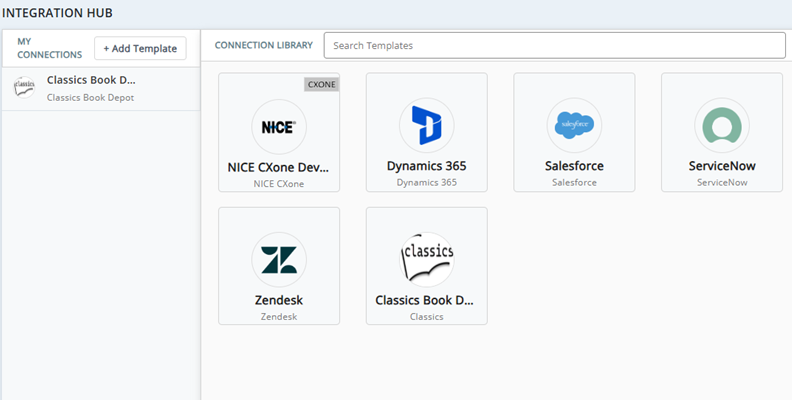
Connections
Connections define the details for integrating with an external service, like API requests, authentication flows, and variables. For example, you could create a connection template for Salesforce. This would define the basic details needed to connect with Salesforce, like authentication type and supported methods. From this template, you would create a connection, which lets you fill in specific details from the template, along with more specific details like the specific API requests you want to make to Salesforce.
Connection Templates
Each connection you add to Integration Hub is created based on a connection template. Templates define the basic information that applies to all connections that will be made with the template. This includes:
- The name of the web service you're connecting to.
- The integration method. Currently, REST API is the only supported method.
- The type of authentication, if any. Currently, you can choose OAuth 2.0 or no authentication.
- The custom headers for authentication, if any are needed.
- The verbs available for use by requests made based on the template. Verbs are the actions that can be taken with the connected web service, such as retrieving data (GET) or creating records (POST).
A connection doesn't have to include all types of connection information. It can hold any combination of the supported types of information.
Integration Hub comes with five default system templates. These templates allow you to create connections to several web services, including the NiCE CXone APIs and four popular CRMs Third-party systems that manage such things as contacts, sales information, support details, and case histories..
The default connection templates and any custom templates you create are available in the connection library in Integration Hub. Templates that you can use in a Studio script are listed under My Connections in Integration Hub. You can create a maximum of 50 connections (in the My Connections list). There is no limit on the number of templates in the Connection Library.
Templates cannot be modified. However, you can delete your custom templates. If you need to change something in a custom template later, you can delete the template and create a new one. Connections themselves can be modified. Deleting a custom template does not affect the connections created with that template.
System Templates
Integration Hub has two types of templates: system templates owned by NiCE, and templates you create yourself. System templates come with Integration Hub and cannot be deleted. Currently, Integration Hub includes one system template:
- NiCE CXone Developer Portal: Provides direct and flexible access to the API calls found on the NiCE CXone DEVone Developer Portal. To use this template, your integration application must be registered
 with NiCE. This is to reduce your dependency on Studio Framework actions. It uses OAuth 2.0 authentication. To determine authentication, it uses Discovery URL. It doesn't support client certificates.
 - Microsoft Dynamics 365: Allows you to connect to Dynamics 365 REST APIs.
- Salesforce: Allows you to connect to Salesforce REST APIs.
- ServiceNow: Allows you to connect to ServiceNow REST APIs.
- Zendesk: Allows you to connect to Zendesk REST APIs.
The system templates are configured to use OAuth 2.0 authentication. They support GET, PUT, POST, DELETE, and PATCH methods. They do not have any headers defined by default, so you must add any required headers in the connections you create with the templates.
Requests
Requests are API calls. For each connection in the My Connections list, you can add requests that you want to use with the specific external service. These requests specify the following information, which is used to connect to a web service:
- URL: The location of the resource you're connecting to.
- Method (Verb): The action that you want the request to perform, such as retrieving data or creating a new record. Integration Hub supports these verbs: GET, PUT, POST, DELETE, TRACE, PATCH, HEAD, OPTIONS. The verbs available for use in a connection are defined in the template used to create the connection.
- Headers: A part of the request that contains additional information about the request. This can include the language, credentials, and so on.
- Query Parameters: A way to pass information with an API request in the endpoint URL. They are configured as key-value pairs. They can be used to filter, sort, customize, or control the data returned in the response.
- Body: The content of the request. The format depends on the requirements of the API you're connecting to. The media type of the body must match what the resource you're connecting to expects. It's also known as the MIME type or content type. These are the supported options and the associated content headers:
- ApplicationJson: application/json
- ApplicationJsonPatch: application/json-patch+json
- FormURLEncoded: application/x-www-form-urlencoded
- TextHtml: text/html
- TextPlain: text/plain
- TextXml: text/xml
- Sigv4: application/x-amz-json-1.1
Each Integration Hub connection can have up to 50 requests. There is no restriction on how many requests can be active at a time.
NiCE CXone has a 32 KB limit on the size of responses. Use query parameters to filter the returned data. This can help you stay under that limit.
Manual, Studio, and Hybrid Requests
Integration Hub supports three options for requests in connections:
- Manual: A manual request is built in Integration Hub using the options on the Add Request page. You can use secrets in them. Manual requests are commonly used for cases where the data does not change. They can be executed directly from Integration Hub without requiring a Studio script. They can also be executed in Studio scripts.
-
Studio: In some cases, API requests cannot be built as manual requests in Integration Hub. For example, requests that require path parameters, variable substitution, or that connect to SOAP web services, must be built in a Studio script. However, you may want to keep track of these requests in your Integration Hub connections. The Studio request option allows you to do that. A Studio request appears on a connection's Requests tab along with all of the manual requests the connection has.
-
Hybrid: A hybrid request combines the capabilities of manual and Studio request types. This gives you the flexibility to preconfigure request details in Integration Hub while allowing any of those values to be overridden dynamically at runtime. Hybrid requests are ideal when:
-
Most of your request configuration is consistent across executions, but one or more values need to change dynamically. For example, a request body that varies per customer or a query parameter that changes based on input from a Studio script.
-
You want the convenience of configuring and viewing default values in Integration Hub, while retaining the ability to override them programmatically.
-
You need a single request definition that can serve multiple use cases without duplicating configuration.
-
The following able summarizes the difference between the three request types:
| Category | Manual | Studio | Hybrid |
|---|---|---|---|
| Configuration |
All fields defined in the UI |
All fields provided at runtime |
Fields defined in the UI with optional runtime overrides |
|
Runtime Input |
Not supported |
Required |
Optional |
|
Field validation |
URL and HTTP method are required |
N/A (validated at runtime) |
No required fields; values can be supplied at runtime |
|
Test button |
Available |
Not available |
Not available |
|
Override behavior |
N/A |
N/A |
Dynamic values override static values |
Variables
Integration Hub allows you to store value pairs as variables. Variables are unencrypted by default. However, you can encrypt a variable by turning it into a secret. Marking a variable as a secret adds security to sensitive information, such as passwords or keys.
Variables can be used in the connection where you create them. If you execute a connection or authentication request in a Studio script, you can use variables from that connection in the script.
Secrets are encrypted at rest in an encrypted database. Integration Hub uses the Advanced Encryption Standard (AES) to encrypt the data. The only time the data is decrypted is at the time of execution.
Integration Hub Studio Actions
When you want to use authentication or make a request in a Studio script, use the following Studio actions:
Key Facts About Integration Hub Studio Actions
- They require Integration Hub. If Integration Hub is not enabled in your NiCE CXone system, the actions do not work.
- You can include more than one instance of each action in a script.
- You can use variable substitution to execute different requests or use authentication from more than one connection in a single script.
- Just as with other methods of making API calls in NiCE CXone, additional scripting is required to receive the response from the connected web service and handle it appropriately.
-
Circuit Breaker
Integration Hub has a built-in circuit breaker. It's a precautionary fail-safe for failed API calls. If the circuit breaker detects that a call is repeatedly failing, it activates and throttles the API call. The most common reason for failed calls is a temporary server error (500 errors). Throttling (or pausing) the call gives the server time to come back up and function correctly.
The following are key features of the circuit breaker:
-
The circuit breaker activates if more than 50% of calls to an API fail within 30 seconds.
-
To trigger the circuit breaker, Integration Hub must have tried over 100 calls to a single API within a 30-second window.
-
The breaker activates for 30 seconds.
-
Failure reasons are accessible in the Studio trace logs, captured in the _err variable.
Audit History
Each connection in Integration Hub has a change log. Any time a connection is created or updated, the following details are logged:
-
Date: The date the change was made.
-
Modified By: Who made the change.
-
Profile Name: The name of the connection.
-
Action: What occurred, like whether a connection was created or modified.
You can access this log with the Audit button in the connection's settings.
