The AI Agents (Cognigy) Signal and TMS API extension enables your AI Agents (Cognigy) voice bot to coordinate interaction transition and transcript processing within CXone. The extension provides two key capabilities:
-
Signal: Sends a CXone Signal API request that instructs CXone to either escalate the interaction to a live agent or end the conversation.
-
TMS API: Pushes the conversation transcript to the CXone Transcript Management Service (TMS) so CXone can generate self‑service summaries and support downstream reporting and analytics.
Together, these capabilities ensure that voice interactions transition cleanly from the bot to CXone and that transcript data is preserved for CXone processing.
The current extension, distributed as a .gz file, will be replaced by a native AI Agents (Cognigy) node to simplify deployment. When the native node becomes available, follow the migration instructions provided in this topic.
If you are already using the extension, you should plan to remove the extension and switch to the native node once it is released. The update is not time‑sensitive, but it is recommended as part of standard maintenance and to ensure compatibility with future features.
This topic explains how to enable access, upload the extension, and configure it in a Cognigy AI Flow.
Prerequisites
Before you begin, ensure the following:
-
You must have Cognigy AI enabled for your tenant. To learn how to enable the application and access it through SSO, see Enable AI Agents (Cognigy) Application and SSO Access.
-
A AI Agents (Cognigy) project with permissions to upload extensions
-
A voice channel connected to CXone using SIP Backchannel
-
Access to the Signal and TMS API extension package (.gz) from Professional Services.
-
CXone Studio scripts configured:
-
Main SIP backchannel script
-
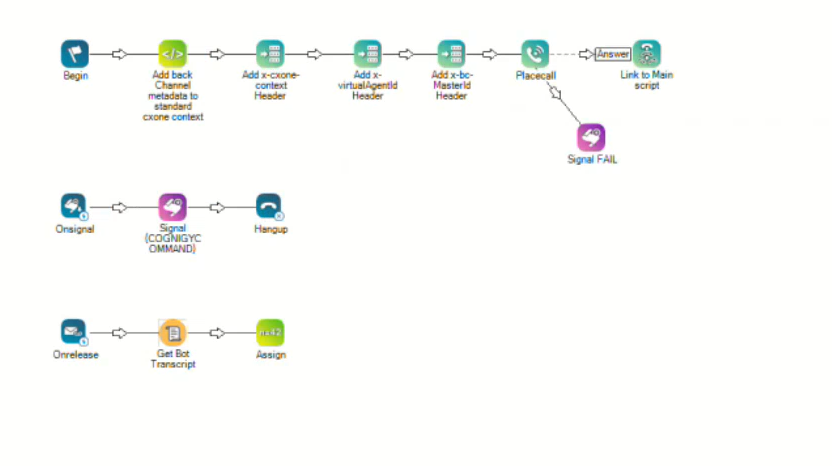
Spawned backchannel script
-
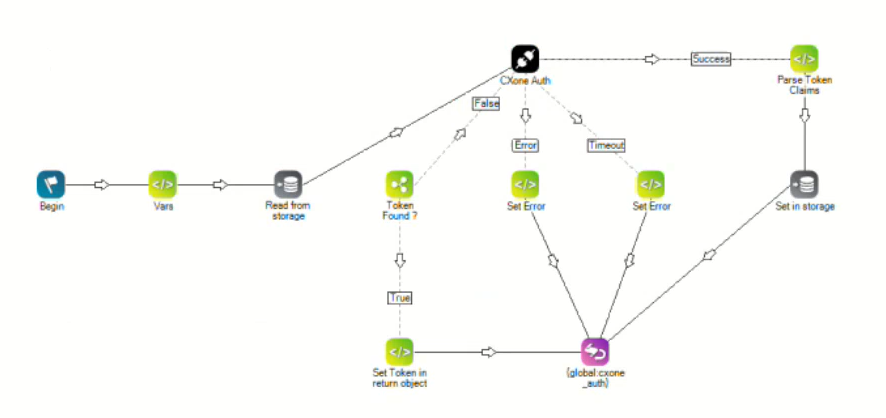
CXone token / Integration Hub script
-
The CXone token generation is recommended script but not mandatory. An Integration Hub license is required to generate an encrypted CXone token. Without this license, the CXone token can still be generated; however, it will remain in plain text, which is less secure and not recommended for production environments.
-
Contact Professional Services to obtain the full‑featured Studio script templates. Demo scripts are simplified and not intended for production.
-
-
SIP headers are available in the CXone → AI Agents (Cognigy) request payload
-
Integration Hub and CXone Studio configuration completed.
Integration Hub and CXone Studio configuration are outside the scope of this task and are provided separately by the Professional Services.
Upload the Signal and TMS API Extension in a Flow
-
Open your AI Agents (Cognigy) project.
-
In the left navigation, select Manage > Extensions.
-
Select Upload Extension.
-
Browse to and select the Signal and TMS API extension .gz file. Select Open.
A success message confirms the extension is installed and appears under (for example, Signal CXone).
Use the Signal and TMS API Extension in a Flow
-
In AI Agents (Cognigy), select Build > Flows.
-
From the list, select the Flow you want to edit, for example, SayHelloAndHandover.
-
If the project contains multiple flows, select Main Flow from the flow selector at the top. The Flow opens in the Chart view, where you can add and configure nodes.
The extension requires SIP metadata to identify the CXone interaction.
-
In the On First Time branch of the Flow, add an Add to Context node.
-
Store the incoming SIP request payload in context, for example:
-
Context key: sipBody
-
Value: Incoming SIP request body
This SIP data is reused later when sending signals to CXone.
-
-
Add the required bot logic, such as Say nodes or intent handling.
-
Verify that the bot behaves as expected before escalation or termination.
This step is not specific to the extension but is required for a complete voice interaction.
-
In the Afterwards branch of the Flow, add a Get Transcript node. The Get Transcript node collects the transcript and stores it in the transcript variable you defined.
-
Configure the Get Transcript node:
-
Store location: Input
-
Input key: transcript
-
Limit: As needed (for example, 25 turns)
The Get Transcript node only captures the transcript in the flow. The transcript is sent to CXone TMS by the Exit Interaction node in the next step.
-
-
Add an Exit Interaction extension node after the Get Transcript node.
-
In the Flow editor, select the plus (+) icon where the node should be added.
-
Select the Extensions tab > CXone category > Exit Interaction. The extension node is added to your flow.
-
-
Open the Exit Interaction extension node and select Edit Node, configure the following fields:
Field Name
Description
Environment CXone environment. Select Other when using a custom CXone base URL. Environment Base URL The CXone API base URL (for example, https://cognigy-na1.nicecxone.com Handover Action
Select Escalate to Agent or End Conversation. Business Unit Number
CXone business unit ID. Typically mapped from SIP headers, for example: {{context.sipBody.headers["X-InContact-BusNo"]}}. Main Contact ID
Primary CXone contact ID from SIP headers.
Spawned Contact ID
Spawned or child contact ID from SIP headers.
CXone Connection Preconfigured CXone connection used to authenticate Signal and TMS API requests. When you use the template provided by the Professional Services team, the required Exit Interaction fields—such as the Business Unit Number, Main Contact ID, Spawned Contact ID, and CXone Connection are pre-populated within the template. You should still review the values to ensure they match your environment and integration setup.
-
The Exit Interaction node sends the transcript variable to CXone using the TMS API.
-
CXone processes the transcript and makes it available for downstream applications. Generating a self‑service summary is optional and, when enabled, is created based on the transcript content. Transcript‑based variables are stored in CXone for downstream reporting and analytics.
-
Select Save Node.
How the Signal and TMS API Extension Work
The Signal and TMS API extensions work together to ensure that an interaction is properly finalized in CXone and that transcript data is available for downstream use.
Before this process begins, the SIP metadata and transcript must already be available. Once those are in place, the core flow works as follows:
-
The Exit Interaction node triggers both APIs in a defined sequence:
-
TMS API
-
Sends the transcript to CXone.
-
Stores transcript‑based data for reporting and analytics.
-
Optionally generates a self‑service summary if this feature is enabled.
-
-
Signal API
-
Sends a request to CXone to either escalate the interaction or end it.
-
Uses the previously captured SIP metadata to identify the correct CXone interaction.
-
-
Demo Scripts
Main SIP backchannel script
 View image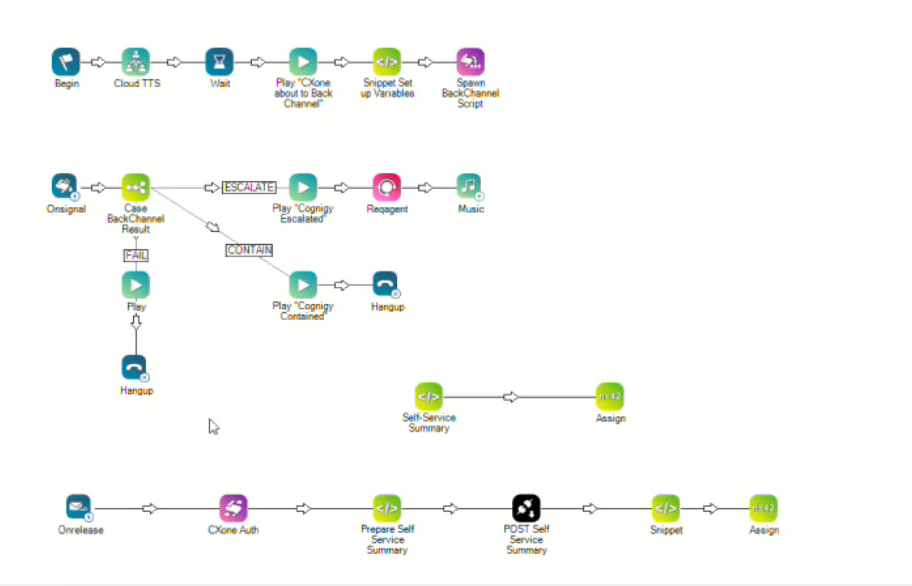
Spawned backchannel script
CXone token or Integration Hub script