

Real-Time Adherence (RTA) allows you to monitor whether agents are following their assigned schedules. The RTA table displays a side-by-side comparison of each agent’s scheduled and actual activities, providing a live view of each agent’s current state and adherence status.
 Permissions
You must have these permissions: Admin > Security Settings > Roles and Permissions > WFM > General Permissions > Real Time Adherence: ON.
To review adherence for earlier time intervals or past days use the Historical Adherence report.
Adherence is calculated using one of the following approaches:
Activity-based: Compares the agent’s Scheduled Activity with their Actual Activity.
Category-based: When adherence categories are enabled, it compares the Scheduled Category with the Actual Category.
-
Only one of these approaches is active for your tenant, so check which one before you continue. If the Scheduled category and Actual category columns appear in the RTA table, your tenant uses category-based adherence. If they do not appear, it uses activity-based adherence.
-
Actual Activity is the ACD Event mapped to a WFM Activity via Map ACD Events to Activities.
See example
|
agent's adherence |
agent's Scheduled activity |
agent's Actual activity |
|---|---|---|
|
In adherence |
On call |
On call |
|
Out of adherence |
On call |
Break |
Adherence calculation (category-based):
|
agent's adherence |
agent's Scheduled activity |
agent's Actual activity |
agent's scheduled category |
agent's Actual category |
|---|---|---|---|---|
|
In adherence |
OutboundChat |
Outbound |
WorkHours |
WorkHours |
|
Out of adherence |
OutboundChat |
Break |
WorkHours |
CategoryBreak |
In RTA, you can:
-
Monitor Adherence:
-
View how long agents have been out of adherence.
-
Identify agents with unmapped ACD Login IDs or unmapped actual activities.
-
-
Data Filtering:
-
Filter data by agents, scheduling units, WEM skills, scheduled activities, or actual activities.
-
-
Export Data:
-
Export historical adherence data.
-
Note: You can only view users within the scheduling units (or teams) that you are authorized to access in your assigned view.
If an employee belongs to a tenant configured with a Non-CXone ACD, ensure the ACD Login ID is assigned in the employee profile. This is necessary to map the agent state, monitor real-time adherence, and generate reports.
Adherence States
The following adherence states indicate an agent’s current adherence status:
-
In adherence: When agents are performing the activities they are scheduled to do.
-
Out of adherence (OOA): The agent is not performing the scheduled activity. This usually occurs when the scheduled and actual activities (or categories) do not match.
Example: An agent is scheduled for a break but is handling calls.
-
If the adherence category is missing for either the scheduled or actual activity (but not both), the agent is considered OOA.
-
If both categories are missing and the actual activity does not match the scheduled activity, the agent is also considered OOA.
-
-
OOA Open: Agents are scheduled to be available for interactions and are Out of Adherence. An agent may still be marked as OOA Open even if their actual activity shows they are open for interactions, but that Open actual activity is different from the scheduled activity.
Severe Out of Adherence: Indicated by the headset icon
 . This occurs when an agent is scheduled to be open for interactions, but their actual activity is not open.See example
OOA Open and Severe OOA
(indicated by the headset icon) both indicate that an agent is not performing the open activity they are scheduled for.The key difference between the two depends on the agent’s actual activity:
-
OOA Open and Severe OOA: Scheduled activity is open, but actual activity is not open (for example, scheduled for Open, on Break).
-
OOA Open only: Scheduled activity is open, and actual activity is also open, but it is a different open activity (for example, scheduled for Open, on Outbound_Open).
In the table:
-
If the scheduled activity is Open and the actual activity is Break, the agent is flagged as OOA Open and Severe OOA.
-
If the scheduled activity is Open and the actual activity is Outbound_Open, the agent is flagged as OOA Open only, not Severe OOA
.
Scheduled
Actual
Out of adherence (ooa)
ooa open
Severe ooa
Break
Open
✓ Open
Break
✓ ✓ ✓
Open Outbound_Open ✓ ✓ -
-
Not calculated: The system cannot determine whether the agent is in or out of adherence. This can occur when:
-
The agent’s actual activity is not mapped in WFM.
-
The agent is not working and has no schedule (for example, out of office).
-
-
Real-Time adherence is calculated when:
-
The agent has an active schedule.
-
The agent is logged in and moving between states.
Changes made in real time to schedules or settings are reflected almost immediately in RTA and may result in an adherence status change (for example, from In Adherence to Out of Adherence, or the reverse).
To maintain consistent adherence reporting, avoid modifying the schedule or configuration settings during the reporting cycle.
-
Real Time Adherence Tabs
Use the Real-Time Adherence (RTA) tabs to view specific adherence data based on your needs.
You can search for individual agents or filter by scheduling units, WEM skills An employee's area of expertise. A skill can be fluency in a specific language or business skills, such as sales or technical support., scheduled activities, actual activities, or groups.
Filters apply across all tabs. For example, if you filter for a specific scheduling unit in the Active Agents tab, the same filter remains applied when you switch to the In Adherence tab. Only agents from that scheduling unit will be displayed until you clear the filter. The counts and values in each tab automatically update to reflect the filtered data.
RTA tabs OverviewThe available RTA tabs include:
-
Active Agents: Displays all agents who currently have either a scheduled activity or an actual activity. Agents who are not scheduled and not working (including those out of office) are not shown.
For example, if you manage 100 agents:
-
10 are on vacation
-
5 are scheduled to work but have not logged in RTA will display 85 active agents.
-
-
Out of Adherence: Displays only the agents that are out of adherence. In the parentheses, you can see how many of those agents should be open (OOA Open).
For example,
- Out of Adherence:25 (10 open)
-
25 agents are out of adherence in total.
-
10 of those are scheduled to be open.
-
-
In Adherence: Displays agents who are currently following their scheduled activity. The number in parentheses is the percentage of Active Agents who are in adherence.
For example:
If 80 agents are active and 60 are in adherence, the tab will display:
In Adherence: 60 (75%)
-
Unmapped: Displays agents whose ACD login ID or actual activity is not mapped in WFM.
The alert icon
 is displayed next to agents that require mapping.
Select the icon to:
-
Add a missing ACD login ID, or
-
Map the actual activity to a WEM activity code.
For more information, see the Alert icon description in Real Time Adherence.
-
Real Time Adherence Table
The RTA table displays key adherence details, including alerts, adherence duration, scheduled and actual activities and categories, and time in state.
Table Columns
-
Unmapped: Displays an alert icon when the agent’s ACD Login ID or actual activity is not mapped.
-
Agent: Displays the agent’s name.
-
Out of adherence: Shows how long the scheduled category (or scheduled activity) does not match the actual category (or actual activity).
-
The duration appears in red.
-
The value is shown only when the agent is currently out of adherence.
-
A headset icon
is displayed if the agent is out of adherence and is scheduled to be open for interactions (OOA Open).
If the adherence categories aren't activated, the activities are compared and not the categories.
-
-
Scheduled activity: Displays the activity currently assigned in the agent’s schedule. If no shift or activity is scheduled, the value appears as Unscheduled.
This can be any of the activities from the WFM Activity Codes. Color coding may not appear when adherence category is enabled.
Note: Each activity code can be displayed as a type with a color code (for example, green for Break and orange for Busy).
As multiple activity types can belong to the same category and adherence is evaluated by comparing categories, the activity color indicator is not displayed.
-
Scheduled category: Displays the category assigned to the scheduled activity. View how assign activities to categories.
The cell remains empty if:
-
No activity is scheduled, or
-
The activity is not assigned to a category.
This column appears only when adherence categories are enabled.
-
-
Actual activity: Displays the activity the agent is currently performing, based on the ACD event.
This value is determined by the ACD Event mapped with the WFM Activity configured in the Map ACD Events to Activities page.
Whenever a new ACD event occurs, WFM checks the mapping and updates the Actual Activity accordingly.
-
Actual category: Displays the category assigned to the actual activity.
The cell remains empty if:
-
The activity is unknown or unmapped.
-
The activity is not assigned to a category.
This column appears only when adherence categories are enabled.
-
-
Time in state: Shows how long the agent has been in the current Actual Activity.
RTA displays only the agent’s current state and its duration. Previous activities (such as a break that ended earlier) are not shown in this table. To review past activity history and adherence over time, use the Historical Adherence report.
RTA example
At 9:00, You look at Jessie's adherence:
-
Out of adherence:
01:00:00- Jessie has been out of adherence for one hour. -
Scheduled category: Open.
-
Actual category: Break - Jessie is on break instead of being open for calls.
-
Time in state: 01:00:00- Jessie has been on break for one hour.
At 9:30, you check again:
-
Out of adherence:
01:30:00 - Jessie remains out of adherence. -
Scheduled category: Open.
-
Actual category: Meeting- Jessie moved from Break to Meeting.
-
Time in state: 00:25:00- Jessie has been in a meeting for 25 minutes. This indicates Jessie was likely on break for 65 minutes before switching to the meeting.
At 10:00, you review again:
-
Out of adherence: 02:00:00. Jessie is still out of adherence.
-
Scheduled category: Break.
-
Actual category: Open- Jessie is handling interactions while scheduled for a break.
-
Time in state: 00:30:00- Jessie has been open for 30 minutes while scheduled for a break.
When there's an alert icon , you can map the ACD Login ID or actual activity directly in RTA.
Learn more
Handling unmapped Alerts:
-
Unmapped ACD Login ID: This appears when the agent does not have at least one ACD Login ID assigned.
To resolve:
-
Click Add next to the agent’s name.
-
Enter the correct ACD user ID.
-
Click Assign.
-
-
Actual activity: This appears when an ACD event is not mapped to a WFM activity code.
To resolve:
-
Click the Map next to the actual activity.
-
Enter a mapping name.
-
Select the appropriate activity code.
-
Review the ACD Event ID, Event Reason, and State.
-
Click Submit.
-
ACD Events Mapped to Login and Logoff Activity Codes
When mapping ACD events, the Login and Logoff activity codes do not appear on the Activity Code page. These activities are typically not included in agent schedules.
In RTA, Login and Logoff events are displayed as actual activities until a new ACD event is received, which usually occurs immediately after the agent logs in or logs off.
These activity codes are automatically mapped to ACD events to ensure accurate adherence monitoring.
Breakdown of the adherence for each scenario
|
Actual activity |
SCHEDULED ACTIVITY |
ADHERENCE |
|---|---|---|
|
Login |
Open |
In |
|
Closed |
Out |
|
|
Unscheduled |
In |
|
|
Logoff
|
Open |
Out |
|
Closed |
In |
|
|
Unscheduled |
In |
Example 1:
-
Johnny logs off at 11:00 while he is scheduled to be open for interactions until 12:00. In this case, he is marked as out of adherence because he logged off before his scheduled activity ended.
Example2:
-
June logs in at 8:30, which matches her scheduled start time to be available for calls. In this case, she is considered in adherence.
How Adherence is Calculated?
RTA calculates adherence by comparing the agent’s scheduled actions with their actual actions during each time period.
The comparison method depends on whether the adherence categories are enabled.
When Adherence Categories are Enabled
Adherence is calculated based on categories. For each time period in which the agent has an active schedule, the system:
-
Determines the agent’s Scheduled category from the schedule.
-
Determines the Actual category from the agent’s current activity, based on the activity’s assigned adherence category.
-
Compares the two values:
-
If the Scheduled category and Actual category match, the agent is In Adherence.
-
If they do not match, the agent is Out of Adherence.
-
When Adherence Categories are Not Enabled
Adherence is calculated based on activities (activity codes). For each time period in which the agent has an active schedule, the system:
-
Identifies the Scheduled activity from the schedule.
-
Identifies the Actual activity from the ACD event, based on the mappings configured on the Map ACD Events to Activities page.
-
Compares the two values:
-
If the Scheduled activity and Actual activity match, the agent is In Adherence.
-
If they do not match, the agent is Out of Adherence.
-
When Adherence is not Calculated
Adherence is not calculated in the following scenarios:
-
The agent does not have an active schedule during the time period.
-
The agent’s Actual activity or category cannot be determined.
-
The ACD event is unmapped and appears as Unknown or Unmapped.
In these cases, the system cannot determine whether the agent is in or out of adherence, and the adherence value may appear as Not Calculated.
Adherence with Missing Categories
In some cases, the category could be missing for RTA or the Adherence report. When missing, the value is displayed as --. Reasons why the category can be missing for:
-
Actual activity:
-
Unknown: When the agent isn’t performing an activity.
-
Unmapped: When the agent is performing an unmapped activity. This means the agent is engaged in an activity, but the system doesn’t know what type.
-
-
Scheduled: This happens when the agent isn’t scheduled to work.
Adherence states when categories are missing:
-
Out of adherence:
-
The agent has scheduled activity, but no actual activity (Unknown). Why? Because the agent is scheduled to work, and there’s no actual activity.
-
The agent has no scheduled activity but is engaged in an actual activity. The agent is working without being scheduled to work.
-
-
Adherence not calculated:
-
The agent has scheduled activity but an unmapped actual activity. The agent is scheduled to work and is working, but WFM doesn’t know what activity. In this case, there’s no way to know if the agent is in or out of adherence.
-
The agent is scheduled to be out of office, and there’s no actual activity (Unknown). Adherence isn’t calculated because the agent isn’t supposed to be working, and they aren’t. They cannot be in adherence when they aren’t scheduled to work.
-
-
In adherence: When the categories are missing for both. The agent is in adherence, when the scheduled and actual activity are in the same ACD mapping.
See example
|
Scheduled Activity |
Actual activity |
Scheduled Category |
Actual Category |
Adherence |
|---|---|---|---|---|
| Any | Unknown | Any | -- | Out |
| Unscheduled | Any | -- | Any | Out |
| Any | Unmapped | Any | -- | Not calculated |
| Unscheduled | Unknown | -- | -- | Not calculated |
| Out of Office | Unknown | Any | -- | Not calculated |
Export Real Time Adherence as a CSV
In addition to monitoring adherence directly in the Real Time Adherence table, you can also export a historical adherence report to review the raw adherence data for the selected scheduling units over the past 30 days. The adherence report is exported as a CSV file.
Data refresh rate: Adherence data in the export refreshes every 3 hours. Generating multiple exports within the same 3-hour window will produce identical data.
In the report, each agent activity is listed in its own row. The agent activity may span several rows, depending on the adherence breakdown.
See example
John was scheduled to be open to receive calls from 8:00 to 10:00. He was open for calls from 9:00 to 11:00. In the historical adherence report, this appears as:
8:00—09:00: Out of Adherence
9:00—10:00: In Adherence
10:00—11:00: Out of Adherence
In this example, John only adhered to his schedule for one hour.
The export includes adherence data only for the period when an agent is active. When an agent is deactivated, any future schedules for that agent are excluded from the export starting from the end of the last assigned activity or shift on the day of deactivation.
If an agent is deactivated and then reactivated before midnight UTC, you must recreate and republish the agent’s schedules so that future adherence exports reflect the updated data.
To export a historical adherence report:
-
Click the app selector
 and select WFM.
 -
Click Real Time Adherence.
-
Click Export.
-
Select the required From to To date range to define the time frame for the report. You can generate and export a report for up to 30 days.
-
Click on Scheduling Units dropdown and select the required scheduling units for which you need to export the data.
-
Click Export to submit the export request. When the file is ready, you will get a notification. The download link is shared through an email.
You can forward the email to other employees to access the download link.
The adherence calculation in the report depends on whether you have opted for adherence categories.
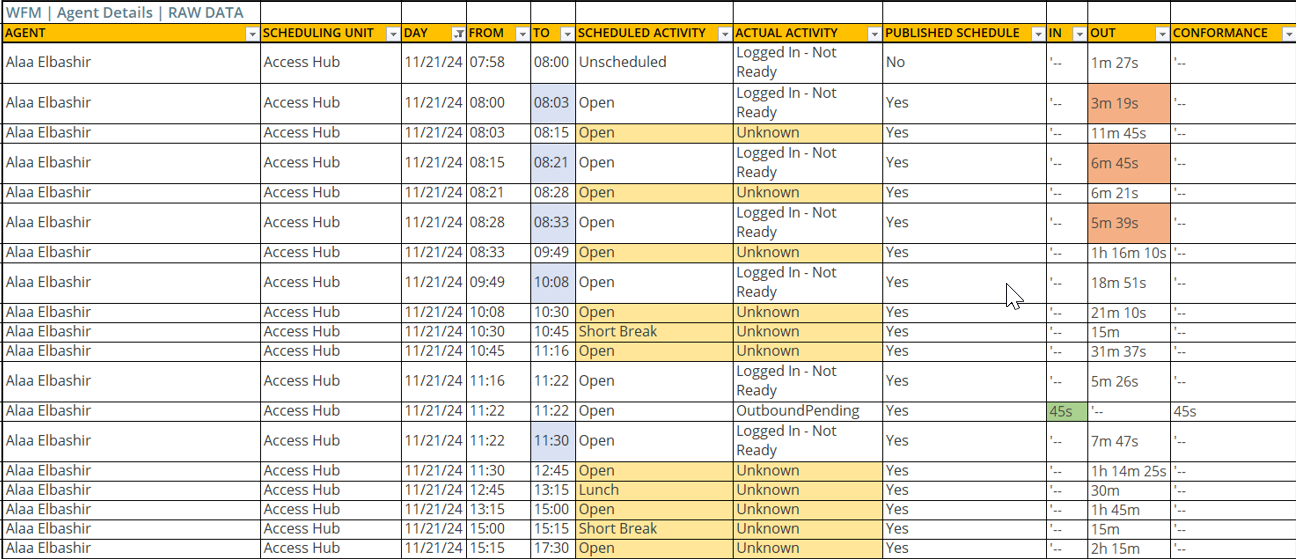
Example of Adherence Report (without using the adherence categories)
Here's an example of an exported Adherence Report when you have not opted for the adherence categories:

Unmapped activities appear as Unmapped in the CSV, and adherence is not calculated for those activities.
Actual activities appear as Unknown when an agent does not log in or when there is an ACD data transfer issue. In this case, adherence is calculated as if the activity were closed.
If an agent logs out or signs off from the system, the adherence report will display their status as Unknown for the actual activity.
 Example of Adherence Report (using the adherence categories)

With this method, two additional parameters are included in the report:
-
Scheduled category
-
Actual category
The duration is reported as in adherence when the actual category matches the scheduled category. All other times are reported as out of adherence.
Empty cells in the scheduled or actual category columns indicate activities that are not mapped to any category.
If there is no adherence data for the selected date range and scheduling units (for example, agents have no published schedules), the historical adherence export generates a blank report.
Troubleshoot RTA
How can I mark an agent as in adherence when they're not?
For example, you gave an agent a much-needed break but is supposed to be open for interactions. You don't want RTA to mark the agent as out of adherence.
To ensure the agent is in adherence, you can update the agent's schedule in the Schedule Manager. In the Schedule Manager, change the agent's current activity to break (or the desired activity) and Publish the schedule. The change is reflected automatically in RTA and the Adherence report.
How do I ensure an agent working overtime isn't mapped as out of adherence?
Agents can be marked as out of adherence if they are working overtime.
To ensure agents are in adherence, it's recommended that you schedule them with a designated overtime activity codes.
An activity in the Actual activity column is marked as unmapped, and the adherence isn't calculated. Why?
This means an agent is engaged in an unrecognized activity. In other words, The agent's activity coming from the ACD isn't mapped to a WFM activity code. Because WFM doesn't recognize the activity, it can't mark the agent as out of adherence.
To fix this, map the ACD activity to a WFM activity code.
How can I analyze adherence data?
RTA only monitors in real time the current agent activities. You can use the Adherence Report to analyze days, shifts, and agent performances.