

To connect Microsoft Dynamics to a knowledge base, you must either provide the required configuration parameters for Knowledge Hub to NiCE Professional Services or enter them in Knowledge Hub yourself. This page describes how to configure the Microsoft Dynamics integration with Knowledge Hub. Setting up Microsoft Dynamics takes two steps:
-
Step 1: Register the Application in Microsoft Entra ID: You register an application, add the Knowledge Hub redirect URL, create a Client Secret, and copy the Client ID and Tenant ID you need.
-
Step 2: Configure the Connector in Knowledge Hub: You enter those details in Knowledge Hub, click Authenticate, and sign in to Microsoft.
Knowledge Hub generates and refreshes the OAuth tokens for you. You do not need Python or a script. You need five values from Microsoft: the Client ID, Tenant ID, Client Secret, Instance URL, and Object Name.
Complete each of these tasks in the order given.
Before You Begin
Make sure you have the following:
-
Admin access to the Microsoft Entra admin center for the tenant that hosts Microsoft Dynamics.
-
Access to the Microsoft Dynamics instance you want to connect.
-
Access to the Knowledge Hub application in NiCE CXone.
-
A basic understanding of how app registrations and OAuth work in Microsoft Entra ID.
Register an Application in Microsoft Entra ID
Everything on the Microsoft side starts here. Keep the existing named anchor Register.
-
Sign in to the Microsoft Entra admin center. If you are redirected to the Azure portal, the steps are the same.
-
Browse to Entra ID > App registrations and select New registration.
-
Enter a name.
-
Under Supported account types, specify who can use the application. Select the option for Accounts in this organization directory only (Single tenant).
-
Click Register.
-
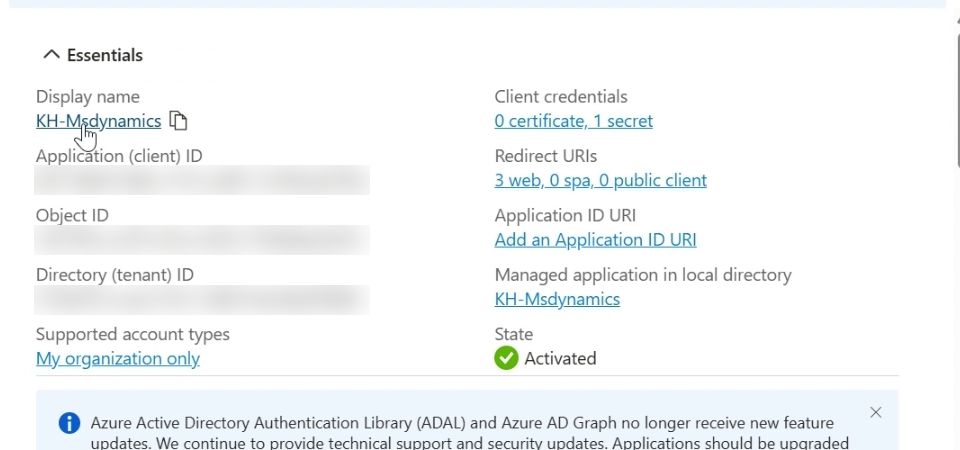
On the app Overview page, copy the Application (client) ID and the Directory (tenant) ID. You enter them in the Client ID and Tenant ID fields in Knowledge Hub.
 View image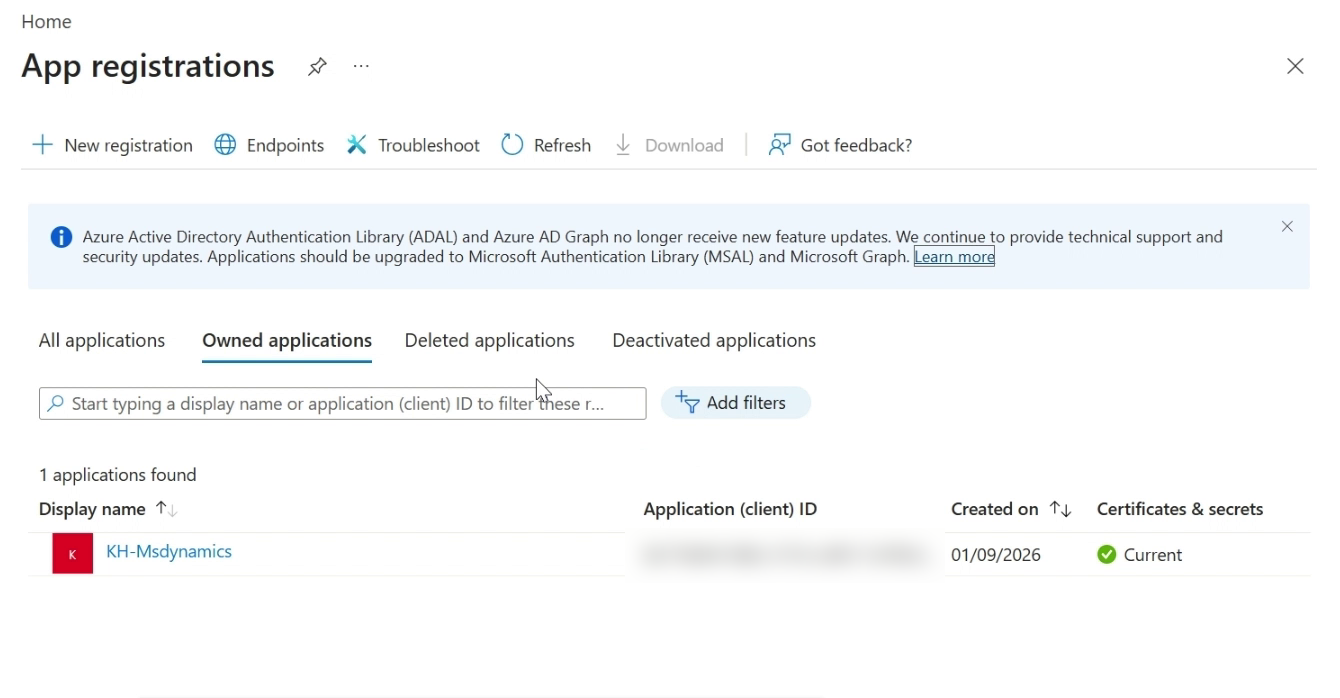
Configure the Application's Platform Settings
Add the Knowledge Hub redirect URL so that Microsoft can return the authorization code to Knowledge Hub. Keep the existing named anchor Configure.
-
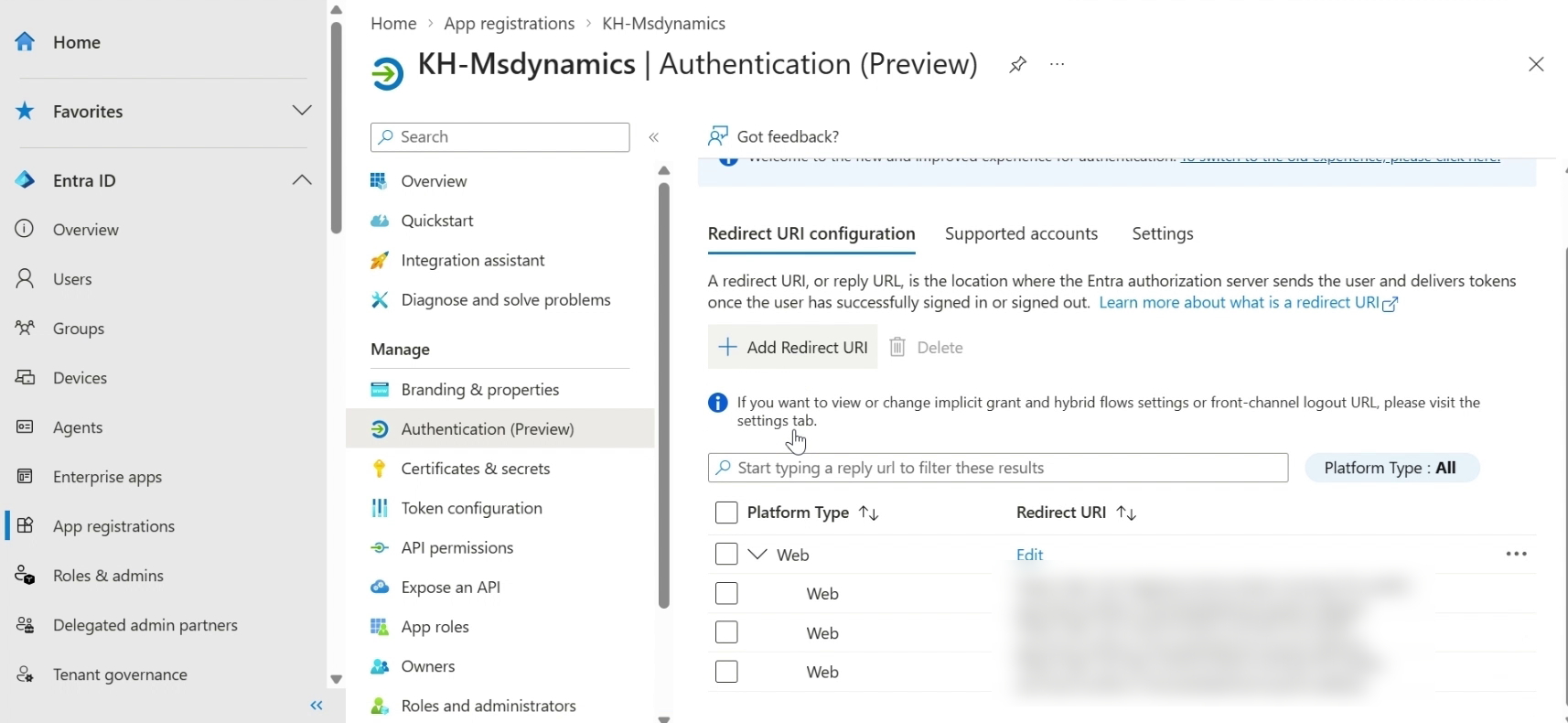
While still in the Microsoft Entra admin center, select Manage > Authentication (Preview).
-
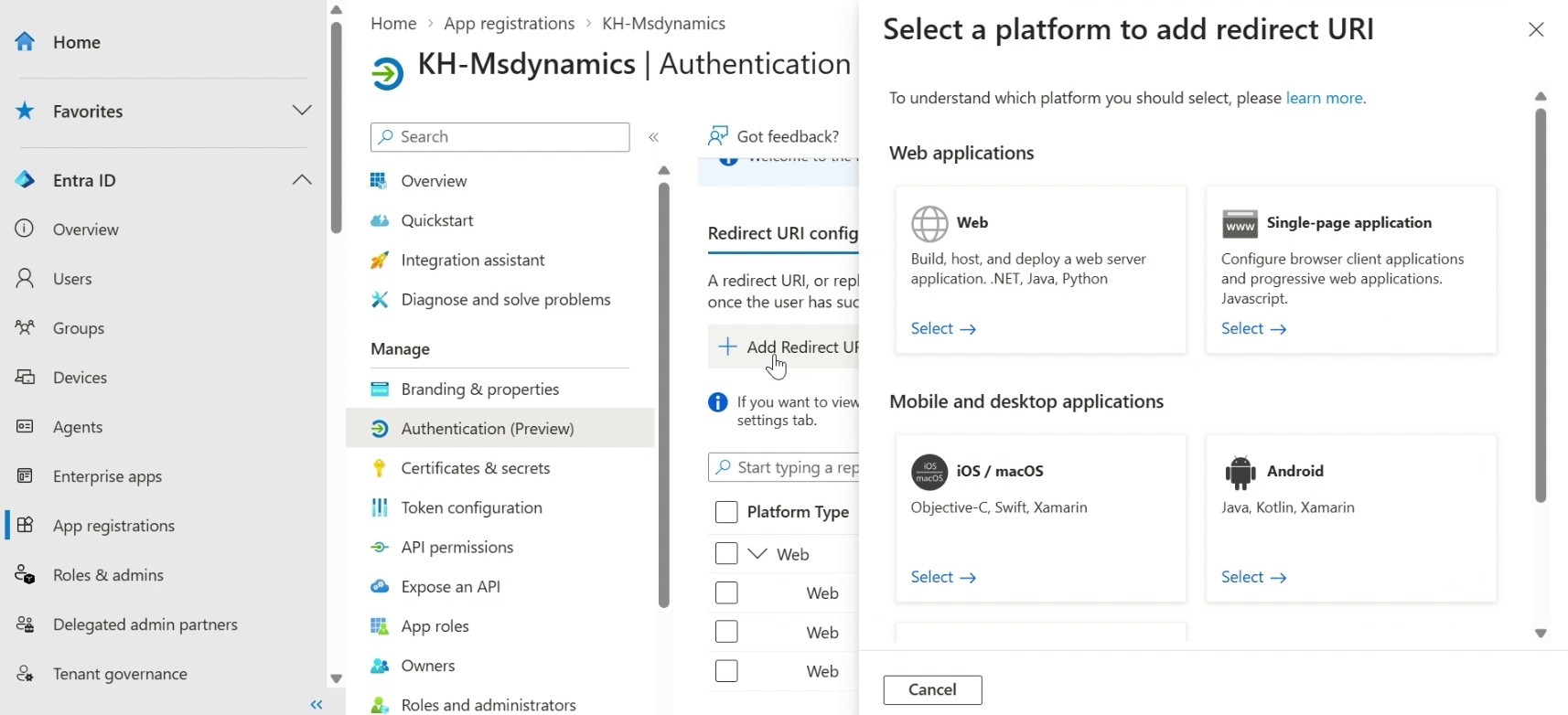
On the Redirect URI configuration tab, click Add Redirect URI.
-
Under Web applications, select Web.
-
In the Redirect URI field, enter the redirect URL for your region. Find yours in Redirect URLs by Region.
-
Click Configure.
Redirect URLs by Region
The redirect URL is where Microsoft sends the tokens after it approves Knowledge Hub. It must match the region your NiCE CXone system runs in. Find your region in the table and enter that URL exactly.
Copy the URL character for character. An extra space, a missing slash, or a URL from the wrong region all cause a redirect URI mismatch error when you authenticate later.
|
Region |
Redirect URI |
|---|---|
| NA1 | https://api-na1.niceincontact.com/eai-kh-public-services/config/v1/knowledgehub/oauth/callback |
| NA2 | https://api-na2.niceincontact.com/eai-kh-public-services/config/v1/knowledgehub/oauth/callback |
| CA1 | https://api-ca1.niceincontact.com/eai-kh-public-services/config/v1/knowledgehub/oauth/callback |
| AU1 | https://api-au1.niceincontact.com/eai-kh-public-services/config/v1/knowledgehub/oauth/callback |
| AU2 | https://api-au2.nicecxone-sov1.au/eai-kh-public-services/config/v1/knowledgehub/oauth/callback |
| DE and EU1 | https://api-eu1.niceincontact.com/eai-kh-public-services/config/v1/knowledgehub/oauth/callback |
| UK1 | https://api-uk1.niceincontact.com/eai-kh-public-services/config/v1/knowledgehub/oauth/callback |
| UK2 | hhttps://api-uk2.nicecxone-sov1.uk/eai-kh-public-services/config/v1/knowledgehub/oauth/callback |
| JP1 | https://api-jp1.niceincontact.com/eai-kh-public-services/config/v1/knowledgehub/oauth/callback |
Create a Client Secret
-
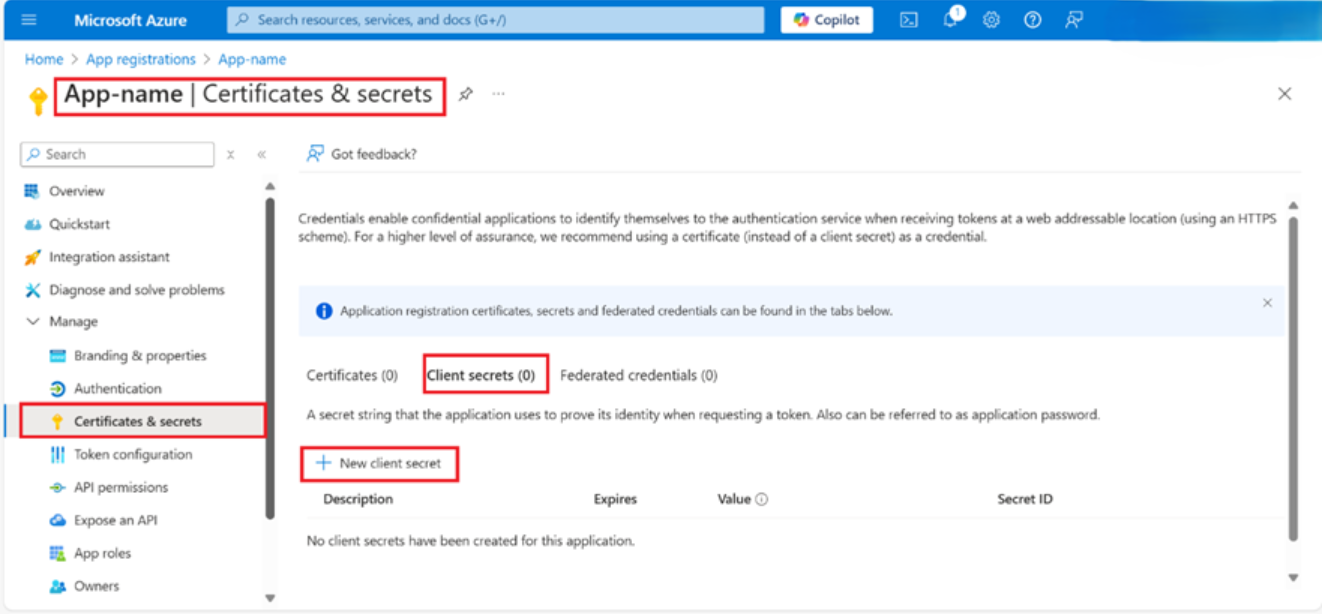
While still in the Microsoft Entra admin center, select Certificates & secrets > Client secrets > New client secret.
-
Add a description for your client secret.
-
Select an expiration for the secret or specify a custom lifetime.
-
The lifetime can be up to 24 months.
-
Microsoft recommends an expiration of less than 12 months.
-
-
Select Add.
-
Copy the secret Value and keep it handy. You enter it in the Client Secret field in Knowledge Hub. You do not need the Secret ID.
Microsoft shows the secret value only once. . If you lose it, or when it expires, create a new client secret and authenticate again in Knowledge Hub. Note the expiry date so you can renew it in time.
Add API Permissions
Then, add API permissions to the app registration.
-
While still in the Microsoft Entra admin center, select Manage > API permission.
-
Click Add a permission.
-
You need the following permissions:
-
Dynamics CRM permission, with search user _impersonation.
-
Microsoft Graph permission, with Delegated permissions.
-
Get the Instance Value for Your Microsoft Dynamics Application
-
Log in to Microsoft Dynamics 365
 . Use the credentials you used when registering the application.
 -
Click on Dynamics 365 Customer Service.
-
Copy the full URL from the browser address bar, for example, https://org25634.crm4.dynamics.com. You enter it in the Instance URL field in Knowledge Hub. Knowledge Hub accepts only a valid instance URL.
Your Microsoft setup is now complete. The rest of the work happens in Knowledge Hub.
Connect Microsoft Dynamics to Knowledge Hub
You cannot change the configurations after authentication completes. You can edit them only if source creation or the sync has failed.
-
In NiCE CXone, click the app selector
 and select General > AI Studio > Knowledge Hub.
 - Select MS Dynamics365 from the Knowledge Source drop-down.
- Enter your Microsoft Dynamics parameters in the corresponding fields.
- Click Authenticate at the bottom right of the page.
-
Sign in to Microsoft in the window that opens. If prompted, pick the account you used to register the application.
- On the Permissions requested page, click Accept to give Knowledge Hub access
- Wait for the Microsoft window to close and the Authentication Completed message to appear.
- Click Save.
- The Source creation started successfully message appears, and the connector status changes to Pending. After five to seven minutes, refresh the page. Manual Sync becomes available.
- Click Manual Sync
 .
.
- Wait for the sync to finish.
A large knowledge base can take several hours to sync. You do not need to stay on the page while it runs. Come back later and refresh to check the status.
- Click Manual Sync
- When the sync finishes, the status changes to Active. Your Microsoft Dynamics articles are now available in Knowledge Hub.
Troubleshooting
Use the following table to resolve common Microsoft Dynamics connector problems.
|
Problem |
Possible cause | Solution |
|---|---|---|
| Invalid client | The client ID or client secret is wrong, or or the secret has expired. | Check the values against your app registration. If the secret expired, create a new one and authenticate again. |
| AADSTS error after you click Authenticate | The tenant ID or instance URL is wrong. | Use the Directory (tenant) ID from the app Overview page and the full instance URL. |
| Redirect URI mismatch | The redirect URL in Microsoft Entra ID does not match your region. | Compare the URL in Microsoft Dynamics against Redirect URLs by Region. It must match character for character. |
| Knowledge Hub does not accept the Instance URL | The URL is not a valid instance URL. | Enter the full URL, for example, https://org25634.crm4.dynamics.com. |