
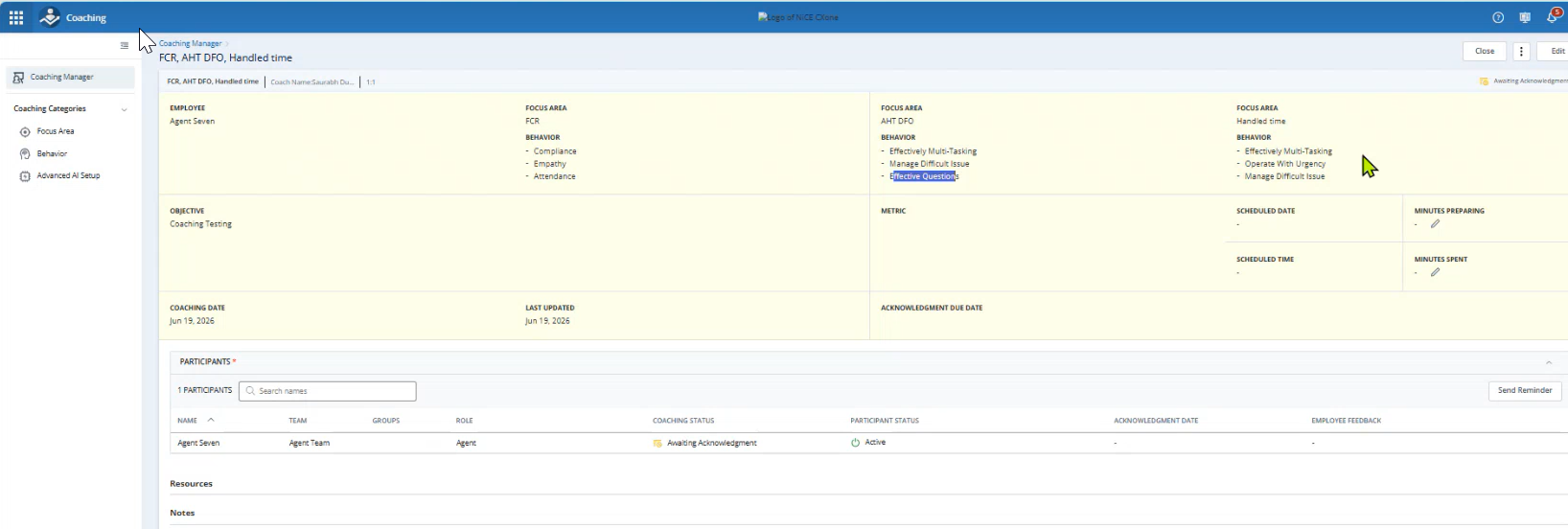
Coaching sessions help employees improve a specific skill set and perform better. You can create and manage coaching sessions on the Coaching Manager page. Any manager or coach can create a coaching session and send it to an agent to review and acknowledge. You need to select a predefined focus area and behavior when you create a coaching session.
You can duplicate any coaching session to reuse existing data and create a new coaching session. You can also send a reminder to acknowledge a coaching session.
The recommended life cycle of the coaching session is between 1 to 3 months. We have set a life cycle of the coaching session for 12 months. You can update a coaching session and it remains active during that period. If a coaching session is inactive for a period of 6 months, it's status changes to Expired. You can access and duplicate the expired coaching session. You can also review the resources of the expired coaching session. To have optimal system performance and maintain scalability, we have managed the status of inactive sessions proactively.
John is a manager who leads a team of 40 agents. He noticed that his team's productivity has gone down over the last few days. This is because of the decrease in the productivity of five agents (Mike, Tony, Monica, Sara, and Stephan). He decides to coach them for the Productivity focus area and behaviors.
John uses two different scenarios based on the specific needs of the agents:
 1:1 Coaching Session
John creates a coaching session with the Productivity focus area and the Unscheduled Breaks behavior. He adds Mike as a participant for this coaching session. He adds resources and sends it to Mike. John can see that the status of the coaching session is Awaiting Acknowledgment.
Mike gets a notification for the coaching session. He reviews, adds feedback (ratings and comments), and acknowledges it. Now, John can see that the status is Completed.
Group Coaching Session
John creates a coaching session. He selects the Productivity focus area and the Unscheduled Breaks behavior. He adds Tony, Monica, Sara, and Stephan as participants for this coaching session. As soon as he adds the second participant, the 1:1 coaching changes to group coaching and Completion Threshold appears. He defines the Completion Threshold as 50%. The coaching session is Completed when 50% of participants complete the coaching session.
He adds additional resources to the coaching session and sends it to the participants. He can see the status of the coaching session is Awaiting Acknowledgment. All the participants get notification of the coaching session.
Tony and Monica review the coaching session, add feedback, and acknowledge the coaching session. Once any participant acknowledges the coaching session, John gets a notification. Once 50% of participants acknowledge the coaching session, Completion Threshold is achieved. John can now see that the status of the coaching session is Completed.
Coaching Terminology
|
Concept |
Description |
|---|---|
| 1:1 Coaching | If you select only one agent, 1:1 displays next to the Coach Name. 1:1 coaching means the coaching session is between a coach and only one agent. |
| Coach the Coach | If you select participants who aren't agents, Coach the Coach displays next to the Coach Name. Coach the Coach is a session between a coach and other coaches. |
| Group (x) Coaching | If you select more than one participant (it can be only agents or only coaches or combination of agents and coaches), Group Coaching displays next to the Coach Name. Group coaching means the coaching session is between a coach and multiple participants. |
| Completion Threshold |
The percentage defined to mark a group coaching session as Completed. For example, if you've selected five participants for a coaching session with a Completion Threshold of 80%, it will be considered Completed when five of the participants acknowledge it. |
| Draft status | This status is displayed when you create a session and just save it. You can edit, duplicate, and delete a coaching session with Draft status. |
| Awaiting Acknowledgment status | It displays when you send a coaching session to the participants. This status is displayed until the agent acknowledges a coaching session. You can edit and duplicate a coaching session with Awaiting Acknowledgment status. You can also send a reminder to the participants who have not acknowledged it. |
| Completed status | It appears when a participant acknowledges a coaching session. You can duplicate a coaching session with the Completed status. |
| Overdue status | It appears when a coaching session is not acknowledged before the Acknowledgment Due Date. You can edit and duplicate a coaching session with Overdue status. You can also send a reminder to the participants who have not acknowledged it. |
| Scheduled status | It appears when a coaching session is scheduled for the future. You can only duplicate a coaching session with Scheduled status. |
| Assigned status | It appears when a coaching session is assigned to other coach. You can duplicate and edit a coaching session with Assigned status. |
| Expired status |
This status appears for the following scenarios:
|
Modified timestamp displays the date and time when the coaching session was most recently updated. The timestamp changes when the session status changes or when modifications are made to the session form.
Create Coaching Sessions
Make sure you have sufficient permissions to create a coaching session. Refer permissions section for all permissions required in the Coaching app.
-
Click the app selector
 and select Coaching > Coaching Manager > New Coaching Session.
 -
From the Focus Area list, select all applicable focus areas. You can select upto three focus areas. The selected values will appear as comma-separated list for easy viewing. If you have a NiCE CXone Quality Management (CXone) Premium license, you can access the out-of-the-box NiCE CXone Enlighten AI behaviors and use it while creating a coaching session. For more details on AI behaviors, see NiCE CXone AI. You can also see an AI score (in the form of emoticons) in the Interaction grid of the coaching session form.
-
From the Behavior list, select multiple behaviors relevant to the session. You can select upto three behaviors per focus area. The selected values will appear as comma-separated list for easy viewing.
-
You can add an Acknowledgment Due Date for the coaching session. The agent must acknowledge the coaching session on or before this due date. Agents will get reminders to complete the coaching session before acknowledgment due date.
-
Enter the Objective for the coaching session.
Your objective must be Specific, Measurable, Achievable, Realistic, and with a clear Time Frame (SMART) to be effective.
-
You can Add Metrics to the coaching session. This helps to measure coaching effectiveness. Coaching effectiveness is a measure to gauge the effectiveness of the coaching session. This feature is supported only for users with the Performance Management (Integrated) (Standalone) (New) license.
-
In the Participants section of the Coaching Manager page,
-
Click Add Participants to add or remove the participants for the coaching session. You can add only active users to the coaching session. You can see different coaching types as per participants. Refer to the Coaching Terminology to understand different coaching types.
-
Click Add Viewers to add or remove the viewers in the coaching session. Viewers are the users other than the coaching session creator, coach, and participants. Viewers can monitor coaching session progress in real time. They can view coaching sessions in read-only mode in Coaching Manager.
Click Confirm after adding participants or removing selected participants.
-
-
You can delegate a coaching session to another coach. Click
 icon next to Send for Acknowledgment button and then click Delegate Session. The Delegate Session drop-down field appears below the Objective field. Select the delegated coach from the list. The new coach gets a notification for the delegated coaching session. Ensure that the View permission in the Employees section of the Admin app is enabled for the delegated coach's role if the delegated coach is an agent user.
John is the coach for a coaching session. He will conduct a coaching session and send it for acknowledgment to the agent. Now, John has to complete some other urgent tasks and he is unable to conduct a coaching session. John delegates that coaching session to Nathan. Nathan has similar rights to conduct a coaching session. Nathan conducts a coaching session and sends it for the agent's acknowledgment.
-
From the Add Resources section:
-
You can add interactions to the coaching session if you have the appropriate permissions. Click Interactions. Search and Add interactions from the Select Interactions page.
-
Click Attachments. After the attachment is scanned for viruses, you can rename it and click Upload.
Attachment Storage in AWS
Attachments are securely stored in the AWS cloud. Access to these attachments is granted based on specific roles within the coaching session:
-
Creator Coach: The coach who created the session has full access to the attachments they uploaded.
-
Delegated Coach: If the creator coach assigns another coach to the session, the delegated coach also gains access to the attachments.
-
Viewers: Individuals assigned the viewer role for a specific session can access and view the attachments.
-
Participants: Agents or employees involved in the session can access the shared attachments.
-
-
You can attach up to 10 evaluations to a single 1:1 coaching session (with the right permissions). This lets supervisors group all related evaluations, add the required focus area, behavior, and coaching comments, and handle everything in one session.
Click Evaluations. Search and select up to 10 evaluations. Click Add evaluations from the Select Evaluations page.
To view evaluations:
Make sure View permission of Evaluation Forms is enabled. See QM Permissions.
Also, check if Views are created to view evaluations for your team. See Views.
-
Click Links to add links to the coaching session. In the Add Links pop-up, you can add the link URL and the link Label. This is the dedicated space to add links in the coaching session.
-
-
You can provide a Comment.
-
Now, you can choose how to send the coaching session:
Send for Acknowledgment: Click Send for Acknowledgment to notify each participant about their coaching session. Participants need to acknowledge the coaching session to complete it.
Schedule: Click Schedule to schedule a coaching session.
-
The Schedule button on the coaching session page is available only if WFM is enabled for your company.
-
The Schedule button gets enabled if you add only one participant. Currently, scheduling is supported for only 1:1 coaching type.
-
Select an Activity Code from the drop-down list.
-
Select a Date, Start Time, and Duration for scheduling the coaching session.
-
Click Check Availability to display the available slots for the participant and the coach.
-
Select the available slot and click Schedule.
-
-
You can also Save the coaching session and edit it later as required.
Edit Coaching Sessions
You can edit a coaching session form and resend it for acknowledgment. Keep in mind, you can only edit coaching sessions that are in Draft or Awaiting Acknowledgment status:
-
Draft: You can edit any data.
-
Awaiting Acknowledgment: You can edit any data except the participants.
View Multi-Selection Data in the Coaching Transactional Report
The Coaching Transactional Report provides a detailed, row-level log of all coaching activities within your organization. The report supports sessions where multiple focus areas and behaviors are selected.
To ensure granular visibility, the report uses a one-to-many data model. This means that if a single coaching session includes multiple focus areas or behaviors, each unique Focus Area–Behavior pair is displayed as an individual row. This allows you to filter, track, and analyze specific coaching points independently, even if they occurred during the same session.
Coaching sessions must be created and assigned to agents to appear in the report.
How Multi-Selection Data is Displayed
When a manager selects multiple focus areas or behaviors during a coaching session, the report breaks these down into unique Focus Area–Behavior pairs.
-
Separate Rows: Each pair of a focus area and a behavior gets its own row in the report.
-
Same Session ID: You might see the same Session ID more than once. For example, if a session covers three behaviors, the ID will show up three times. This makes it easier to track and search for each specific topic.
-
Correct Details: This ensures that information like the session status or performance scores is connected to the right behavior, instead of being mixed into one general entry.
Impact on Filtering and Analysis
The move to multi-selection data changes how you interact with report filters:
-
Precise Filtering: You can now filter the report by a specific Behavior. The report will show every session where that behavior was discussed, even if it was just one of many topics covered in a single meeting.
-
Accurate Totals: When viewing totals, the report counts the occurrences of coaching points. This provides a more accurate representation of what is being coached across the organization, rather than just how many meetings occurred.
-
Exporting Data: When you export the report to CSV or Excel, the multi-row structure is preserved. This allows you to perform advanced pivot table analysis on specific focus areas without needing to manually split combined data.
By breaking sessions down into specific pairs, managers and administrators gain a clearer picture of agent development. You can easily identify if a specific behavior (For example, Active Listening) is being coached frequently across the team and track whether those specific interventions lead to improved performance metrics.
Configure the Coaching Recommendation Schedule
You can use the Coaching Recommendation Schedule to define when AI-generated coaching recommendations are created and how often they are refreshed. By configuring the schedule, you can ensure that supervisors receive up-to-date coaching recommendations on a consistent cadence that aligns with your organization's coaching processes. Specify the schedule start date and the frequency at which recommendations should be generated, then save the configuration to activate the schedule.
Benefits
-
Automatically identifies coaching opportunities.
-
Highlights KPI and performance trends requiring attention.
-
Provides AI-generated performance insights and recommended actions.
-
Eliminates the need to manually review multiple performance and quality dashboards.
-
Enables supervisors to create coaching sessions directly from a recommendation.
-
Provides transparency by showing the metrics and insights used to generate recommendations.
Based on this analysis, the system identifies behavior gaps and generates actionable coaching recommendations. Each recommendation includes supporting insights and metrics to help supervisors understand why the recommendation was generated and what action should be taken.
Recommendations are generated according to the configured Coaching Recommendation Schedule and only for scorecards enabled for Coaching Recommendations.
To configure the recommendation schedule and threshold parameter:
-
Click the app selector
and select Coaching. -
Select Advanced AI Setup.
-
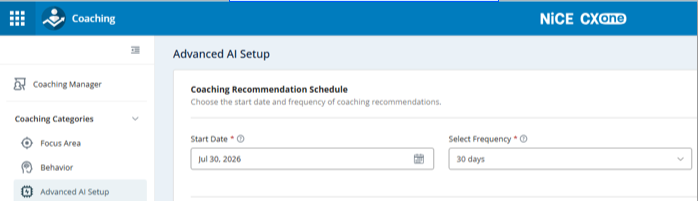
In the Coaching Recommendation Schedule, specify:
-
Start Date: Select the date on which Coaching Recommendations should begin running. Recommendations are generated starting from this date and continue based on the configured schedule.
-
Frequency: Select how frequently Coaching Recommendations should run. The system generates and updates recommendations at the specified interval, ensuring supervisors receive current coaching insights and suggested actions.
Example
-
7 days – Generate recommendations weekly.
-
30 days – Generate recommendations monthly.
-
90 days – Generate recommendations quarterly.
-
Recommendations are refreshed according to the selected frequency using the performance, quality, interaction, and coaching data available at the time the schedule runs.
-
-
Save the configuration.
View Coaching Recommendations
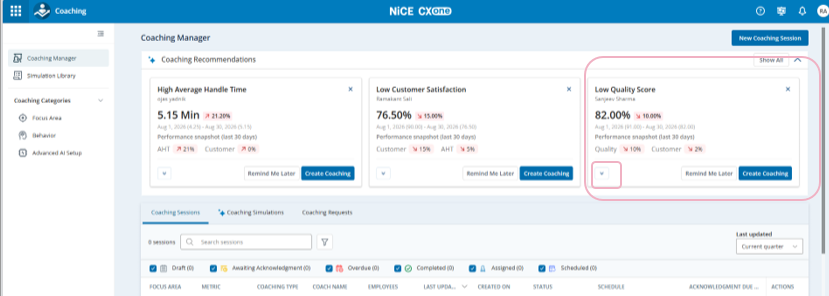
Recommendations are displayed at the top of the Coaching Manager page as recommendation cards. The highest-priority recommendations are displayed first. Supervisors can review high-priority recommendations as cards or open the complete recommendation list.
To view coaching recommendations:
-
Click the app selector
and select Coaching. -
Select Coaching Manager.
-
Locate the Coaching Recommendations section.
-
Review the recommendation cards displayed at the top of the page.
-
To see additional information for a recommendation, select the expand control on the recommendation card.
-
Review the following available information:
-
Agent name: Identifies the agent whose performance, quality, or behavioral metrics triggered the recommendation.
-
Current metric value: Shows the current value of the performance or quality metric being evaluated, helping supervisors understand the agent's present performance level.
-
Reporting or evaluation period: Indicates the period over which the agent's interactions, evaluations, or performance data were assessed to generate the recommendation.
-
Metric trend: Shows whether the metric is improving, declining, or remaining stable. Trend indicators help supervisors quickly identify performance patterns that may require coaching attention.
-
Performance insight: Explains why the recommendation was generated by highlighting key findings from the agent's performance data, interaction analysis, evaluation results, or historical coaching outcomes. For example: Quality scores continue to decline despite previous coaching, indicating recurring quality behaviors require reinforcement.
-
Coaching recommendation: Lists specific coaching activities or discussion points recommended by the system to help improve the agent's performance, quality, or behavior.
Examples:
-
Coach on conversation quality and complete resolutions.
-
Review recent evaluations together.
-
Reinforce best practices for customer interactions.
-
-
-
Complete one of the following actions:
-
Select Create Coaching to create a coaching session.
-
Select Remind Me Later to defer action on the recommendation.
-
Close the card if no immediate action is required.
-
To view all coaching recommendations:
-
Click the app selector
and select Coaching. -
Select Coaching Manager.
-
Locate the Coaching Recommendations section and click Show All.
-
Review the complete list of recommendations.
-
To find recommendations for a specific agent, enter the agent’s name in Search Agent Name field.
-
Filter the list by selecting one or more recommendation statuses:
-
New
-
Sessions Created
-
Remind For Later
-
Dismissed
-
-
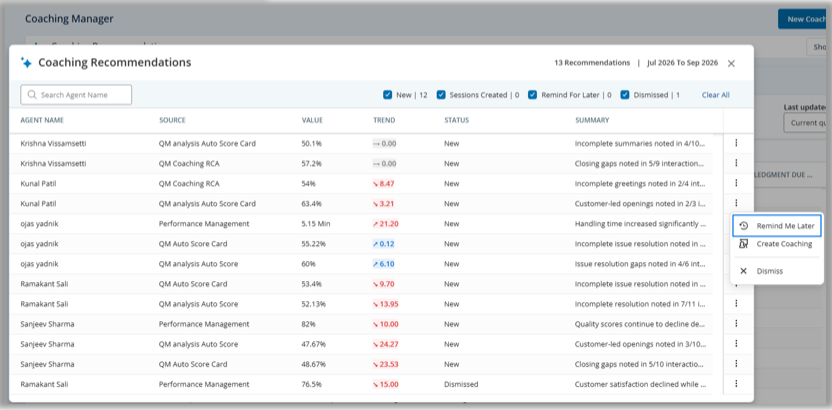
The Coaching Recommendations page displays all recommendations and their status.
-
To take action on a recommendation, select one of the following:
-
Create Coaching: To complete the Coaching session details.
-
Remind me Later: The recommendation remains available for future review.
-
Dismiss: The recommendation is removed from the active recommendation list.
-